
Table of Contents
Importing content into WordPress should feel like moving into a new home – organized, intentional, and on your terms. Instead, most WordPress import tools operate like a moving truck that dumps everything in your living room and drives away. Selective import WordPress posts is the capability that finally gives site owners and developers the control they’ve always needed: choose what comes in, preview it first, set its publication status, and import only what belongs. In this guide, we’ll cover everything you need to know about how selective import works, why it matters, and how to implement it using the latest v1.4.0 features – available free from the WordPress plugin repository.

What Is Selective Import for WordPress Posts and Pages?
Standard WordPress import tools – including the native WordPress importer – have one mode: all-in. Load a file, run the import, everything in the file lands on your site. If you’re importing a 500-post export file but only need 30 of those posts, you’re stuck either cleaning up 470 unwanted entries afterward or manually filtering the export file in ways most users aren’t equipped to do.
Selective import WordPress posts changes this entirely. It means the import tool reads your export file first, shows you what’s inside, lets you pick individual posts or pages, and only imports your chosen content. Combined with the ability to set the publication status of imported content – public, private, or draft – before the import runs, you get a genuinely professional-grade content migration workflow.
This level of control is what content teams, web agencies, and serious WordPress administrators have been waiting for – and version 1.4.0 delivers it natively inside your WordPress admin. Check the full documentation to see every option available.
Key Selective Import WordPress Posts Features in Version 1.4.0
The 1.4.0 release brought three major capabilities to the import side of the plugin. Here’s a detailed breakdown of each and how they translate into real workflow advantages.
Preview Content Before You Import
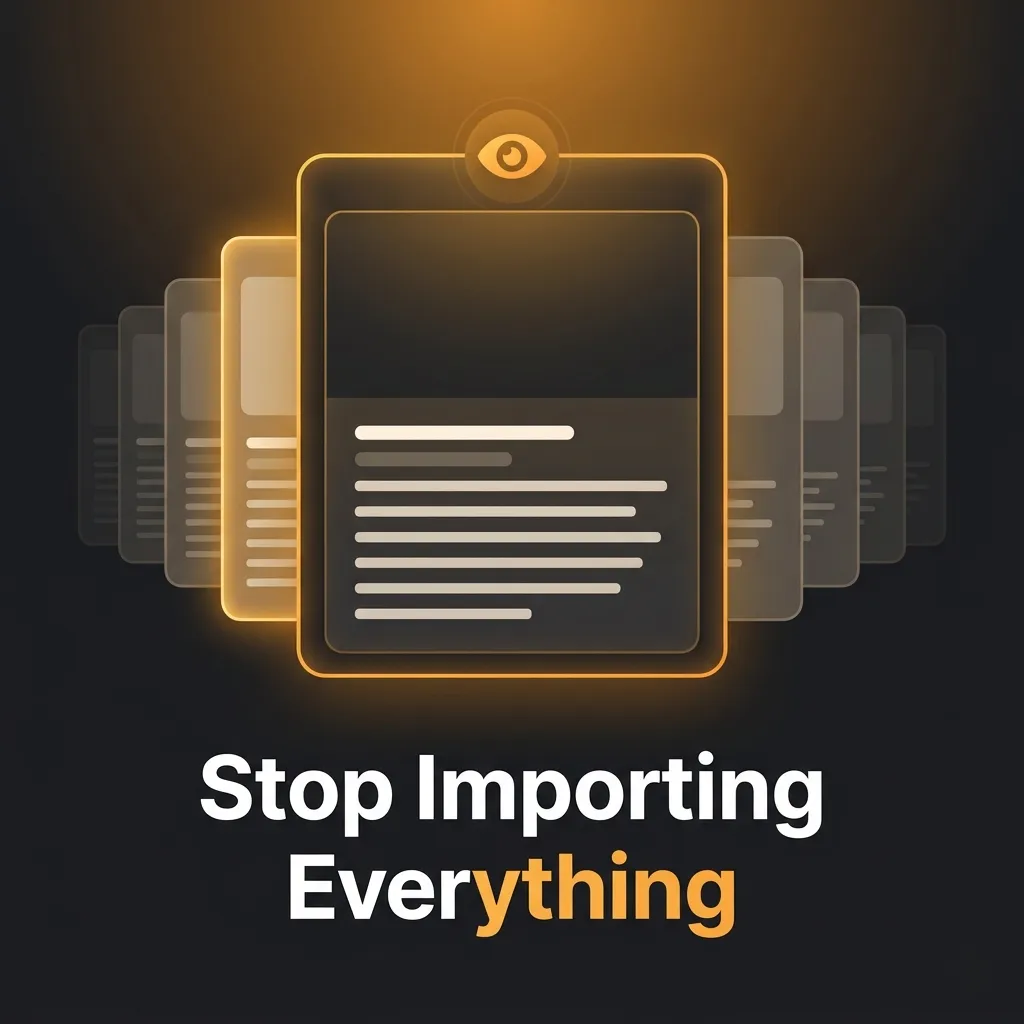
This is the feature that separates professional import tools from basic ones. When you load an export file, the plugin reads it and presents a structured preview of everything inside – post titles, content types, publication dates, categories, and more. You can review every post before a single piece of content touches your WordPress database.
For content teams merging multiple sites, this preview capability is invaluable. Imagine receiving an export file from a contractor and being able to see every post before it enters your system. No surprises, no cleanup, no “wait, that shouldn’t be on our live site” moments after the fact.
Choose Individual Posts – Not the Whole File
Once you’ve previewed the import file, selective import WordPress posts lets you tick exactly which items you want to bring in. Importing a file with 200 posts? Select 15 of them. The other 185 are simply ignored during the import process – no additional cleanup required.
This is particularly powerful for content curation workflows. Editorial teams evaluating content from partner sites or freelance contributors can review, select only approved pieces, and import them directly into their WordPress site. The workflow that used to require manual copy-paste becomes a clean, trackable, repeatable process.
Select Specific Pages for Targeted Page Migration
Selective import works for pages too – and it preserves everything that makes WordPress pages complex: parent-child hierarchy, page templates, page attributes, featured images, and metadata. Select a parent page and its child pages together, and the hierarchical relationship is maintained. Select only a child page, and it imports cleanly as a standalone page.
This is mission-critical for agencies managing multi-phase site launches. Launch your homepage, about page, and services section in phase one – then selectively import the remaining pages in subsequent phases without touching what’s already live.
Set Import Status: Public, Private, or Draft
Perhaps the most underappreciated feature in the v1.4.0 release is the ability to set the publication status of imported content before the import runs. By default, most import tools respect whatever status the content had in the export file – which means published content arrives published. But that’s not always what you want.
With this status override, you can import everything as Draft first – review it in your new environment, make adjustments, then publish manually. Or import partner content as Private so only logged-in administrators can see it while it awaits editorial approval. This status control turns selective import WordPress posts from a technical operation into an editorial workflow tool.
“Importing content as Draft first, then publishing after review, has become our standard workflow for all client site mergers. The status override feature makes this trivially easy.”
Automatic Media Import – Featured Images and Inline Images Included
Selective import WordPress posts wouldn’t be complete without media handling. Every post or page you select for import brings its media with it: featured images, inline images, gallery attachments, and file uploads. The smart media engine checks whether a file already exists in your media library – if it does, it reuses the existing file to avoid duplicates. If it doesn’t, it downloads the file automatically from the original source URL.
According to WordPress developer documentation on importers, handling media during import is one of the most technically complex challenges in WordPress migration. This plugin abstracts that complexity entirely, delivering clean, linked media on every import – no manual URL fixing, no broken image cleanup.
Step-by-Step: How to Use Selective Import WordPress Posts
Here’s a complete practical walkthrough of the selective import workflow:
- Install and activate the plugin on your destination WordPress site – download it free from WordPress.org (requires WordPress 6.7+, PHP 7.4+).
- Navigate to the Import panel in your WordPress admin via the plugin’s sidebar menu.
- Upload your export file – the file generated by the export side of this plugin or a compatible format.
- Preview the contents – the plugin reads the file and displays all posts or pages found inside, with titles and metadata visible.
- Select your content – check the boxes next to every post or page you want to import. Leave the rest unchecked.
- Set the import status – choose Public, Private, or Draft for the incoming content.
- Run the import – watch the real-time progress bar and timestamped logs as each post and its media files are brought into your site.
- Review results – the import summary shows successful imports, skipped duplicates, and any errors with actionable details.
For detailed configuration options and advanced settings, refer to the official plugin documentation. If you run into issues or have questions, the support page offers both community and premium assistance.
Real-World Use Cases for Selective Import
Merging Multiple WordPress Blogs Into One Site
When two brands merge or a company consolidates its content properties, individual blog archives need to be combined. Selective import WordPress posts makes this surgical – pick exactly which legacy posts deserve a place on the new consolidated site, import them with their media, and leave the rest behind.
Editorial Review and Content Approval Workflows
Content teams receiving posts from freelancers or partner contributors can import them as Draft, review them in the WordPress editor with full formatting and media intact, then publish individually after editorial approval. This is a workflow that previously required manual copy-paste for every post.
Phased Site Launches
Agencies launching large sites don’t always release all content simultaneously. Selective import lets them push content in phases – launch the product pages first, then selectively import the blog archive, then bring in the resource library – without importing everything at once and dealing with the visibility risk of unpublished content going live prematurely.
For agencies running phased migrations, our guide on pushing WordPress staging sites to production cleanly pairs perfectly with selective import workflows.
Free vs Pro: What’s Included?
The free version available on the WordPress plugin repository includes the full selective import workflow for posts and pages – more than enough for most individual site owners and small teams. If your needs grow, the Pro version adds expanded capabilities, priority support, and advanced scheduling features. You can see the full comparison on the plugin landing page.
Selective Import vs. Full Import: When to Use Each
Full import is appropriate when you’re doing a complete site migration – moving everything from one WordPress installation to an identical one, with no curation needed. If all content is going across and it’s all approved for immediate publication, full import is faster.
Use selective import WordPress posts when: you’re merging partial content from multiple sources, you need editorial review before publication, you’re migrating in phases, you’re curating from a larger archive, or you need different publication statuses for different content groups. As a rule of thumb, if you’d normally import and then immediately delete some posts – use selective import instead and skip the cleanup entirely.
For a broader look at WordPress migration best practices, WPBeginner’s guide to WordPress migration covers the foundational strategy well, and selective import complements every approach they outline.
Also read: How to export WordPress posts with media files – the companion guide to building your selective export file before import.
FAQ: Selective Import WordPress Posts
Will selective import WordPress posts overwrite my existing content?
No. By default, the plugin only imports new posts. If a post with the same title or content already exists, it is skipped rather than overwritten. Existing content remains untouched throughout the process.
Can I import pages and posts in the same import operation?
Yes. The plugin handles posts and pages through the same selective import interface. You can select a mix of post types from your import file and bring them all in together in a single operation.
What if media files from the original site are no longer available?
The plugin attempts to download media from original source URLs when the files aren’t packaged in the export. If a URL is no longer accessible, it logs the specific error with details so you can manually source the missing file. You won’t lose the entire import over a single missing image.
Where can I request a feature or get support?
Feature requests and premium support are handled through the official support page. For self-service help, the documentation covers every feature in detail. You can also stay up to date with new features and tips on the plugin blog.
Does selective import preserve categories, tags, and custom fields?
Yes. Every post imported through the selective import system carries its full metadata – categories, tags, custom fields, post author attribution, publication date, and any associated taxonomies. Selective import WordPress posts means complete post objects, not stripped-down content copies.
Conclusion: Smart Imports Start With Selection
The days of importing everything and cleaning up afterward are over. Selective import WordPress posts puts the decision-making power back in your hands – preview the content, select what belongs, set the publication status that fits your workflow, and run a clean, media-inclusive import. Whether you’re merging archives, onboarding freelancer content, or launching in phases, selective import is the WordPress migration feature that turns a chaotic process into a controlled one. Install the free plugin today, explore the full feature set, and import exactly what you need – on your terms.









Leave a Comment
Your email address will not be published. Required fields are marked *