
Table of Contents
Have you ever migrated a WordPress site only to discover that every post now shows “admin” as the author – because the original users didn’t exist on the new site? If you’ve dealt with this nightmare, you’re not alone. WordPress user import export has historically been one of the messiest parts of site migration. But that changes today. The Post Export Import with Media plugin just shipped a completely rebuilt Users Export/Import system – and it’s a genuine game changer for developers, agencies, and site owners moving content between WordPress installations.
In this guide, we’ll walk through every new capability – from smart author mapping and hashed password transfers to WooCommerce customer data and ACF user field support – so you know exactly what this update makes possible.
The Old Problem: Why WordPress User Import Export Was Broken
Before this update, when you exported posts from one WordPress site and imported them to another, the plugin stored only a numeric post_author ID in the JSON file. If User ID 5 didn’t exist on the destination site, WordPress would silently reassign authorship to the admin user – with no warning, no log, and no recovery path.
This created a cascade of problems: author pages broke, bylines displayed incorrectly, WooCommerce orders lost their customer associations, and CPT (Custom Post Type) author relationships went completely missing. For agencies running multi-site operations or content studios migrating between staging and production, this wasn’t just inconvenient – it was a serious data integrity issue.
The core issue was that user identity was tied to an internal database ID – a number that means nothing outside a single WordPress installation.
The new WordPress user import export feature solves this at the root. Instead of relying on fragile numeric IDs, the system now exports rich user profile data and matches users on import using human-readable, cross-site identifiers like username and email address.
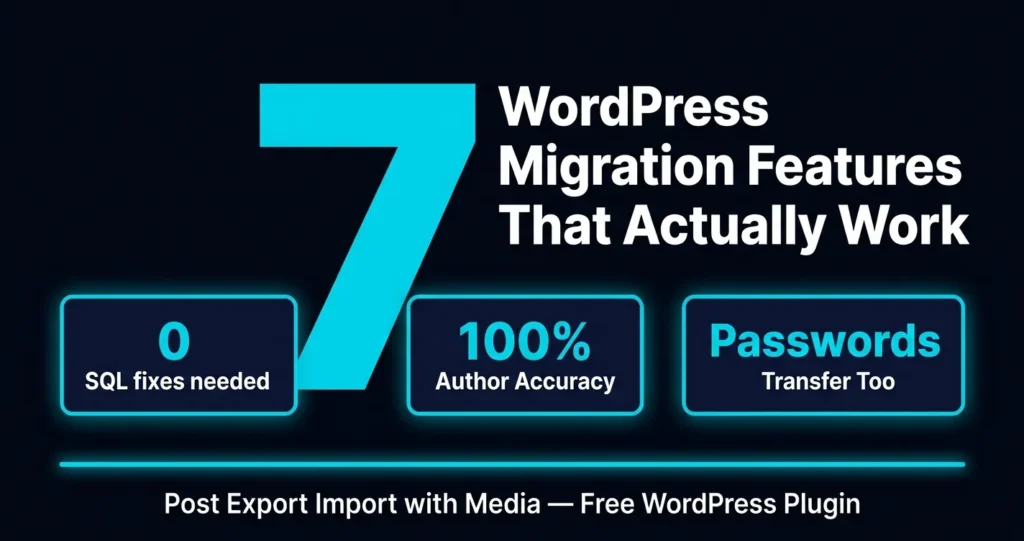
7 Powerful WordPress User Import Export Features Explained
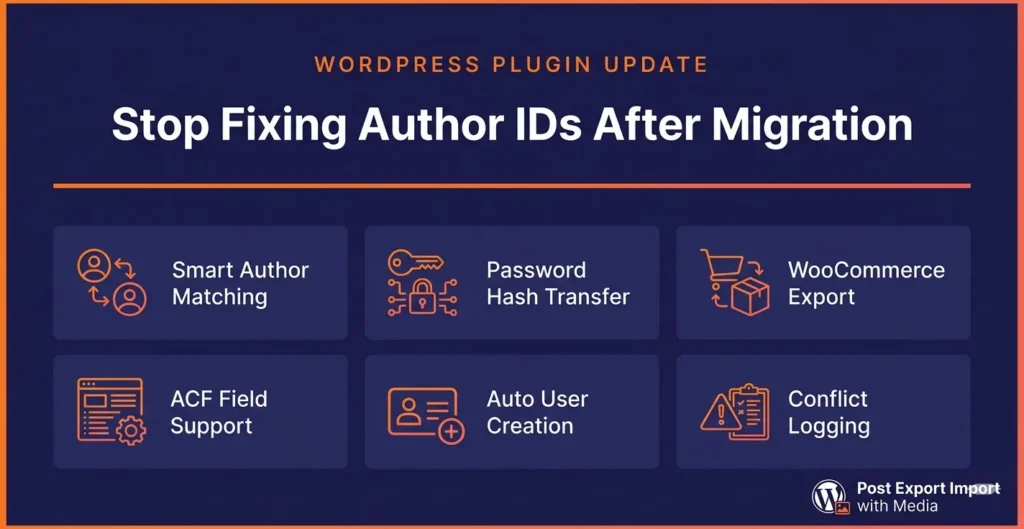
1. Smart Author Mapping (Match by Username or Email)
The most impactful change is how the system resolves author identity. Instead of matching by database ID, the importer now tries to find the correct user by username (user_login) first, then falls back to email address. This means if “jane.doe” exists on both sites – even with different user IDs – her posts will be correctly attributed to her on the destination site automatically.
This single change eliminates the most common post-migration cleanup task that developers have been doing manually for years. No more running SQL queries to fix author IDs after import. No more building spreadsheet mapping tables. The smart lookup handles it at import time.
2. Automatically Create Missing Users on Import
When a post’s author doesn’t exist on the destination site at all, the importer can now automatically create the missing user account. This is configured in the plugin’s “Themes & Plugins Toolkit” settings under User Import Defaults. You can set a default password for newly created accounts, or let the system auto-generate a strong, unique password per user.
Combine this with the “Send welcome email” option and new users receive their login credentials automatically – the moment their account is created during import. If your server email isn’t configured, the plugin notes this in the import summary rather than failing silently.
3. Dedicated Users Export with Hashed Password Support
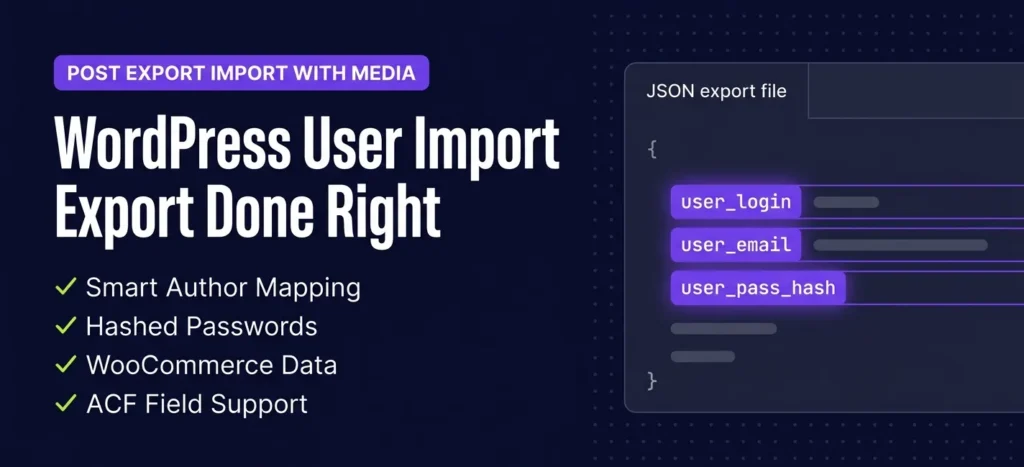
The plugin now includes a fully standalone Users Export tool that exports a comprehensive JSON file covering every aspect of a user account. Here’s what gets exported:
- Basic Info – user_login, user_email, display_name, user_registered, user_nicename, user_url, user_status, locale, and roles
- Hashed Password – The encrypted WordPress password hash, enabling users to log in immediately after import with their existing credentials
- User Meta & Capabilities – Custom capabilities, meta_capabilities, and plugin-stored role data
- WooCommerce Data – billing_address, shipping_address, and wc_last_active timestamps
- ACF User Fields – All Advanced Custom Fields attached to user profiles
- CPT Authorship – Which Custom Post Types this user authored, enabling accurate remapping on import
The hashed password inclusion is particularly significant. WordPress uses the phpass hashing library for password storage. By transferring the hash directly, users don’t need to reset their password after a migration – a major UX improvement for membership sites and client portals.
4. Post Author Data Now Embedded in Post Export JSON
Even when you’re not doing a dedicated users export, the system now embeds rich author data directly inside every post’s export JSON. Previously, posts stored only a numeric post_author field. Now they include a full post_author_data object:
"post_author_data": {
  "user_login": "jondoe2",
  "user_email": "jondoe2@gmail.com",
  "display_name": "jondoe2",
  "role": "administrator",
  "user_pass_hash": "$P$BoxKP9dZB***********."
}
This means even a standard post export now carries enough information to create the author account on the destination site if it doesn’t exist – without requiring a separate users export step. The import process uses this data to match, create, or map users intelligently.
5. WooCommerce User Data Migration
For store migrations, WordPress user import export now covers WooCommerce customer data fully. Billing addresses, shipping addresses, and the wc_last_active timestamp are all included in the export. This means customer accounts move to the new store with their full purchase history context intact – reducing the post-migration support burden significantly.
This pairs naturally with the plugin’s existing WooCommerce order export capabilities. You can now migrate both the order data and the customer profiles in a single coordinated workflow, rather than piecing together multiple plugins or custom scripts. For agencies managing WooCommerce store migrations, this is a substantial time saver.
6. ACF User Fields Support
Advanced Custom Fields is used on a huge percentage of WordPress sites to extend user profiles with custom data – things like member bio fields, profile images, subscription tiers, preferences, and more. The new export system captures all ACF user fields and includes them in the export JSON.
On import, these fields are written back to the user’s meta, meaning custom profile data travels with the user account seamlessly. For membership sites, learning management systems, or any site with extended user profiles, this prevents the loss of profile data that previously happened during migrations.
7. Flexible Import Options with Conflict Logging
When importing users from a previously exported JSON file, existing users (matched by username or email) are automatically skipped to prevent duplicates.
- Use the exported password hash – Users log in with their original credentials immediately
- Set a default password – All imported users get the same password (useful for controlled onboarding)
- Auto-generate – Each user gets a unique strong password generated automatically
The “Try to preserve original user IDs” option is another standout feature. It attempts to maintain the original database user ID from the source site – critical when other tables or plugins reference user IDs directly. Where conflicts occur (because the ID is already taken), these are logged in the import summary rather than failing the whole import.
How the WordPress User Import Export Workflow Works
Here’s the full end-to-end workflow for migrating users between WordPress sites using this feature:
- Configure defaults – Go to Themes & Plugins Toolkit → User Import Defaults. Set your default password policy and whether to send welcome emails.
- Export users – On the source site, open the Users Export tool. Select which data to include (basic info, passwords, WooCommerce data, ACF fields, CPT authorship). Download the JSON file.
- Export posts – Run a standard post export. Each post’s JSON now automatically includes the
post_author_datablock with author credentials. - Import users on destination – Upload the users JSON. Choose password handling and ID preservation options. Review the import summary for any conflicts or skipped accounts.
- Import posts – Run the post import. The system matches authors by username/email, creates missing users automatically if configured, and maps all posts correctly.
- Verify – Check the import summary log. Review any conflicts. All author bylines, WooCommerce customer data, and ACF user fields are now intact.
For a full walkthrough of the post export process, see our complete Post Export Import with Media guide.
Who Benefits Most from This WordPress User Import Export System
WordPress Development Agencies
Agencies building sites on staging servers and deploying to production face this problem constantly. The old workflow required manual SQL work or custom scripts to map user IDs. Now it’s handled entirely within the plugin, reducing migration time and the chance of human error.
WooCommerce Store Owners
Moving a WooCommerce store means moving customer accounts. With billing addresses, shipping addresses, and WooCommerce activity data now included in the export, store owners can migrate customer profiles without losing any purchase context or requiring customers to re-enter their information.
Membership Site Administrators
Membership sites often have hundreds or thousands of user accounts with extended profile data stored in ACF fields or user meta. The new export captures all of this data, and the import’s duplicate-skip logic ensures existing members aren’t accidentally overwritten during a partial re-import.
Multi-Author Content Publishers
News sites, blogs, and content studios with multiple contributors can now migrate their entire author roster – including credentials – in a single export/import cycle. Authors log in to the new site with the same username and password they’ve always used. No password reset emails, no support tickets.
WordPress User Import Export vs. The Old Way: A Real Comparison
To appreciate how much has changed, here’s a side-by-side look at the old workflow versus the new one:
- Author mapping (old): Numeric ID only → breaks if IDs don’t match | (new): Match by username or email → works across any two sites
- Missing users (old): Silently reassigned to admin | (new): Auto-created with correct profile data
- Passwords (old): Not transferred, users must reset | (new): Hash transferred, users log in immediately
- WooCommerce data (old): Not included | (new): Billing, shipping, last_active all exported
- ACF user fields (old): Lost on migration | (new): Fully exported and imported
- Conflict handling (old): Silent failure | (new): Detailed import summary log
If you’re also dealing with media file migration, read our guide on WordPress media migration with Post Export Import.
Frequently Asked Questions
Does WordPress user import export work with multisite?
The current implementation is designed for standard WordPress single-site installations. For multisite environments, user roles and capabilities can vary by subsite, so testing in a staging environment first is recommended. The plugin’s conflict logging will surface any ID or role conflicts during import.
Is it safe to export and import hashed passwords?
Yes. WordPress stores passwords as one-way hashes – the actual password is never stored or transmitted in plaintext. Transferring the hash between sites is the same as what WordPress does internally. The hash is only useful on a WordPress site using the same hashing algorithm, so there’s no cross-system security risk. This is also how many professional migration tools handle WordPress user import export for membership sites.
What happens if a user ID conflict occurs during import?
If you’ve enabled “Try to preserve original user IDs” and the target ID is already taken, the import creates the user with a new auto-assigned ID and logs the conflict in the import summary. Posts are still correctly mapped to that user via the username/email lookup – the ID conflict doesn’t break author attribution.
Do I need to run a users export before importing posts?
No. If “Automatically create missing users” is enabled, the post importer reads the post_author_data embedded in each post’s JSON and creates user accounts on the fly during post import. A separate users export is optional – but recommended when you also need to migrate WooCommerce customer data, ACF user fields, or user meta.
What if my server can’t send email?
If server email is not configured and you have “Send welcome email” enabled, the plugin silently skips the email and notes this in the import summary. User accounts are still created successfully. You can configure WordPress email using a transactional email plugin like WP Mail SMTP to ensure reliable email delivery before running your next import.
Conclusion: WordPress User Import Export Finally Works the Way It Should
The new WordPress user import export system in Post Export Import with Media addresses a problem that’s frustrated WordPress developers and site administrators for years. By moving away from fragile ID-based author mapping to a smart username/email lookup system – and by bundling rich user data including hashed passwords, WooCommerce fields, and ACF data into the export – the plugin now handles the full complexity of real-world site migrations.
Whether you’re an agency running monthly client migrations, a WooCommerce merchant moving to a new host, or a content publisher onboarding a new team to an existing site, this feature set removes the manual cleanup work that used to follow every migration. Install the free plugin, configure your User Import Defaults, and run your next migration with confidence.








Leave a Comment
Your email address will not be published. Required fields are marked *