
Table of Contents

Most visitors never open a website chat widget. They message you on WhatsApp instead, or they DM your Telegram channel, or they simply expect whoever answers to sound like they know what they’re talking about. If your AI live chat plugin only lives inside a floating bubble on your site, you’re missing every one of those conversations. AskAny’s 1.15.0 update closes that gap: your AI chatbot now answers on Telegram and WhatsApp using the same indexed content as your website widget, and your human agents get an AI second pair of eyes before they hit send, plus the ability to share files mid-conversation. This post walks through all four features, how to set each one up, and why they matter for support teams who are tired of switching tabs.
What Makes an AI Live Chat Plugin Actually Useful?
A chatbot that answers from thin air is a liability, not a feature. The reason RAG (Retrieval-Augmented Generation) matters for any serious AI live chat plugin is that it forces the AI to look up your actual content, your actual order data, and your actual FAQ entries before it says anything to a visitor. Bolt that onto a channel visitors already use every day, like Telegram or WhatsApp, and you’ve turned a website widget into a real support desk that follows customers wherever they are.
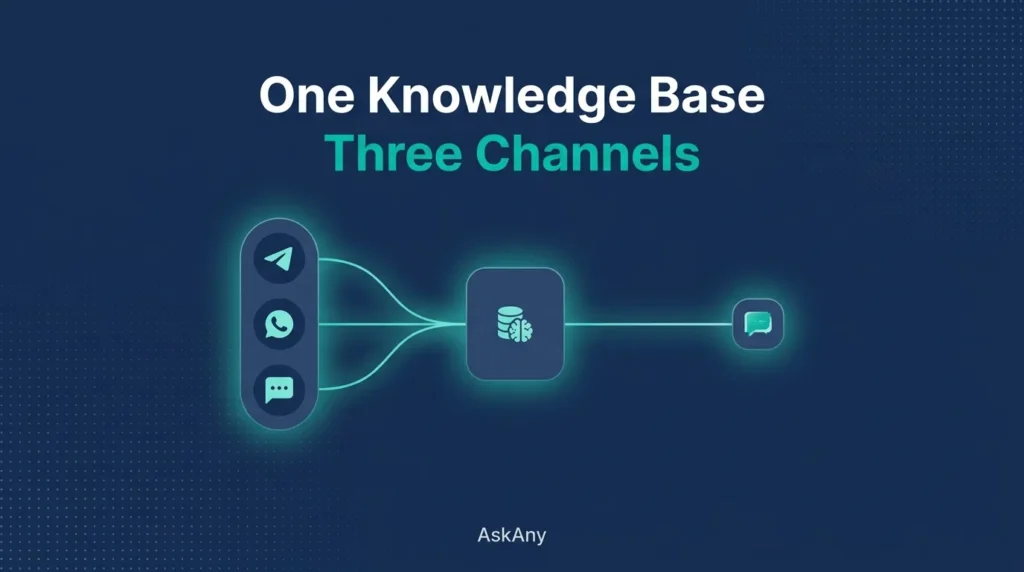
That’s the idea behind this release. AskAny doesn’t add a second, disconnected chatbot for Telegram and a third one for WhatsApp. Every channel pulls from the same content index, the same order lookup, and the same Q&A pairs your website widget already uses. One brain, three doors in.
4 New Features in This AI Live Chat Plugin Update
1. Telegram Bot Integration
Telegram has over 900 million active users worldwide, and for a lot of businesses, especially in Eastern Europe, South Asia, and the Middle East, it’s the primary channel customers reach out on, not email or a contact form. AskAny now connects to your own Telegram Bot, so anyone who messages it gets an answer generated from your indexed WordPress content, not a canned reply.
Setup takes about two minutes. Head to AskAny AI > Integrations, paste in your bot token from Telegram’s BotFather, and toggle it on. From that point forward, every message your bot receives is routed through the same RAG pipeline as your website chat widget, meaning it can reference your posts, pages, products, PDFs, and Q&A entries, and it can still track a WooCommerce order if a customer asks about one.
2. WhatsApp via Twilio
WhatsApp is the default messaging app for over 2 billion people, and for many online stores it’s already where pre-sale questions and order complaints land, whether the store planned for that or not. AskAny connects to WhatsApp through Twilio’s WhatsApp Business API, so once you link your Twilio number under AskAny AI > Integrations, customers get the same cited, RAG-grounded answers over WhatsApp that they’d get from your website’s AI live chat plugin widget.
There’s no separate WhatsApp bot logic to build or maintain. It shares the content index, the WooCommerce order lookup, and the live agent handoff with every other channel. If a WhatsApp conversation needs a human, it shows up in the exact same admin chat panel as a website or Telegram conversation.
3. AI-Reviewed Compose for Live Agents
This is the feature support teams tend to get excited about first. When a human agent takes over a conversation from AskAny, they can type a reply in the Compose Message editor and click Review with AI before sending anything.
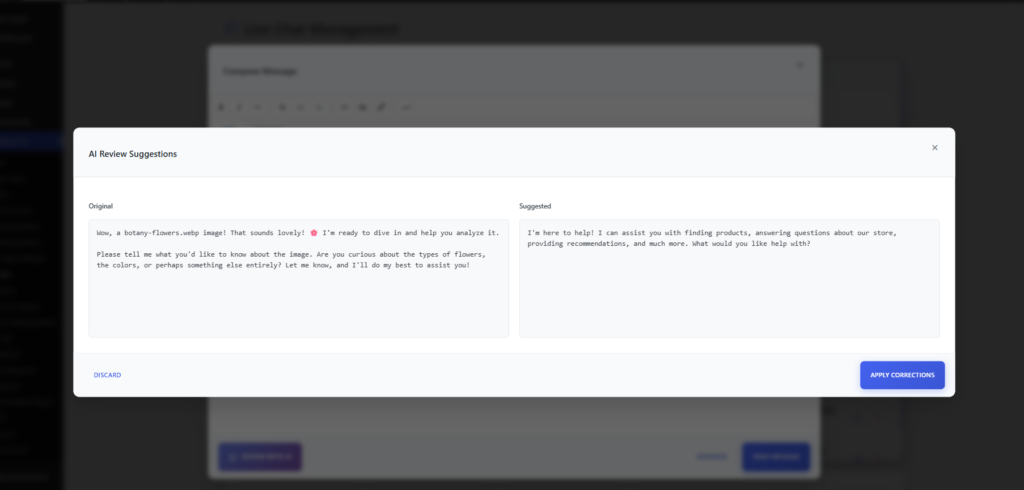
Under the hood, AskAny AI > Assistant Settings lets you enable AI Message Review and customize the exact prompt the AI uses to evaluate drafts. Out of the box, it checks a message for clarity, grammar, and tone, and returns a suggested rewrite. In practice, that means an agent can dash off a quick, informal reply, and the AI review step will tighten the wording, fix any typos, and match the tone of voice you’ve set for the brand, without the agent needing to rewrite it themselves.
When the review comes back, agents see the original and the suggested version side by side. They can click Apply Corrections to swap in the AI’s version, or Discard to keep their own wording and send that instead. Nothing goes out automatically; the human still has the final say on every message.
- Fully optional: leave the toggle off and Compose works exactly as before
- Custom review prompt, so you control tone, formality, and what “improved” means for your brand
- Side-by-side comparison before anything is applied, agents stay in control
4. File Attachments in Live Chat
Support conversations are rarely just text. A customer wants to show you a damaged product photo, or they need a PDF invoice sent back to them, or an agent wants to hand over a spec sheet mid-conversation. AskAny’s live chat now supports attachments on both sides of the conversation.
Under AskAny AI > Settings > File Attachments, you control this independently for visitors and for admins: Enable File Attachments lets users attach files to their chat messages, and Enable Admin File Uploads lets your agents do the same when responding. You choose exactly which file types are allowed, JPEG, PNG, GIF, and WebP images plus PDF documents are on by default, with MP4 and WebM video available as an opt-in. You can also cap the maximum file size per upload (1 to 100 MB) and the maximum number of files per message (1 to 20).
Every file a customer or agent sends shows up inline in the conversation and in a dedicated Attachments panel next to the chat, alongside the visitor’s name, email, IP address, and session details, so agents have full context without digging through a separate media library.
How to Set Up Your AI Live Chat Plugin for Telegram and WhatsApp
None of these features require touching a line of code. Here’s the setup order that avoids the most confusion:
- Make sure your content index is already built under AskAny AI > Content Index, since Telegram and WhatsApp both pull from the same index as your website widget.
- Go to AskAny AI > Integrations, and create a Telegram bot with BotFather if you don’t already have one, then paste the token in and save.
- In the same panel, connect your Twilio account and WhatsApp-enabled number for the WhatsApp integration.
- Under AskAny AI > Assistant Settings, turn on AI Message Review if you want agents to have the compose-and-review workflow, and adjust the review prompt to match your brand voice.
- Under AskAny AI > Settings > File Attachments, enable attachments for visitors, admins, or both, and set your file type, size, and count limits.
Test each channel with a real message before rolling it out publicly. Ask your Telegram bot a question you know is answered on your site, then do the same over WhatsApp, and confirm both replies cite the right content.
Why an Omnichannel AI Live Chat Plugin Matters for Support Teams
Picture a WooCommerce store that ships internationally. A customer in Dhaka messages a question over WhatsApp about a delayed order. A customer in Berlin asks about return policy on Telegram. A third visitor is on the website widget asking whether a product is back in stock. Without an AI live chat plugin that unifies these channels, that’s three different inboxes, three different response times, and three different stories the same brand tells depending on which app someone happened to open.
With AskAny, all three conversations land in one admin chat panel, get answered from the same order data and content index, and can be handed to a human agent the moment the AI can’t resolve something, complete with attachments and an AI-assisted reply if the agent wants it. For a small team running support without a dedicated helpdesk platform, that consolidation is the difference between keeping up with messages and drowning in them.
This also matters for stores relying on WooCommerce order tracking as a core support feature — a customer asking “where’s my order” over WhatsApp gets the exact same live order status as one asking on the website, because the lookup logic doesn’t care which channel the question came in on.
Pro Tips for Getting the Most Out of AI-Reviewed Replies
The AI Review Prompt field is the part of this AI live chat plugin update most people underuse. The default prompt asks the AI to fix grammar and tone, which works fine, but you can go further:
- Add a line telling the AI to always steer generic replies toward a specific call to action (product recommendation, order lookup, contact form) instead of a vague “let me know if you need anything else.”
- Specify a reading level or formality target if your brand voice is casual or highly technical.
- Ask new agents to run every reply through review for the first few weeks. It functions as an on-the-job style guide without anyone having to write a formal one.
On attachments, a sensible default for most stores is to keep the file type list to images and PDFs, and only enable video if agents specifically need to receive screen recordings from customers. Smaller allowed file sizes also mean faster load times inside the chat panel itself.
Frequently Asked Questions
Do Telegram and WhatsApp cost extra to use with AskAny?
The AskAny integration itself is free. Telegram bots are free to create and run. WhatsApp goes through your own Twilio account, so you’ll pay Twilio’s standard messaging rates, but there’s no markup or middleman fee from AskAny.
Does the AI review every message automatically, or only when an agent asks?
Only when an agent clicks Review with AI. Nothing is sent to a visitor without the agent approving it first, and the feature can be toggled off entirely under AskAny AI > Assistant Settings.
Can I limit which file types visitors are allowed to upload?
Yes. Under AskAny AI > Settings > File Attachments you can check or uncheck JPEG, PNG, GIF, WebP, PDF, MP4, and WebM individually, and set a maximum file size and file count per message.
Do Telegram and WhatsApp conversations use the same knowledge base as my website widget?
Yes, every channel in this AI live chat plugin shares one content index, one WooCommerce order lookup, and one conversation history system, so answers stay consistent no matter where a visitor reaches out.
Can a human agent take over a Telegram or WhatsApp conversation the same way as a website chat?
Yes. All conversations, regardless of channel, appear in the same Live Chat Management panel, where an agent can assign themselves, reply directly, use AI-reviewed compose, and attach files just like a website widget conversation.
Conclusion
This update turns AskAny from a website widget into a genuine AI live chat plugin that meets customers wherever they already are, Telegram, WhatsApp, or your site, while giving human agents an AI-assisted safety net and the ability to share files without leaving the conversation. None of it requires a developer to set up, and none of it locks any of these features behind a paid tier. If you’re currently juggling separate inboxes for WhatsApp, Telegram, and your website, this is the update that lets you stop.
Ready to try it? Update to AskAny 1.15.0 and connect your first channel under AskAny AI > Integrations, or read the full RAG chatbot setup guide if you’re starting from scratch.






Leave a Comment
Your email address will not be published. Required fields are marked *