🎯 How to Redirect to a Thank You Page After Form Submit in Simple Form #
After a successful form submission, it’s important to confirm that the submission was received. With Simple Form, you can easily redirect users to a Thank You Page or a custom URL of your choice.
This feature improves user experience and helps you track conversions efficiently.
⚙️ Step 1: Open Form Settings in Simple Form Editor #
Like before:
- Open your desired form in the Simple Form Editor.
- Click on the Settings icon on the right-hand side.
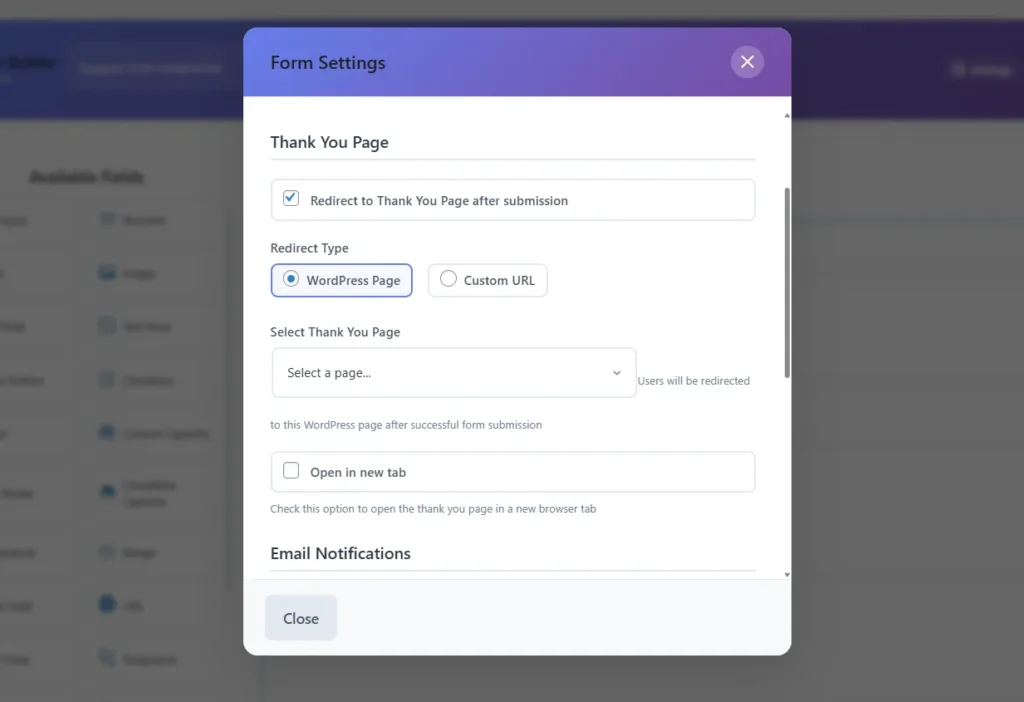
- When the modal appears, locate the “Thank You Page” option.
🧭 Step 2: Enable Redirect Option #
Inside the modal, you’ll find an option for “Thank You Page”.
- Check the radio field to enable it.
- Once checked, new settings will appear labeled Redirect Type.
🔀 Step 3: Choose Redirect Type (WordPress Page or Custom URL) #
You can choose between two redirect options:
- Select Thank You Page:
Choose any existing WordPress page to redirect users to, such as/thank-you/. - Custom URL:
Enter a full URL where you want users to go after submission (for example,https://yourdomain.com/thank-you-offer/).
Additionally, you can enable the “Open in New Tab” option to keep your original page accessible.
🧰 Step 4: Save and Test the Redirect #
After selecting your redirect type and target page:
- Click Save Settings.
- Test your form on the front end by submitting a test entry.
- The form should now successfully redirect to your chosen Thank You page.
🧠 Why Use a Thank You Page? #
A Thank You Page is not just a confirmation step—it’s an opportunity to:
- Show appreciation to your visitors.
- Offer next steps (download, subscribe, schedule).
- Track conversions using tools like Google Analytics or Meta Pixel.
You can learn more about conversion tracking best practices at HubSpot’s Conversion Optimization Guide
🧩 Why You Should Redirect to a Thank You Page #
Redirecting to a Thank You Page in Simple Form is more than just a visual confirmation it’s a marketing and analytics opportunity.
Here are a few key benefits:
🎯 1. Confirmation of Submission #
Reassures your users that their form submission was successful.
It also reduces confusion and multiple submissions.
📈 2. Conversion Tracking #
Thank You Pages are ideal for tracking conversions using tools like Google Analytics or Meta Pixel.
By setting up a unique Thank You Page URL, you can monitor completed form submissions as conversions.
👉 Learn more about conversion tracking from Google Analytics’ Official Documentation
💬 3. Offer Next Steps #
You can use your Thank You Page to encourage:
- Newsletter subscriptions
- Product downloads
- Booking appointments
- Viewing related articles or offers
🏗️ 4. Personalize the Experience #
A thoughtful message on your Thank You Page can help strengthen your brand identity and customer relationship.
🧩 Summary #
The Simple Form plugin by wpazleen provides a clean and powerful interface for customizing your form behavior. You can easily:
- Redirect users to a Thank You Page after form submission.
These features significantly improve user experience and conversion tracking without requiring any coding skills.
🔍 Final Thoughts #
With Simple Form, small details like customizing the redirecting users to a personalized Thank You Page can elevate your WordPress site’s professionalism.
Whether you’re building a contact form, feedback form, or lead capture form, Simple Form gives you the tools to create meaningful user journeys all within an intuitive drag-and-drop editor.










Leave a Comment
Your email address will not be published. Required fields are marked *