
Managing a growing WooCommerce store becomes difficult when orders increase, products grow, and reporting needs become more complex. Shop Explorer WooCommerce Dashboard solves these problems by offering a faster, smarter, and more user friendly WooCommerce dashboard.
Table of Contents
This complete guide answers the most common questions and explains how to use Shop Explorer efficiently.
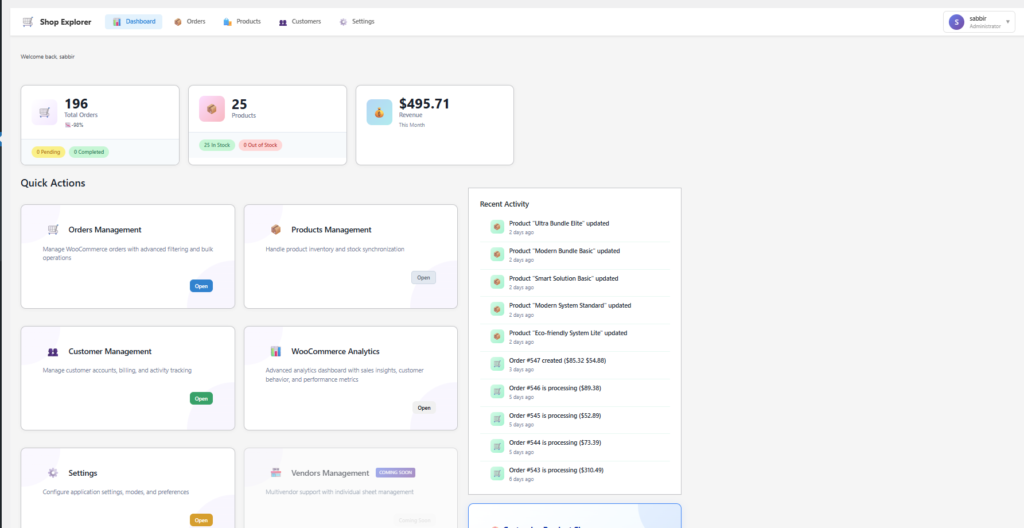
1. How to Activate Bulk Edit Optimization for Shop Explorer WooCommerce Dashboard Orders and Products
Bulk Edit Optimization is a PRO feature designed to safely process large updates without server timeouts or crashes.
To activate it, go to WordPress Admin, open Shop Explorer settings, select the WooCommerce tab, enable Bulk Edit Optimization, configure batch size and activation threshold, then save settings.
This feature is ideal when editing more than one thousand products or orders.
2. How to Export Shop Explorer WooCommerce Orders Products and Customers
Shop Explorer allows exporting WooCommerce data in CSV format for analysis, reporting, or backups.
You can export orders, products, and customers directly from their respective pages. Filters applied on the screen are respected in the export file.
Exports include order details, customer information, product pricing, stock levels, and purchase history.
3. How to Activate and Use Shop Explorer WooCommerce Dashboard
The WooCommerce Analytics Dashboard provides real time insights into orders, revenue, customers, and product performance.
Enable it from Shop Explorer settings under the WooCommerce tab. Once activated, access it from the Shop Explorer menu.
You can view order trends, revenue growth, customer behavior, and top selling products using interactive charts.
4. How to Activate Frontend Dashboard for Orders Products and Customers
The frontend dashboard allows managing WooCommerce data without accessing WordPress admin.
Create a page and add the shortcode [shop_explorer_dashboard]. Then enable orders, products, or customer management via frontend settings.
Access is controlled by WordPress user roles to ensure security.
5. Where to Find Revenue Analytics in Frontend
Revenue analytics appear directly on the frontend dashboard homepage.
You can view total orders, average order value, daily revenue, and interactive charts. Date ranges can be adjusted for deeper analysis.
6. About Top Products Performance in Frontend
The Top Products Performance section displays best selling products based on revenue and quantity sold.
It also shows stock status, helping identify products that need restocking or promotion.
7. How to Use Advanced Filtering for Orders
Advanced filtering helps locate specific orders quickly.
You can filter by order status, date range, price range, item count, and customer details. Sorting options allow instant organization of results.
8. How to Use Advanced Filtering for Products
Product filters include price range, stock quantity, product type, sale status, and featured status.
This makes inventory management faster and more accurate, especially for large catalogs.
9. How to Perform Bulk Operations Safely
Shop Explorer includes confirmation dialogs, selection indicators, and progress tracking to prevent accidental updates.
Always review selected items and start with smaller batches before applying large changes.
10. Understanding Incomplete Orders and Cart Tracking
Incomplete order tracking helps identify abandoned checkouts.
Cart interaction tracking records add to cart and remove from cart actions, helping improve conversion rates and recover lost sales.
11. How You Benefit When Using Shop Explorer with WooCommerce
Shop Explorer improves speed, reduces errors, enhances reporting, and simplifies daily WooCommerce management.
It saves time, increases productivity, and provides actionable insights for store growth.
Useful Links
Shop Explorer is built for WooCommerce stores that want speed, clarity, and control without complexity.








Leave a Comment
Your email address will not be published. Required fields are marked *