Table of Contents
Table of Contents #
🎯 Introduction #
Spam submissions can flood your inbox and hurt your website’s performance.
Thankfully, Simple Form by wpazleen lets you easily add Cloudflare Captcha in Simple Form to protect your forms from bots.
⚙️ Step 1: Get Cloudflare Site Key & Secret Key #
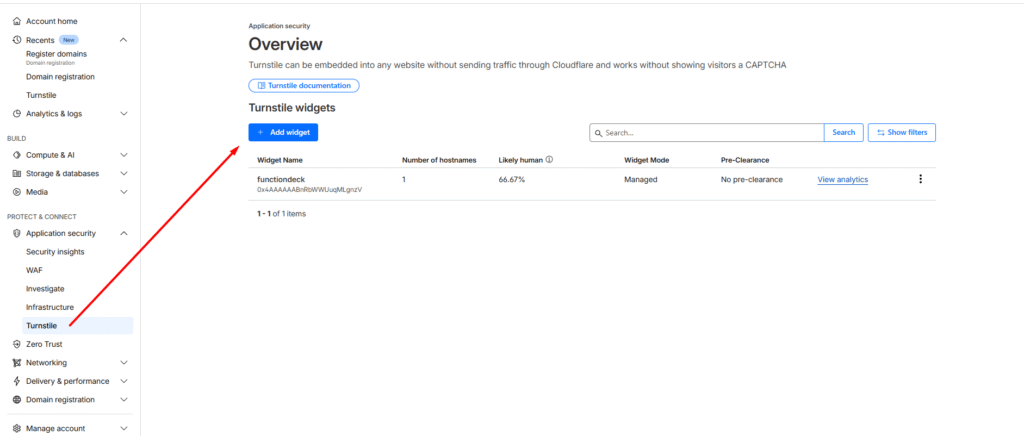
- Visit Cloudflare Turnstile Captcha
- Log in and generate your Site Key and Secret Key.
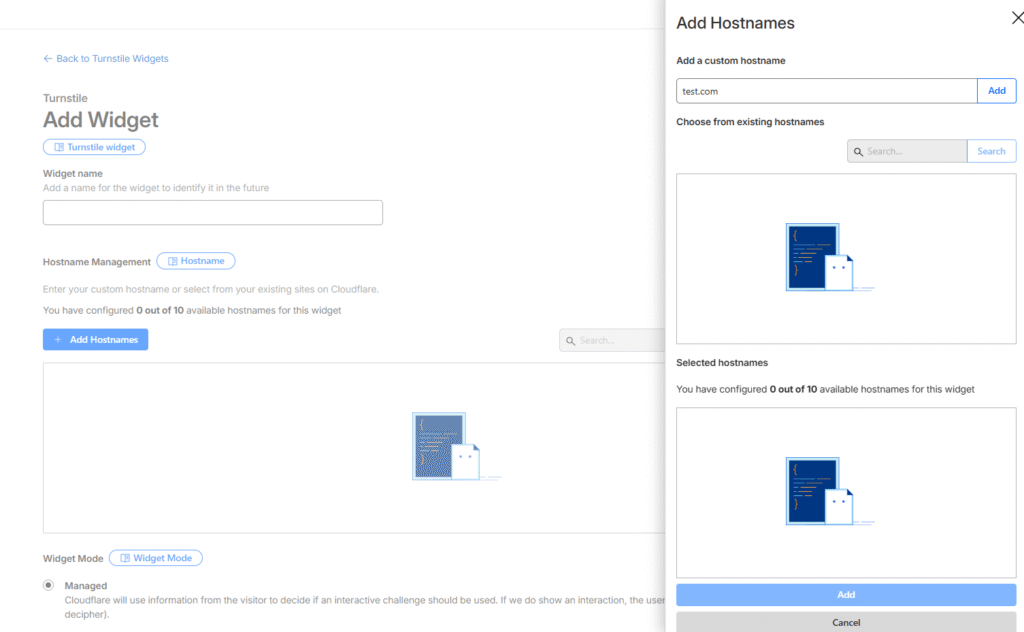
- Click Add widget -> Set Widget name,
- Click Add Hostnames and set your domain ex.
https:// wpazleen.com withouthttps:/ - Click add and then you will be given both site and secreate keys
- Copy both keys for later use.
⚙️ Step 2: Add Keys in Simple Form Settings #
- In your WordPress dashboard, go to Simple Form → Settings → Captcha Tab.
- Click “Click here to get your Site Key and Secret Key.”
- Paste your Cloudflare keys in the corresponding fields.
- Click Save Changes.
🧩 Step 3: Add Captcha Field to Your Form #
- Go to your Form Editor.
- From Available Fields, drag the Captcha field into your form.
- Click the pen icon to edit it.
Inside the edit modal:
- Add your Site Key (if not prefilled).
- Choose Widget Theme (Light or Dark).
- Enable Button Access.
- Set a Custom Error Message.
Click Update Form when done.
💾 Step 4: Add Form Shortcode to Page #
Copy your shortcode from the top of the form editor:
[simple_form id="3"]
Place it inside a Gutenberg block, Elementor widget, or template file.
✅ Summary #
Adding Cloudflare Captcha in Simple Form keeps your site secure and eliminates bot submissions effortlessly.
Combine it with email notifications and conditional logic for the most secure form experience.









Leave a Comment
Your email address will not be published. Required fields are marked *