Installation Guide for Simple Form Plugin.
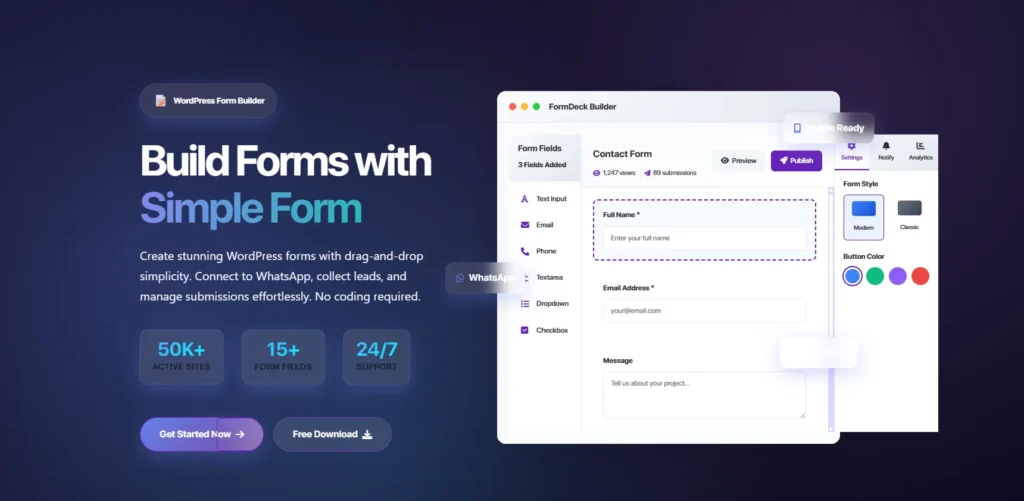
Simple Form form that lets you easily create forms via the drag-and-drop feature, and use this form using a shortcode or floating widgets anywhere on your website.
Installing the Simple Form Plugin: #
- Login to your WordPress Dashboard:
- Navigate to your WordPress admin area by adding
/wp-adminto the end of your site’s URL (e.g.,http://yoursite.com/wp-admin).
- Navigate to your WordPress admin area by adding
- Go to the Plugins Section:
- In the WordPress dashboard, find the “Plugins” option in the left-hand menu.
- Add New Plugin:
- Click on “Add New.”
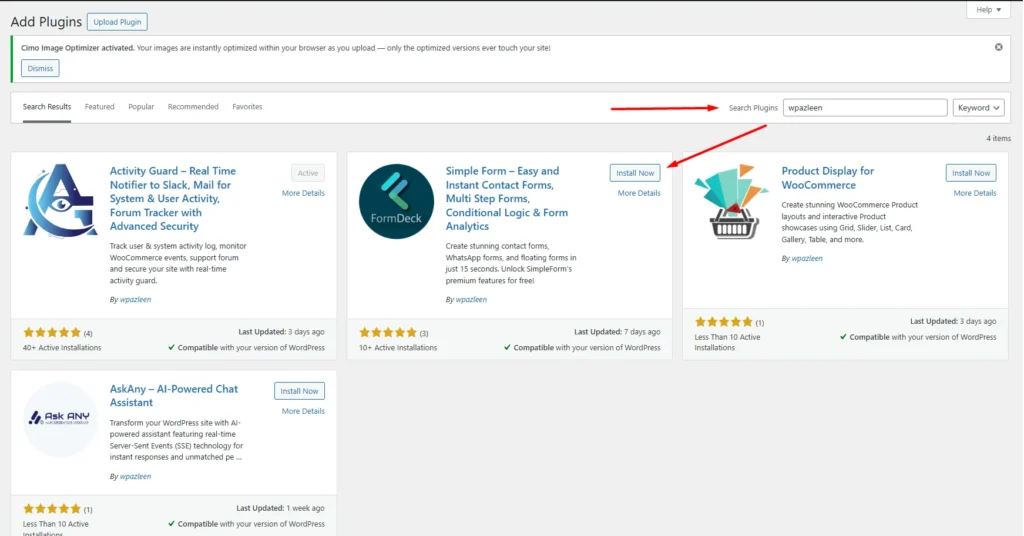
- Search for Simple Form:
- In the search bar, type “simple form or type wpazleen.”
- Install Simple Form:
- Locate the “Simple Form” plugin in the search results.
- Click the “Install Now” button.
- Activate the Plugin:
- After the installation is complete, click on the “Activate” button.
Using the Simple Form Plugin: #
- Access the Plugin Settings:
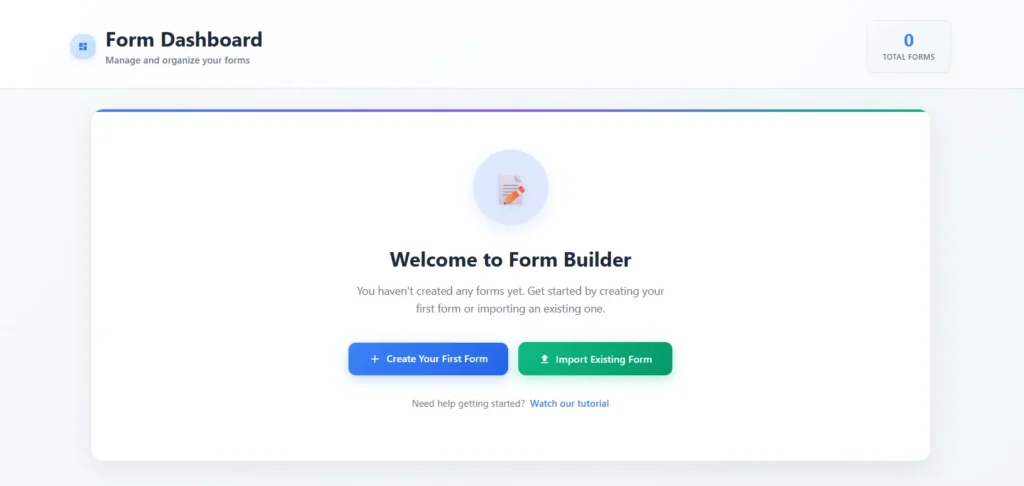
- After activation, you should see a new menu item called “Simple Form” in your WordPress dashboard. Click on it.
- Create a New Form:
- Look for an option to create a new form. This labeled as “Add New Form”.
- Use Drag and Drop Builder:
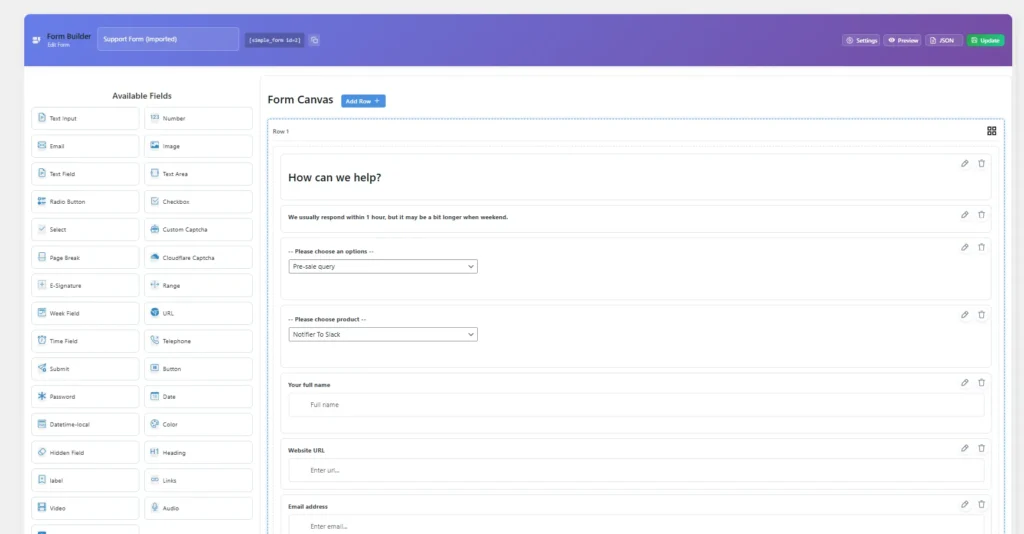
- The plugin then will redirect you to the preset page, where create new form and you will find a screen with a drag-and-drop builder interface for creating forms. Follow the on-screen instructions to add form elements and customize your form.
- Configure Form Settings:
- Set up form settings, such as form title, confirmation messages, and any other relevant options.
- Save Your Form:
- Once you’ve configured your form, save it.
- Get Shortcode:
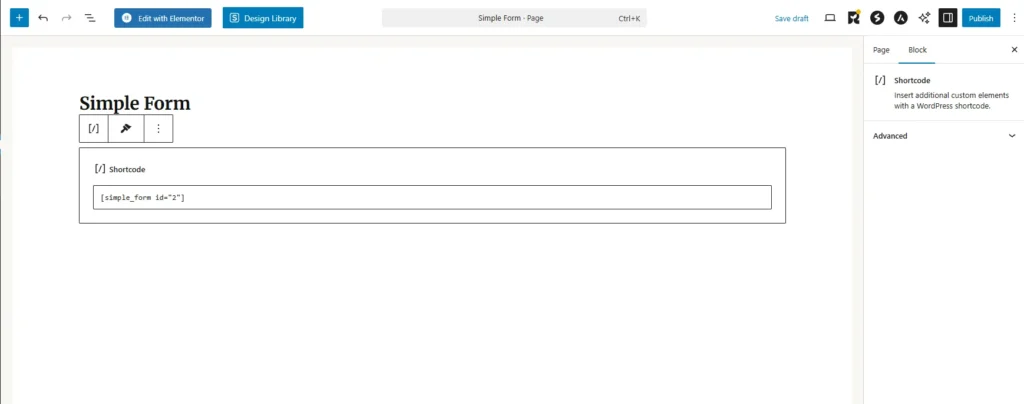
- After saving, the form is ready to provide you with a shortcode. Copy this shortcode.
- Add Form to Your Site:
- You can now paste the shortcode into any post, page, or widget where you want the form to appear.
- Floating Widgets (Optional):
- If you want to use the floating widgets, check the form editor settings for options related to floating widgets using the shortcode
position="bottom-right".
- If you want to use the floating widgets, check the form editor settings for options related to floating widgets using the shortcode
Leads Collection: #
- Check the Leads Page:
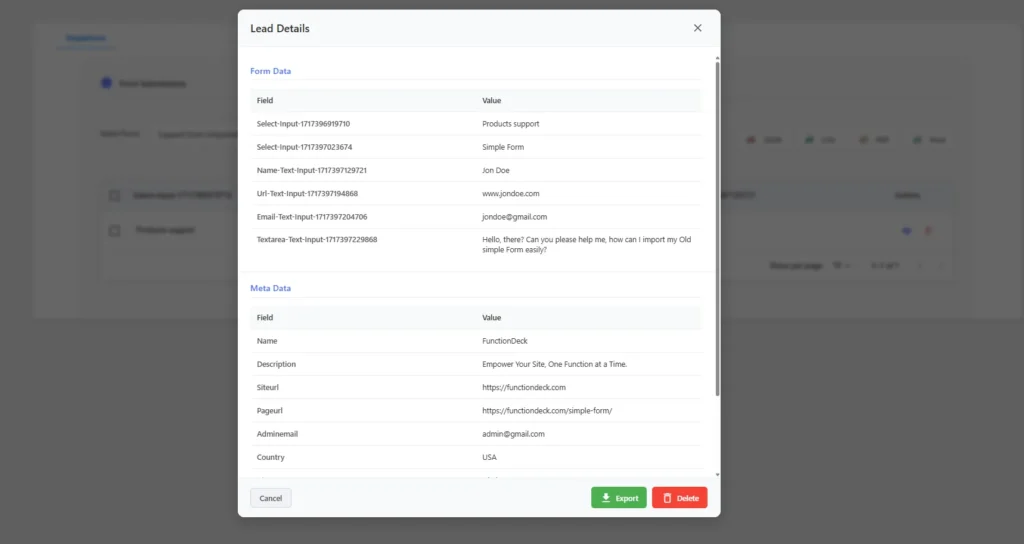
- The plugin has a dedicated “Leads” page where you can view and manage form submissions. Check the plugin leads for details.
- Telegram Redirection (Optional):
- If you want to configured Telegram Integration, look for settings related to this feature in the plugin settings configuration.
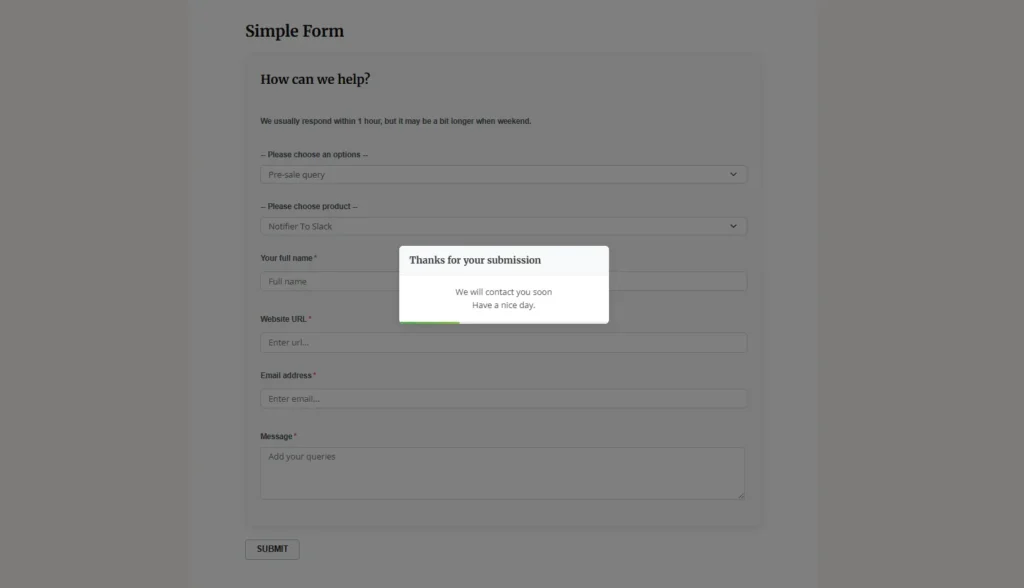
By following these steps, you can seamlessly integrate Simple Form with your WordPress site.










Leave a Comment
Your email address will not be published. Required fields are marked *