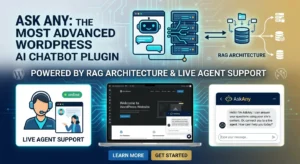
If you’re running a WordPress site, you know the struggle: you can’t be glued to your dashboard 24/7, but missing a live chat message often means losing a lead. With AskAny 1.11.0, that gap is officially closed.
By leveraging Firebase Cloud Messaging (FCM) and WordPress Application Passwords, you can now receive real-time push notifications directly on your Android device. Here is your complete roadmap to getting it running in under 15 minutes.
Why Mobile Notifications Change the Game #
Most live chat plugins anchor you to a desktop. For solo founders or small teams, this isn’t realistic. Mobile notifications allow you to:
- Respond Anywhere: From meetings to commutes.
- Increase Conversion: Speed is the #1 factor in closing chat-based leads.
- Stay Secure: Using Application Passwords means your main admin credentials are never shared with the mobile app.
Step 1: Configure Your Firebase “Bridge” #
To send notifications, WordPress needs a “postman.” Firebase Cloud Messaging (FCM) is the free, industry-standard service that handles this.
Option: FCM API V1 (Recommended) #
- Go to the Firebase Console and select your project.
- Navigate to Project Settings (Gear Icon) > Service Accounts.
- Click Generate New Private Key. This downloads a JSON file.
- In your WordPress Dashboard, go to AskAny > Settings > Mobile App Push Bridge.
- Enable the bridge, check “Use Custom Firebase Credentials,” and paste the Project ID, Client Email, Sender ID, and the full Private Key from your JSON file.
Step 2: Generate a WordPress Application Password #
The AskAny Android app doesn’t use your regular login password. It uses an Application Password, which is safer and can be revoked instantly if you lose your phone.
- In WordPress, go to Users > Profile.
- Scroll to Application Passwords.
- Type “AskAny Mobile” in the name field and click Add New.
- Copy the code immediately. You will only see it once!
Step 3: Connect the AskAny Android App #
- Download the APK from askany.app/download.
- Open the app and enter:
- Site URL:
https://yourdomain.com - Username: Your WordPress login name.
- Password: The 24-character Application Password you just generated.
- Site URL:
- Tap Connect.
Step 4: The Final Connectivity Test #
Don’t wait for a real customer to see if it works.
- In the mobile app, go to Settings > Device Token and copy the long string.
- Back in your WordPress admin (AskAny > Settings > Mobile App Push Bridge), scroll to Send Test Push Notification.
- Paste your token and hit Send.
- If your phone buzzes, you’re officially live!
Quick Troubleshooting #
| Issue | Common Fix |
| Connection Failed | Ensure your site has an SSL certificate (https://). |
| No Notification Received | Check if “Battery Optimization” is killing the app in Android settings. |
| Invalid Credentials | Ensure the Private Key includes the -----BEGIN PRIVATE KEY----- header. |
Conclusion: Real-Time Support, Anywhere #
With the AskAny Push Bridge, your WordPress site is no longer a static island. You are now reachable, responsive, and ready to close deals from the palm of your hand.
Ready to upgrade your workflow? Ensure you are running version 1.11.0 and start your Firebase setup today.







Leave a Comment
Your email address will not be published. Required fields are marked *