
Table of Contents
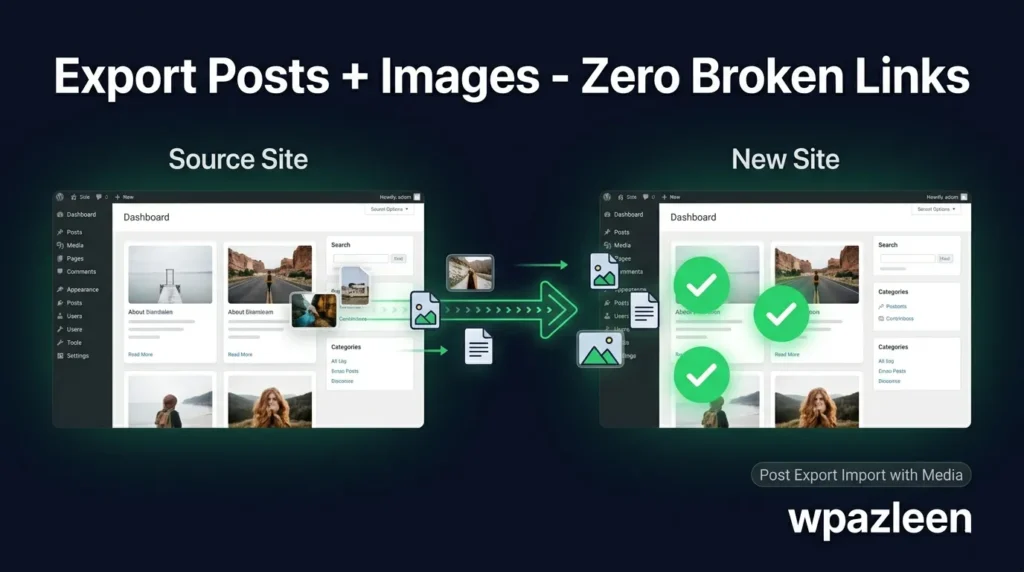
If you’ve ever tried to export WordPress posts with images and ended up with a folder full of broken links and missing media, you are not alone. Moving content between WordPress sites is one of the most frustrating tasks for developers, bloggers, and site owners alike. The built-in WordPress exporter gives you an XML file – but your images often don’t follow. In this guide, you’ll learn exactly how to export WordPress posts with images the right way, without losing a single media file, using Post Export Import with Media by WPAzleen – a free plugin built specifically for this task.
Why the Default WordPress Exporter Fails Your Images
WordPress ships with a built-in export tool under Tools > Export. It creates an XML file (WXR format) that contains your post content, metadata, categories, tags, and custom fields. What it does NOT reliably handle is your media library. When you import that file into a new WordPress site, the images inside your posts are still pointing to the original site’s domain. If that site goes offline or changes domain, every single image in every single post breaks.
This is the root cause of why so many WordPress migrations end in frustration. You export WordPress posts with images expecting everything to come along – and instead you spend hours fixing broken media after the fact. There’s a better way.
The 3 Most Common WordPress Image Migration Problems
- Broken image URLs – Posts import fine but all images still point to the old domain, showing broken thumbnails on the new site.
- Missing featured images – The post comes over but the featured image (post thumbnail) is nowhere in the new media library.
- Duplicate media files – WordPress downloads images again even when a copy already exists, bloating your new site’s storage.
All three of these problems are solved when you use the right plugin. Let’s look at exactly how to do it.
What Is Post Export Import with Media?
Post Export Import with Media is a free WordPress plugin by WPAzleen that lets you export WordPress posts with images, pages, widgets, menus, themes, and plugin settings – and then import them to another WordPress site with all media files perfectly intact. It handles the entire migration workflow in one dashboard, including real-time progress tracking, batch processing for large sites, and automatic deduplication of media files.
Unlike the native WordPress exporter or even large migration plugins like All-in-One WP Migration, this plugin was built specifically around one problem: keeping your media files connected to your posts throughout the export and import process. With 600+ active users and a perfect 5.0 star rating, it has become the go-to free solution for bloggers, developers, and agencies who need to move WordPress content without the headache.
5 Proven Steps to Export WordPress Posts with Images
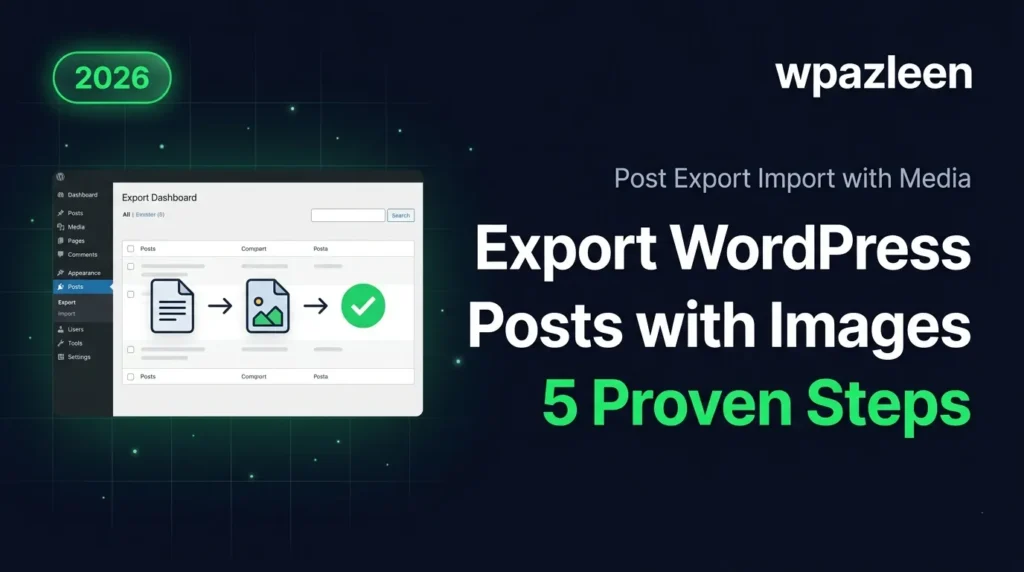
Here is the exact process to export WordPress posts with images using Post Export Import with Media. This workflow works for single posts, bulk exports, and full site migrations.
Step 1 – Install Post Export Import with Media on Both Sites
Go to your WordPress admin panel on the source site (the site you’re moving content FROM). Navigate to Plugins > Add New and search for “Post Export Import with Media”. Install and activate the plugin. Then do the same on your destination site (the site you’re moving content TO). Both sites need the plugin active for the full workflow.
You can also download it directly from the WordPress.org plugin page and upload it via Plugins > Add New > Upload Plugin.
Step 2 – Configure Your Export Settings
Once activated, find the plugin in your WordPress admin sidebar. You’ll see a clean export dashboard. Select what you want to export – you can choose all posts, a specific date range, specific categories, or individual posts. The key setting here is the media option: make sure “Include Media Files” is toggled ON. This is what makes this plugin different from WordPress’s default exporter – it bundles your actual image files into the export package rather than just referencing URLs.
For bulk exports with large media libraries, configure the batch size. The plugin recommends 50 items per batch for most shared hosting environments. This keeps memory usage low and prevents PHP timeout errors during export.
Step 3 – Run the Export and Download Your Package
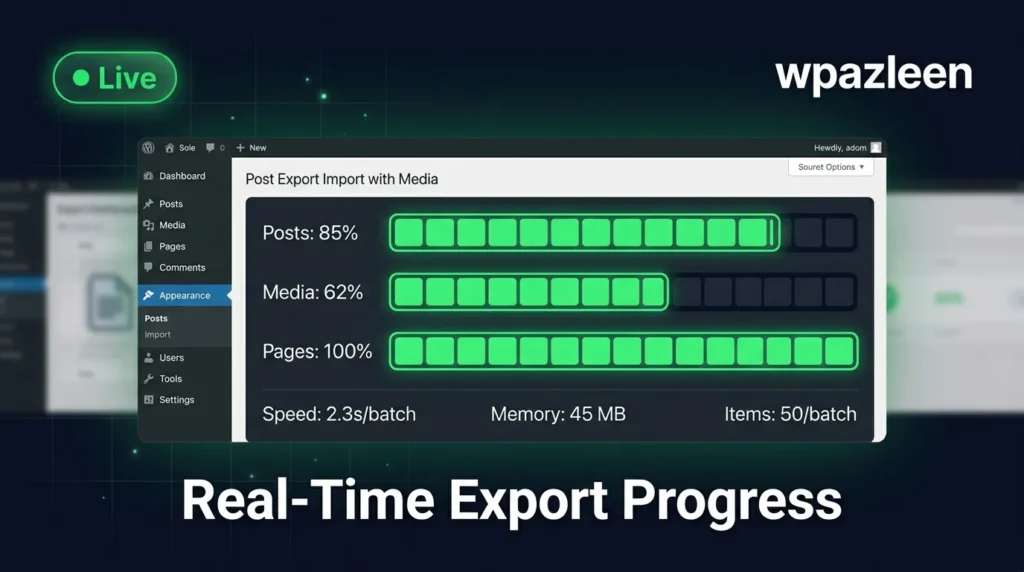
Click the Export button and watch the real-time progress dashboard. The plugin shows you exactly how many posts have been processed, how many media files have been packaged, and any errors that might need attention. When the export finishes, download the JSON export package to your computer. This file contains your post content AND all associated media files bundled together.
This is the export phase where most tools fail – they give you an XML with content references but no actual media. Post Export Import with Media packages everything together so when you export WordPress posts with images, the images are literally inside the export file ready to move.
Step 4 – Import on the Destination Site
Go to your destination WordPress site where you’ve already installed the plugin. Open the Import tab and upload the JSON package you downloaded in Step 3. The plugin automatically detects all post content, metadata, categories, tags, custom fields, featured images, and embedded media files. It also runs a smart deduplication check – if any of the media files already exist in the new site’s library, it reuses them instead of creating duplicates.
Click Import and monitor the real-time progress just like you did during the export. Watch posts appear one by one with their images fully intact and properly linked to the new domain. No broken URLs. No missing thumbnails.
Step 5 – Verify and Spot-Check Your Content
After the import completes, do a quick spot-check on a few posts. Visit the posts on the front end and confirm that all images are loading correctly. Check the featured images in your post list. Open your media library and confirm the imported images are present with correct filenames. If you exported WordPress posts with images from a site that had hundreds of media files, the spot-check helps catch any edge cases quickly.
The plugin’s error recovery system handles most issues automatically, but it’s always good practice to manually verify a sample of your migrated content before considering the job done.
Key Features That Make This Plugin the Best Way to Export WordPress Posts with Images
Smart Media Deduplication
When you export WordPress posts with images across multiple migrations or partial transfers, you often end up importing images that already exist on the destination site. This plugin’s smart deduplication engine checks each media file before import and skips files that already exist – saving storage space and keeping your media library clean.
Batch Processing for Large Sites
Large WordPress sites with thousands of posts and media files used to require expensive tools or developer time to migrate. Post Export Import with Media handles this with configurable batch processing – you can set batches anywhere from 10 to 1,000 items. The memory optimization built into each batch keeps your server from timing out, even on budget shared hosting plans.
Full Metadata Preservation
When you export WordPress posts with images, you also need all the metadata to come along. This plugin preserves post categories, tags, custom fields, post author information, publish dates, post status (published/draft/scheduled), parent-child page relationships, and complete menu and widget configurations. Nothing is left behind.
Scheduled Automated Exports
For ongoing content syndication or regular backups, the Pro version supports scheduled exports. Set a daily, weekly, or monthly schedule and the plugin automatically exports your new content and sends it wherever you need it. Combined with cloud integration for Dropbox, Google Drive, and Amazon S3, this turns the plugin into a full content backup and distribution system.
Post Export Import with Media vs. All-in-One WP Migration
The most common alternative people try when they want to export WordPress posts with images is All-in-One WP Migration. Here’s how the two compare:
- File size limits – All-in-One WP Migration’s free version caps imports at 512 MB. Post Export Import with Media has no such restriction in the free tier.
- Selective export – All-in-One migrates the entire site. Post Export Import with Media lets you export specific posts, date ranges, or categories – ideal when you only need to move part of your content.
- Media focus – Post Export Import with Media was specifically built around the media handling problem. Smart deduplication, batch media processing, and real-time progress make it purpose-built for this use case.
- Price – All-in-One WP Migration’s premium extensions cost $69-$199. Post Export Import with Media is free for core functionality with affordable Pro options.
Who Should Use This Plugin?
This plugin is the right tool if you are:
- A blogger or content creator moving your site to a new domain or hosting provider
- A WordPress developer or agency building staging sites or delivering finished client sites
- A site owner syndicating content to a second website or regional variant of your site
- Anyone who has tried to export WordPress posts with images using the default exporter and ended up with broken media
Frequently Asked Questions
Can I export WordPress posts with images for free?
Yes. Post Export Import with Media has a fully functional free version available on WordPress.org. The free version handles post export and import with media files included. Pro features like scheduling, cloud integration, and priority support are available in paid tiers.
Does this plugin export featured images?
Yes. Featured images (also called post thumbnails) are included in the export package along with all embedded media files. When you import on the new site, featured images are restored correctly and linked to their posts.
What happens if an image already exists on the destination site?
The plugin’s smart deduplication feature detects existing files and reuses them rather than importing duplicates. This keeps your media library clean and your storage usage efficient.
Does it preserve SEO metadata like Yoast or RankMath data?
Custom fields are exported along with post content, which means SEO plugin metadata stored in post meta (including Yoast and RankMath data) is included in the export. This is one of the key advantages when you export WordPress posts with images and need to preserve your on-page SEO work.
Conclusion
If you’ve struggled to export WordPress posts with images without ending up with broken links and missing media, the problem was never you – it was the tools. The default WordPress exporter simply wasn’t designed to handle media migration reliably. Post Export Import with Media by WPAzleen fills that gap with a purpose-built, free plugin that packages your posts and images together, preserves all metadata, handles large sites with batch processing, and imports everything cleanly on the other end. With 600+ active users, a 5.0-star rating, and 100% reported success rate, it’s the most reliable free way to export WordPress posts with images available today. Download it free from WordPress.org and move your first batch of posts in under 30 minutes.








Leave a Comment
Your email address will not be published. Required fields are marked *