
Table of Contents
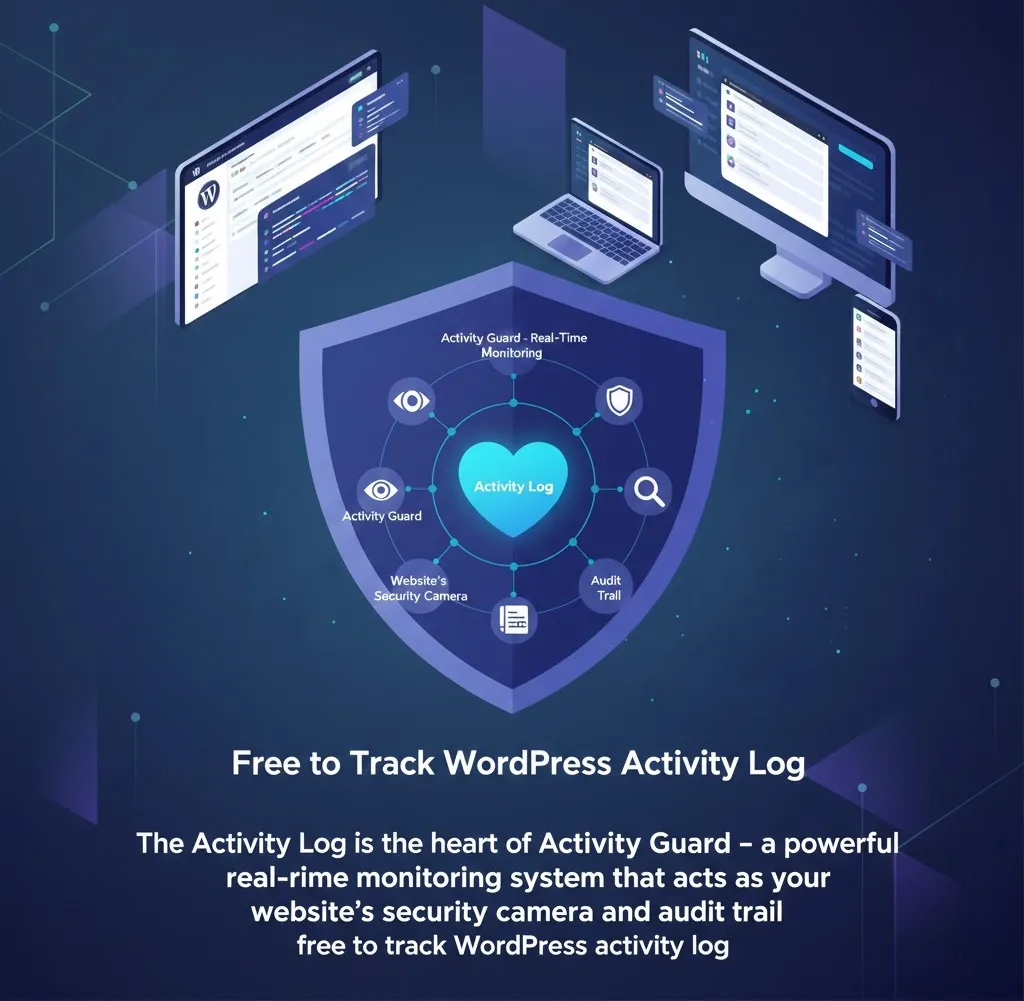
The WordPress activity log is the heart of Activity Guard – a powerful real-time monitoring system that acts as your website’s security camera and audit trail free to track WordPress activity log. Think of it as a detailed diary that records every single action happening on your WordPress site, from user logins to plugin changes, giving you complete visibility and control over your website’s security.
Key Benefits
- Security Monitoring: Instantly detect suspicious activities, failed login attempts, and potential security threats
- Compliance & Auditing: Maintain detailed records for compliance requirements and security audits
- Troubleshooting: Quickly identify what changed when issues occur by reviewing recent activities
- User Accountability: Track which users performed specific actions with timestamps and IP addresses
- Real-time Alerts: Get immediate notifications about critical security events
- Forensic Analysis: Investigate security incidents with detailed activity trails
What Information Does WordPress activity log Capture
Every log entry contains comprehensive details:
- Unique ID: Each activity gets a unique identifier for tracking
- Severity Level: Color-coded priority levels (Info, Normal, Medium, High, Critical)
- Timestamp: Exact date and time when the activity occurred
- IP Address: Location where the activity originated (with geolocation lookup)
- User Information: Complete user details including avatar, name, and role
- Event Type: Specific category of activity (Login, Logout, Activated, Deactivated, etc.)
- Detailed Message: Full description of what happened with context
- Action Buttons: Direct controls to block IPs, delete logs, or investigate further
How to Access and Navigate Activity Log
Step 1: Accessing the Activity Log
- Log into your WordPress admin dashboard
- Look for “Activity Guard” in your admin menu (left sidebar)
- Click on “📑 Activity Log” submenu item
- The Activity Log page will load showing all recent activities
Step 2: Understanding the Interface
- Auto-Refresh: The log automatically updates every 8 seconds to show real-time activities
- Sortable Columns: Click any column header to sort data (ID, Date, Severity, etc.)
- Responsive Design: Works perfectly on desktop, tablet, and mobile devices
- Pagination: Navigate through large amounts of data with built-in pagination controls
Advanced Filtering System – Find Exactly What You Need
The Activity Log includes powerful filtering options to help you find specific information quickly:
Date Range Filtering
- All Time: View complete historical data (limited by retention settings)
- Today: Focus on today’s activities for daily monitoring
- Yesterday: Review yesterday’s events for daily reports
- This Week: Weekly activity overview for trend analysis
- This Month: Monthly patterns and long-term monitoring
User Role Filtering
- Administrator: Track admin-level activities and changes
- Editor: Monitor content management activities
- Author: Review content creation and publishing
- Contributor: Track content submissions and drafts
- Subscriber: Monitor user registrations and basic activities
- Guest: Identify activities from non-logged-in users
- Unknown: System activities or unidentified actions
Severity Level Filtering
- Info: General informational events (low priority)
- Normal: Standard user activities (routine operations)
- Medium: Important events requiring attention
- High: Critical security events (failed logins, plugin changes)
- Critical: Emergency alerts requiring immediate action
Event Type Filtering
Filter by specific activity types like Login, Logout, Activated, Deactivated, Register, Updated, Scanner, Security, and more.
How to Use Filters Effectively
Step 1: Basic Filtering
- Locate the filter controls above the activity table
- Select your desired filter from any dropdown menu
- The table automatically updates to show filtered results
- Use “Clear Filters” button to reset all filters
Step 2: Advanced Multi-Filter Combinations
- Combine multiple filters for precise results (e.g., “Today” + “High Severity” + “Login”)
- Use User filter to track specific user activities
- Combine Date Range with Event Type for targeted analysis
IP Address Management – Advanced Security Control
Every activity log entry shows the IP address where the action originated, allowing you to identify threats, investigate suspicious behavior, and take immediate security action.
More: Shop Explorer WooCommerce Management System – The Fastest Way to Manage Products, Orders & Bulk Tasks







Leave a Comment
Your email address will not be published. Required fields are marked *