
Table of Contents
If you’re running a WordPress live chat system, you’ve faced the same fundamental problem: being available. Real-time chat only works if someone is watching. And for most small businesses, solo operators, and lean teams, “watching the dashboard” isn’t a sustainable approach to customer support. You’re on your phone. You’re in meetings. You’re away from the desk. WordPress live chat mobile notifications via AskAny’s new Mobile App Push Bridge solve this completely – delivering instant push notifications to your Android device the moment a visitor sends a message, with the ability to reply directly from your phone.
In this guide, we’ll cover exactly what the Mobile App Push Bridge does, how it works under the hood, and how to set it up completely – including Firebase credential configuration and the AskAny Android app.
The Problem: WordPress Live Chat Without Mobile Notifications Doesn’t Scale
Traditional WordPress live chat plugins have always required agents to be logged into the WordPress admin to see and respond to conversations. For enterprise teams with dedicated support staff at computers all day, that’s workable. For everyone else – it’s a significant operational constraint that limits live chat from being a genuine real-time channel.
AskAny’s AI handles the majority of conversations autonomously, which is the real value of its RAG architecture. But for escalations, complex questions, sales conversations, or situations where a human touch matters – real-time responsiveness is the difference between a closed deal and a lost lead. WordPress live chat mobile notifications in AskAny 1.11.0 deliver that responsiveness without a dashboard dependency.
How the Mobile App Push Bridge Works
The Push Bridge connects AskAny to Firebase Cloud Messaging (FCM) – Google’s enterprise push notification infrastructure. When a user sends a message in the chat widget on your site, AskAny fires a push notification via FCM to all registered admin devices running the AskAny mobile app. The notification arrives in real time, typically within one to three seconds of the message being sent.
The AskAny Android app authenticates against your WordPress site using an Application Password – the same secure authentication method WordPress uses for its own REST API. This means no custom tokens, no separate user accounts, and no new security surface to manage. You use your existing WordPress admin credentials in an Application Password format, and the app connects directly to your site.
Once connected, you receive notifications and can reply to chat messages directly from the app – without ever opening a browser or logging into WordPress. The full conversation history is visible in context, so you can pick up where the AI left off without needing to ask the visitor to repeat themselves.
Complete Setup Guide for WordPress Live Chat Mobile Notifications
Step 1: Enable the Mobile App Push Bridge
Go to WordPress Admin → AskAny → Settings → Mobile App Push Bridge. Toggle the feature on and click Save Settings. This activates the push notification infrastructure within AskAny and exposes the Firebase configuration fields.
Step 2: Choose Your Firebase Configuration Method
AskAny supports two Firebase credential options:
Option A – Basic FCM Server Key (quickest setup): Enter your Firebase FCM Server Key in the provided field and leave the “Use Custom Firebase Credentials” checkbox unchecked. Your FCM Server Key is found in the Firebase Console → Project Settings → Cloud Messaging → Server Key. This option is suitable for testing and most standard deployments.
Option B – FCM API V1 with Custom Credentials (recommended for production): Check the “Use Custom Firebase Credentials” box and fill in the four fields from your Firebase Service Account JSON:
- Project ID: Found as “project_id” in your Service Account JSON. Also visible in Firebase Console → Project Settings → General.
- Client Email: Found as “client_email” in the JSON. Looks like: firebase-adminsdk-xxxxx@your-project.iam.gserviceaccount.com
- Sender ID: Found in Firebase Console → Project Settings → Cloud Messaging → Sender ID.
- Private Key: The full “private_key” value from your Service Account JSON. Paste it exactly as it appears in the JSON file – AskAny automatically converts the \n characters to proper line breaks.
To generate a Service Account JSON: Firebase Console → Project Settings → Service Accounts → Generate New Private Key. Download the JSON file – the four required values are all inside it.
Step 3: Test Your Firebase Connection
Before installing the app, verify your Firebase credentials using the built-in Test FCM Connection button in the AskAny settings panel. This sends a test request to Firebase and confirms your credentials are valid. A green success indicator means you’re ready to proceed.
Step 4: Download and Set Up the AskAny Android App
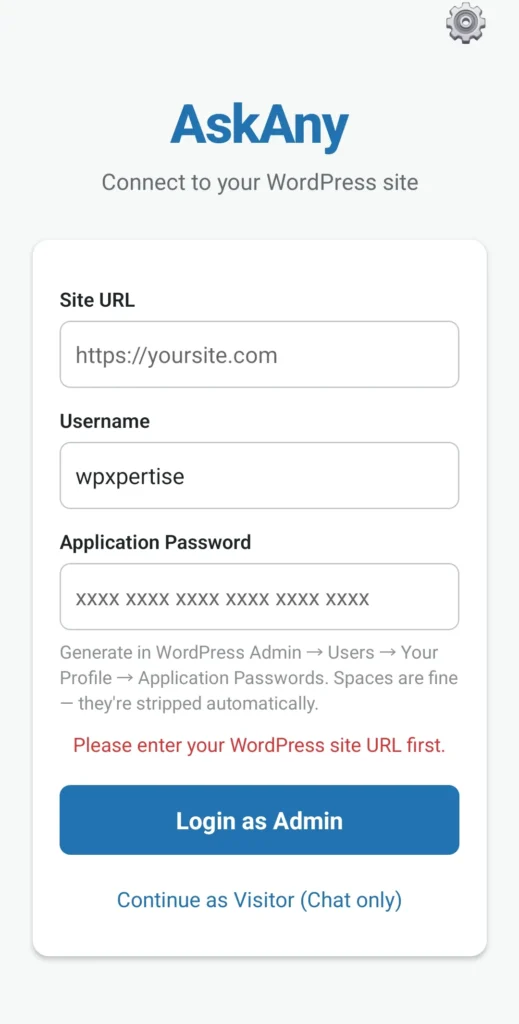
On your Android device, navigate to askany.gdrive/download and install the APK. Once installed, open the app and log in with:
- WordPress URL: Your site’s full URL (e.g., https://yoursite.com)
- Application Password: Generated in WordPress Admin → Users → Your Profile → scroll to Application Passwords → enter a name (e.g., “AskAny Mobile”) → click Add New Application Password → copy the generated password
The app connects to your site via the WordPress REST API using your Application Password. No regular WordPress password is stored or transmitted through the app.
Step 5: Send a Test Push Notification
Back in AskAny settings, use the Send Test Push Notification feature. You’ll need your device’s FCM token – open the AskAny mobile app → Settings → Device Token → copy the token. Paste it into the AskAny settings test field and click Send. You should receive a test notification on your phone within seconds.
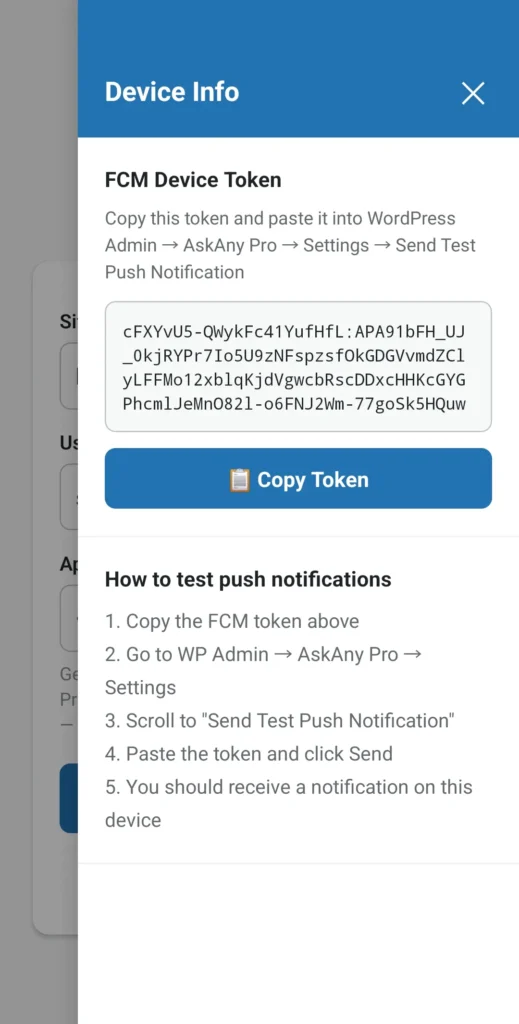
Test your push notification setup before going live using the built-in FCM test tool
Once the Push Bridge is live, you’ll receive instant notifications for every new visitor chat – no dashboard required, no browser tab to keep open.
Who Benefits Most From WordPress Live Chat Mobile Notifications
Solo Business Owners and Freelancers
The Push Bridge was made for this use case. One person running a business can’t be at a computer 24/7. With mobile push notifications, you’re effectively available to respond whenever your phone is – which for most people is nearly always. The AI handles routine questions; your phone handles escalations.
Small E-commerce Teams
A two-person shop team that also manages order fulfillment, social media, and content can’t dedicate one person to watching a chat dashboard. WordPress live chat mobile notifications let the whole team be on call without any one person being tied to a screen.
Agencies With Multiple Client Sites
Account managers overseeing client chat systems can install the AskAny app for each client site (each with its own WordPress Application Password) and receive notifications from all of them on one device. No separate login required per site.
Frequently Asked Questions
Is iOS supported?
The 1.11.0 release introduces the Push Bridge for Android only. The AskAny APK is available at askany/download. iOS support has not been announced for this release.
Do I need a paid Firebase account?
Firebase Cloud Messaging (FCM) is free for standard notification volumes. The Firebase free tier (Spark plan) supports the push notification functionality required by the AskAny Push Bridge without any cost for most sites.
Is it secure to use an Application Password for the mobile app?
Yes. WordPress Application Passwords are the official, recommended method for third-party app authentication. They can be revoked at any time from your WordPress admin profile page without affecting your main account password. They grant only REST API access – not admin panel login access.
Can multiple team members receive notifications from the same site?
Yes. Each team member installs the AskAny app and generates their own WordPress Application Password. Multiple devices can be registered to receive notifications from the same site simultaneously.
Conclusion: Real-Time Support, Everywhere You Are
WordPress live chat mobile notifications via AskAny’s Push Bridge represent a fundamental shift in how accessible live chat support can be. No more dashboard-watching. No more missed chats during off-hours. Just instant notifications on your Android device, full conversation context in the app, and the ability to respond from anywhere your phone has signal. Set it up today – the full process takes about 15 minutes from Firebase project to first test notification. Update AskAny to 1.11.0 from your WordPress dashboard, or explore Pro plans at wpazleen.com.






Leave a Comment
Your email address will not be published. Required fields are marked *