
Table of Contents
Have you ever needed to move just three blog posts to a new WordPress site – and ended up exporting your entire database instead? Selective export WordPress is the game-changer most site owners don’t know they need until they’re drowning in bloated XML files and broken media links. In this guide, we’ll break down exactly how selective export works, why it matters, and how to implement it effortlessly – whether you’re migrating pages, individual posts, or curated content bundles.
What Is Selective Export in WordPress?
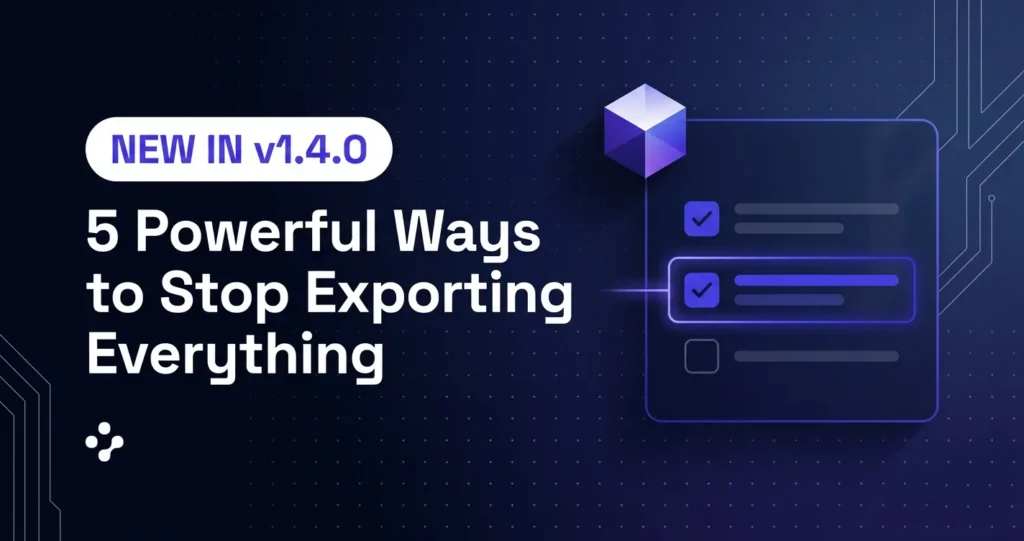
WordPress’s built-in exporter is famously all-or-nothing. You can export “All Posts” or “All Pages” – but picking specific content? That requires a better tool. Selective export WordPress is the ability to hand-pick individual posts, pages, or content groups and export only those items – complete with their media files, featured images, categories, tags, and custom fields.
This is critical for real-world workflows: migrating a blog section to a new domain, handing off specific pages to a client, or building a staging site with only production-ready content. The default WordPress exporter simply wasn’t designed for these use cases. That’s where dedicated export plugins step in – built specifically for the precision and reliability that modern WordPress site management demands. A free option that does this well is available directly on the WordPress plugin repository.
“Exporting an entire WordPress site when you only need 5 posts is like moving your whole house because you forgot your keys.”
5 Powerful Selective Export WordPress Features That Change Everything
Version 1.4.0 introduced a complete selective export and import system. Here’s a deep look at each capability and why it matters for your workflow.
1. Export Specific Pages – Not Your Entire Page Library
If you manage a WordPress site with 200 pages, exporting everything just to move your homepage, about page, and pricing page to a new installation is wasteful and risky. The selective export WordPress feature lets you check exactly the pages you need and export only those – with full parent-child page relationships preserved, template assignments intact, featured images included, and all associated metadata carried over cleanly.
This is especially valuable for agencies handling client handoffs. Instead of delivering a messy full-site export the client has to clean up, you export only the approved, finished pages. Clean, professional, precise.
2. Export Individual Blog Posts with All Media Attached
Blog post migration is one of the most common and most broken WordPress workflows. Move 10 posts to a new site and half your images are broken. Selective export solves this with per-post selection: choose exactly which posts to include, and every attached media file – featured images, inline images, gallery images – travels with the export automatically.
According to WordPress’s official documentation, the native exporter doesn’t include media files at all – they remain on the original server. A proper selective export plugin closes this gap entirely, ensuring that selective export WordPress truly means the whole content package, not just the text.
3. Real-Time Progress Tracking During Export
Large content exports on slow servers are a recipe for white screens of death and PHP timeout errors. A built-in batch processing engine and real-time progress bars solve this. You see exactly what’s being exported, what percentage is complete, and detailed timestamped logs showing every success, warning, and error.
This isn’t just a cosmetic feature – it’s operationally critical. When migrating client sites under deadline, knowing your export is at 73% rather than staring at a blank screen is the difference between a calm workflow and an emergency support call.
4. Smart Media Handling – No More Broken Image Links
Smart media detection automatically identifies every image referenced in your selected posts or pages – whether it’s a featured image, an inline image, a gallery item, or a file attachment. It packages all of these into the export file and, on import, reuses existing media where it already exists and downloads missing files automatically. This makes selective export WordPress genuinely reliable rather than a fingers-crossed operation.
5. Scheduled Exports for Automated Backup of Selected Content
Beyond one-time migrations, scheduled exports – daily, weekly, or monthly – give you automated backups of your posts and pages without manual intervention. Email notifications confirm each completed export, and automatic backup rotation keeps your storage clean. This transforms selective export from a migration tool into a complete content backup solution.
How to Use Selective Export WordPress Step-by-Step
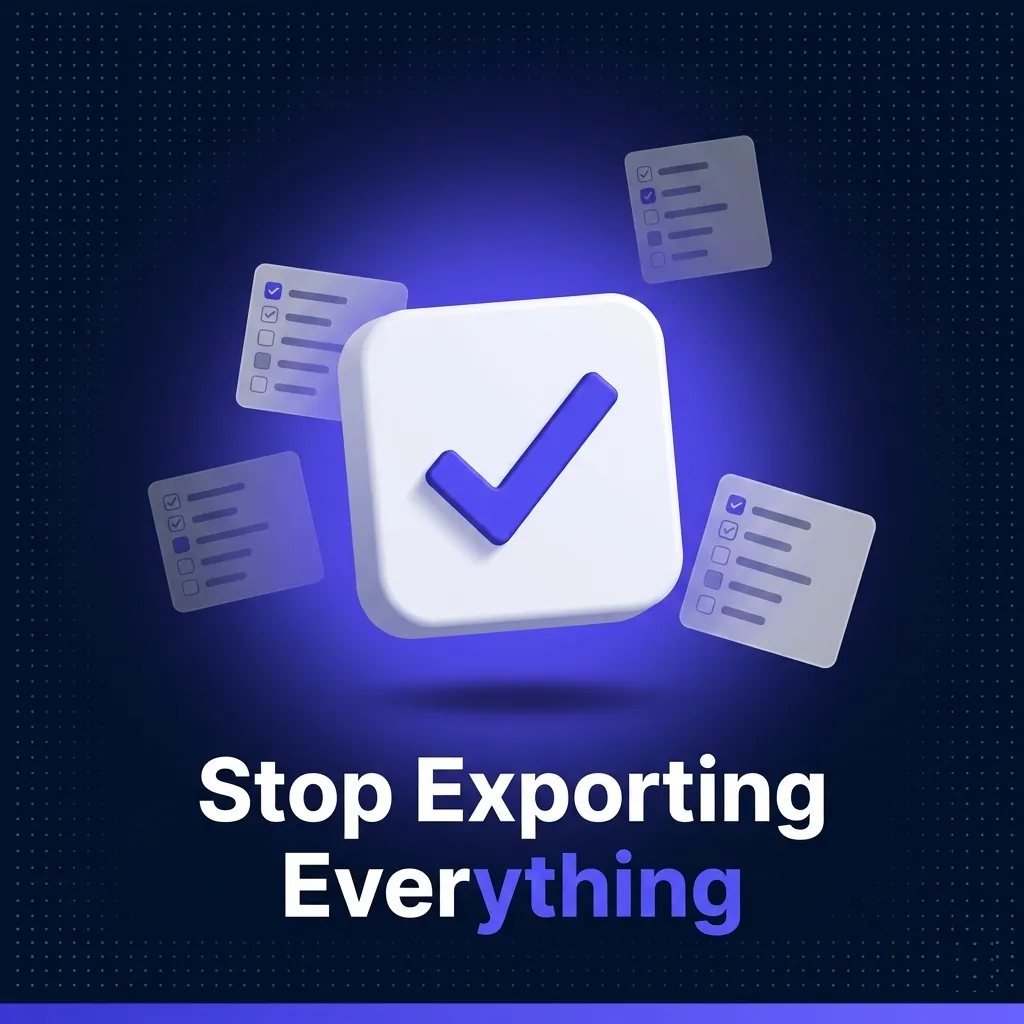
Getting started with selective export in WordPress takes under two minutes. Here’s the complete walkthrough:
- Install the plugin – Download it free from WordPress.org or search “Post Export Import with Media” in WordPress › Plugins › Add New and activate it.
- Navigate to the Export panel – Find the plugin menu in your WordPress admin sidebar.
- Choose Posts or Pages – Select the content type you want to export.
- Check individual items – Tick the checkbox next to each post or page you want included. You can select one or dozens.
- Click Export – The plugin packages your selected content with all media files and generates a download file.
- Download the export file – Save it locally for import on any WordPress installation.
The entire process runs in your browser with a live progress indicator – no server configuration, no WP-CLI commands, no developer required. Need help getting started? The full documentation covers every setting in detail.
Why Selective Export WordPress Beats the Native Exporter
Let’s be direct: WordPress core’s export tool is a decade-old utility that was never designed for modern site management complexity. Here’s how selective export WordPress compares:
- Native WP Exporter: Exports all content in a category, no per-item selection, no media files included, no progress tracking, XML-only output.
- Selective Export Plugin: Per-item checkbox selection, all media bundled automatically, real-time progress bars, batch processing for large sites, scheduled automated backups.
For a deeper look at why WordPress migration tooling matters, Kinsta’s guide to WordPress migration plugins covers the broader landscape – though few options match the granular selective control a dedicated export plugin provides.
If you’re also handling settings and widget migrations alongside your content, check out our guide on how to export WordPress settings, widgets, and menus for a complete site transfer workflow.
Use Cases: Who Needs Selective Export Most
Web Agencies Delivering Client Projects
Agencies build sites on staging servers and deliver finished content to production. With selective export, they can package only the client-approved pages – not internal test pages, draft content, or development artifacts – and deliver a clean, professional handoff file.
Bloggers Migrating to New Hosting
A blogger moving from shared hosting to managed WordPress hosting doesn’t need to export years of draft posts. Selective export lets them take only published posts with all their images, leaving drafts and revisions behind for a clean migration.
Multi-Site Content Syndication
Organizations running multiple WordPress installations – a corporate site, a regional site, a microsites network – can selectively export specific posts and syndicate them to other installations without manual copy-paste. The media travels automatically, keeping content consistent across properties.
Running a WordPress multisite network? Our article on syncing content across WordPress multisite installations covers advanced strategies for content distribution.
Free vs Pro: Which Plan Is Right for You?
The free version covers the core selective export and import workflow for posts and pages – more than enough for most individual site owners and small teams. The plugin is available at no cost directly from the WordPress.org repository.
For teams with higher-volume needs, advanced scheduling requirements, or multi-site operations, the Pro plan adds expanded capabilities and priority support. You can explore the full feature set on the plugin landing page before deciding. If you have a specific feature in mind that’s not yet available, you can submit a feature request via the support page.
Frequently Asked Questions About Selective Export WordPress
Does selective export include featured images?
Yes. The plugin automatically detects and includes featured images, gallery images, inline content images, and file attachments for every post or page you select. This is a core advantage of using a dedicated selective export WordPress plugin over the native WP exporter, which includes no media at all.
Can I export only posts from a specific category?
You can manually select any combination of posts regardless of category. The selective export interface shows your full post list and lets you tick any items – from a single post to your entire content library – giving you complete flexibility over what gets exported.
What happens if the export file is very large?
The plugin’s batch processing engine handles large exports gracefully, breaking the operation into manageable chunks to prevent server timeouts. You can configure batch size, concurrent requests, and media ZIP limits in the plugin’s settings to match your server’s capabilities.
Where can I get support if something goes wrong?
For free plan users, community support is available on the WordPress.org plugin page. Premium users get priority support and direct access to the development team through the dedicated support portal. You can also browse the full documentation for step-by-step guidance on every feature.
Is selective export WordPress safe for production sites?
Absolutely. All plugin operations use WordPress nonces and capability checks, and exports are read-only operations – they never modify your existing content. The plugin is built with security-first architecture and comprehensive error handling to protect your data at every step.
Conclusion: Take Control of Your WordPress Content Exports
The era of all-or-nothing WordPress exports is over. Selective export WordPress gives you granular, media-inclusive control over exactly what leaves your site – whether you’re migrating specific posts, delivering client pages, syndicating content across properties, or automating backups. With per-item post and page selection, real-time progress tracking, smart media bundling, and flexible scheduled exports, you get professional-grade content transfer that WordPress’s native tools simply can’t match. Install the free plugin today and export precisely what you need – nothing more, nothing less. Want to see everything the plugin offers? Visit the official plugin page or check the blog for the latest tips and updates.









Leave a Comment
Your email address will not be published. Required fields are marked *