
Ever rebuilt a site’s General, Reading, and Discussion settings from memory after a migration, only to realize three weeks later that the permalink structure never got carried over? A reliable WordPress settings export import workflow exists specifically to stop that from happening. Instead of clicking through seven different settings screens and re-typing every field by hand, you export the configuration once, save it as a portable JSON file, and import it on the new site in seconds. This guide walks through exactly how the Settings Export/Import feature inside the Post Export Import with Media plugin works, why it matters for agencies and solo site builders alike, and how to use it without breaking anything on launch day.
What Is WordPress Settings Export/Import?
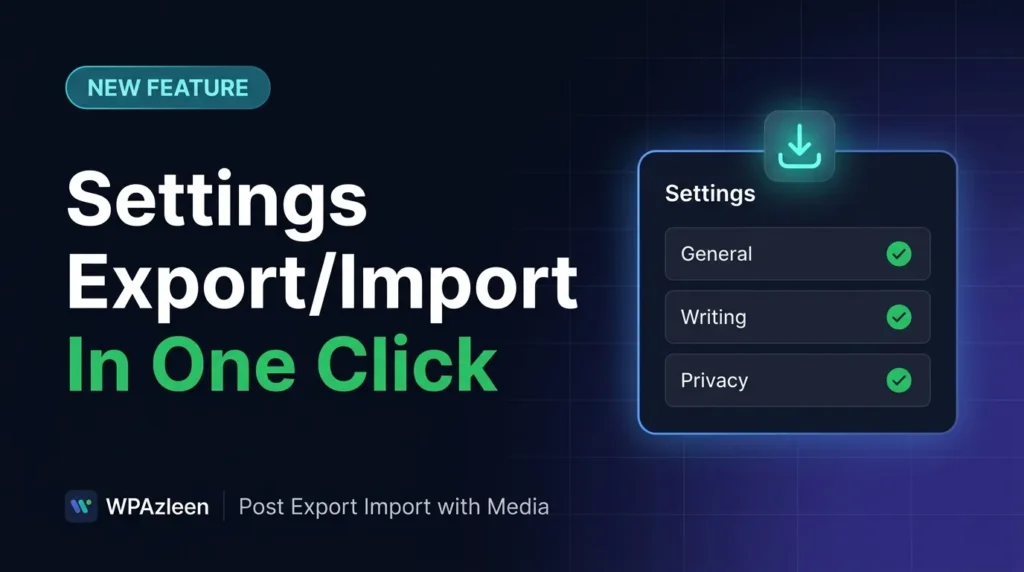
WordPress settings export import is the process of capturing your site’s core configuration – the values stored under General, Writing, Reading, Discussion, Media, Permalinks, and Privacy – and packaging them into a single file that can be moved to another WordPress install. Rather than touching the database directly or relying on a full site backup, this feature works at the settings level only, which makes it fast, predictable, and safe to inspect before you apply it anywhere.
This matters because settings are easy to overlook during a migration. Plugins and themes usually get reinstalled, content gets imported, but the smaller configuration choices – your reading order, comment moderation rules, default media sizes, privacy policy page, custom permalink structure – often get forgotten until something breaks. A dedicated WordPress settings export import tool removes that risk by treating configuration as a first-class, exportable asset, just like posts or media.
Key Features of the WordPress Settings Export Import Tool
The feature is split into two halves – settings, and widgets/menus – and each half has its own export and import controls. Here’s what’s included.
1. Export Settings by Group, Not All-or-Nothing
Instead of forcing you to export everything at once, the WordPress settings export import screen lists seven distinct settings groups – General Settings, Writing Settings, Reading Settings, Discussion Settings, Media Settings, Permalink Settings, and Privacy Settings – as individually selectable checkboxes. You might only need to carry over Discussion and Privacy settings to a new client site while leaving Permalinks untouched because the new domain uses a different structure. That level of control is what separates a settings-specific tool from a blunt “export everything” database dump.
2. One-Click JSON Import
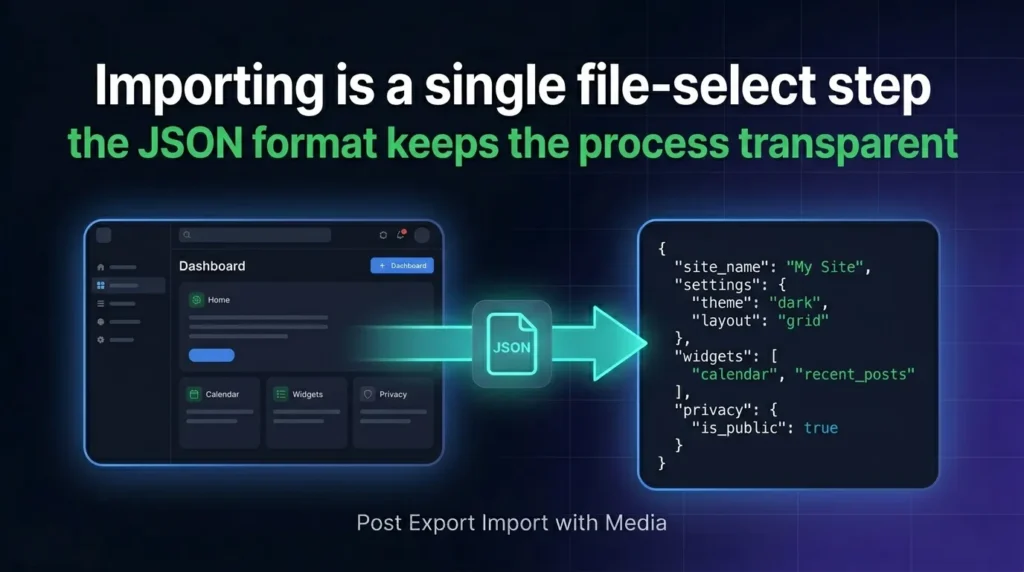
Once a settings file has been exported, importing it on the destination site is a single step: select the JSON file and confirm. There’s no manual field-matching, no copy-pasting values between two open browser tabs, and no risk of fat-fingering a permalink slug. Because the import reads the same structured groups used during export, the destination site ends up with an exact, verifiable copy of the source configuration rather than an approximation.
3. Export Widgets and Navigation Menus, Separately or Together
Site configuration isn’t only General and Privacy settings – it’s also the sidebar widgets and the navigation menus that took an afternoon to arrange correctly. This part of the tool gives you three distinct export choices: Export Widgets Only, Export Menus Only, or Export Both. That flexibility is useful when, say, you’re rebuilding a theme’s widget areas from scratch but want to keep the existing main navigation menu intact, or vice versa.
4. Import Widgets & Menus From Any Previously Exported File
On the import side, you select the JSON file generated by the widgets and menus export, and the structure – widget placement, menu items, menu locations – gets rebuilt on the new site. This is particularly valuable for agencies that maintain a “starter” widget and menu layout across multiple client builds, since the same export file can be reused as a template rather than rebuilt manually each time.
5. Granular Control Over What Actually Moves
Granularity is the theme that runs through the entire WordPress settings export import workflow. You choose the settings groups. You choose whether widgets, menus, or both are included. Nothing moves by default that you didn’t explicitly select. For anyone who has been burned by an all-or-nothing migration tool that silently overwrote settings they didn’t intend to touch, this selective approach is the difference between a confident migration and a stressful one.
6. Human-Readable JSON Format
Every export – settings or widgets/menus – is saved as a JSON file, the same open, lightweight data format WordPress itself uses for its REST API responses. Because JSON is plain text, you (or a developer on your team) can open the exported file and visually confirm exactly what’s inside before importing it anywhere, which is a meaningful trust signal compared to opaque binary backup formats.
7. Built Into a Full Content Migration Plugin
Settings Export/Import doesn’t live in isolation – it’s one module inside Post Export Import with Media, a plugin built around moving posts, pages, and media between WordPress sites. That means once your settings, widgets, and menus are in place on the new site, you’re already working inside the same plugin you’ll use to bring over the actual content, instead of juggling three different tools for one migration.
How WordPress Settings Export Import Works, Step by Step
Here’s the full walkthrough, covering both the settings side and the widgets/menus side of the feature.
- On the source site, open the Settings Export/Import screen inside Post Export Import with Media.
- Under “Export Settings,” tick the groups you need – General, Writing, Reading, Discussion, Media, Permalinks, Privacy – or select all seven.
- Click “Export Settings” to download the JSON file to your computer.
- Switch to “Widgets & Navigation Menus” and choose Export Widgets Only, Export Menus Only, or Export Both, depending on what you want to carry over.
- On the destination site, open the same screen and go to “Import Settings.” Select the settings JSON file you exported and confirm.
- Go to “Import Widgets & Menus,” select the widgets/menus JSON file, and confirm the import.
- Spot-check the destination site’s settings pages and front-end widget areas to confirm everything landed where expected.
Why It Matters: Real-World Use Cases
A WordPress settings export import feature sounds like a small convenience until you look at how often configuration actually needs to move between sites.
Agencies Cloning a Client Starter Build
Agencies that launch similar sites for multiple clients often maintain a “house standard” for Discussion settings (comments closed by default, moderation rules), Media settings (specific thumbnail sizes), and a consistent widget/menu layout. Exporting that configuration once and importing it on every new client build keeps every launch consistent without re-clicking through the same settings screens each time.
Staging-to-Production Launches
Teams that build on a staging environment and push to a live production domain need certain settings – like Permalinks or Privacy policy assignments – to transfer cleanly without dragging over staging-only values like a noindex flag. Industry guidance on staging-to-production workflows consistently recommends moving configuration selectively rather than overwriting the live environment wholesale, which is exactly what group-by-group settings export supports.
Multisite Networks That Need a Shared Baseline
Network admins managing several sub-sites can use a WordPress settings export import file as a baseline configuration template, applying the same Reading, Discussion, and Privacy defaults to every new site added to the network instead of configuring each one from scratch.
Pre-Update Snapshots
Before a major theme switch or a risky plugin update, exporting current settings, widgets, and menus gives you a lightweight, easy-to-read reference of exactly how things were configured beforehand – useful for comparison even if you’re also running a full backup through a security tool like Activity Guard for broader site monitoring and emergency protection.
Pro Tips for a Smooth Settings Migration
A few habits make any WordPress settings export import process noticeably safer:
- Open the JSON file first. Because the export is plain, readable JSON, you can confirm exactly what values are about to be imported before committing to anything on the live site.
- Be deliberate with Permalink Settings. If the destination site uses a different domain structure or already has indexed URLs, importing permalink settings blindly can break existing links – review this group carefully.
- Test on staging when the stakes are high. For client sites or anything already receiving traffic, run the import on a staging copy first and confirm nothing unexpected changed.
- Keep a settings export as documentation. A dated JSON export doubles as a lightweight record of what your configuration looked like at launch – handy when troubleshooting later. Developers wanting the technical detail behind how WordPress stores these values can reference the official WordPress Settings API documentation.
- Pair settings with a full content migration. Once configuration is in place, follow up with your post, page, and media import inside the same plugin so the new site is fully populated, not just correctly configured.
WordPress Settings Export Import FAQ
Does WordPress settings export import include plugin-specific settings?
No. This feature is scoped to WordPress core settings – General, Writing, Reading, Discussion, Media, Permalinks, and Privacy – plus widgets and navigation menus. Individual plugin configuration screens are outside its scope and would need to be handled separately or through that plugin’s own export tools.
Will importing settings overwrite my current configuration?
Importing applies the values contained in the JSON file to the groups you select, so yes, any group you import will replace the corresponding existing values on the destination site. This is exactly why reviewing the JSON file and testing on staging first is worth the extra few minutes.
Can I edit the exported JSON file before importing it?
Since the export is standard JSON, a developer comfortable with the format can open it in any text editor, adjust specific values, and import the edited file – useful when you want 90% of a settings profile but need to tweak one or two fields for the destination site.
Does this work for widgets built with the block-based widgets editor?
The widgets export captures whatever widget configuration is active on the source site, including block-based widget areas, so the same export-then-import flow applies regardless of which widgets editor your theme uses.
Is this feature available in the free version of the plugin?
Check the current feature comparison on the WordPress.org plugin page or the Post Export Import with Media pricing page for the most current breakdown of what’s included at each tier.
Conclusion
Moving a WordPress site has never been just about content – configuration matters just as much, and it’s the part most migrations get wrong. A proper WordPress settings export import workflow turns General, Writing, Reading, Discussion, Media, Permalink, and Privacy settings, plus widgets and navigation menus, into portable, reviewable JSON files instead of a memory test. Whether you’re an agency standardizing client launches or a solo builder pushing a staging site live, the Settings Export/Import feature inside Post Export Import with Media handles the part of migration that usually eats the most time with the least drama. Read the full setup details in the WPAzleen documentation








Leave a Comment
Your email address will not be published. Required fields are marked *