
Have you ever migrated a WordPress site only to discover half your images are broken, video files are missing, and your media library is a disaster? WordPress media export import is one of the most overlooked – and most critical – parts of any site migration. Most tools treat it as an afterthought. Post Export Import with Media treats it as the centerpiece. In this guide, we’re breaking down every media-specific feature inside the plugin so you know exactly what you’re getting – and why it changes the way you think about WordPress migrations.
What Is Post Export Import with Media?
Post Export Import with Media is a dedicated WordPress migration plugin that goes far beyond the standard XML export WordPress ships with. While the native exporter handles post data, it silently leaves behind your media files, image sizes, and attachment metadata – meaning you arrive at your destination site missing the visual content that makes your pages actually work.
This plugin solves that completely. It packages your posts, pages, and media files – including all generated thumbnail sizes – into exportable ZIP archives, and reimports them cleanly on the destination WordPress install. The standout element, though, is its dedicated Media Statistics panel: a real-time dashboard that audits your media library before you export, showing you exactly what you have, what’s missing, and what might cause problems on import.
You can download the free version at WordPress.org or explore premium features at the plugin landing page.
7 Powerful WordPress Media Export Import Features Explained
1. Media Statistics Dashboard – Know What You’re Exporting
Before you export a single byte, the plugin gives you a complete inventory of your media library through the Media Statistics dashboard. This is not a vague summary – it gives you real numbers that matter for planning your migration.
Here’s what a real Media Statistics dashboard looks like on an active site:
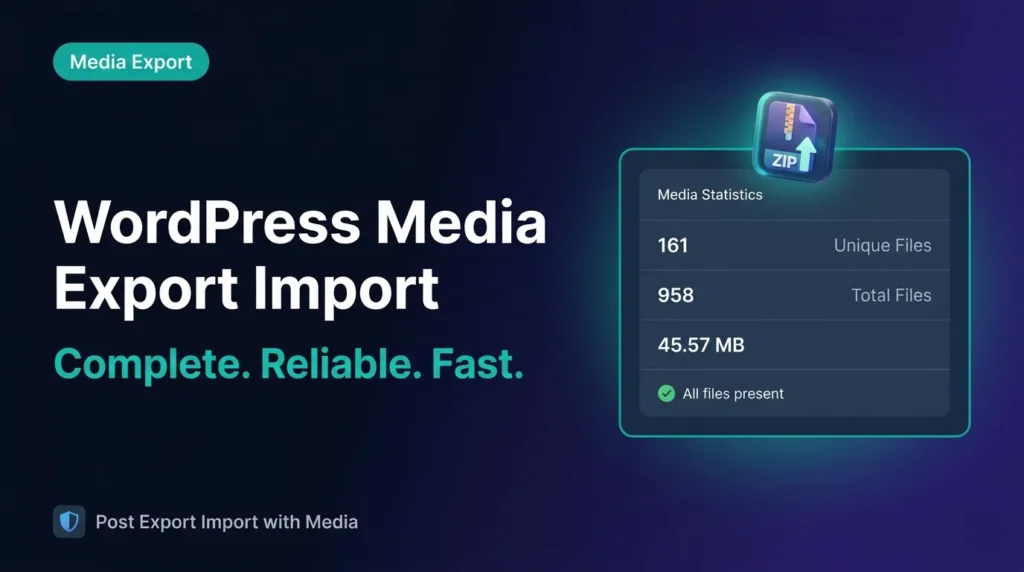
- Unique Files: 161 original files totaling 21.85 MB
- Total Files: 958 files including all sizes, totaling 45.57 MB
- Available Files: 161 / 161 – all files confirmed present on disk
- Largest File: 5.31 MB (WPAzleen_720p.mp4)
The file type breakdown is equally useful. In the example above, the library contains 134 WEBP files, 23 PNG, 3 JPEG, and 1 MP4. Knowing your file type distribution helps you estimate export archive size, spot unexpected formats, and confirm your destination server supports those file types.
This level of pre-export visibility is something most WordPress migration tools simply don’t offer. Rather than discovering problems after the import, you see them before you even click Export. This alone saves hours of cleanup on complex migrations.
2. Missing Files Detection with the “View Details” Modal
One of the most genuinely useful features in the WordPress media export import workflow is the missing files detector. Under the Available Files stat, if any files exist in the database but are physically missing from the server, you’ll see a warning like this:
⚠️ 2 missing from disk – View Details
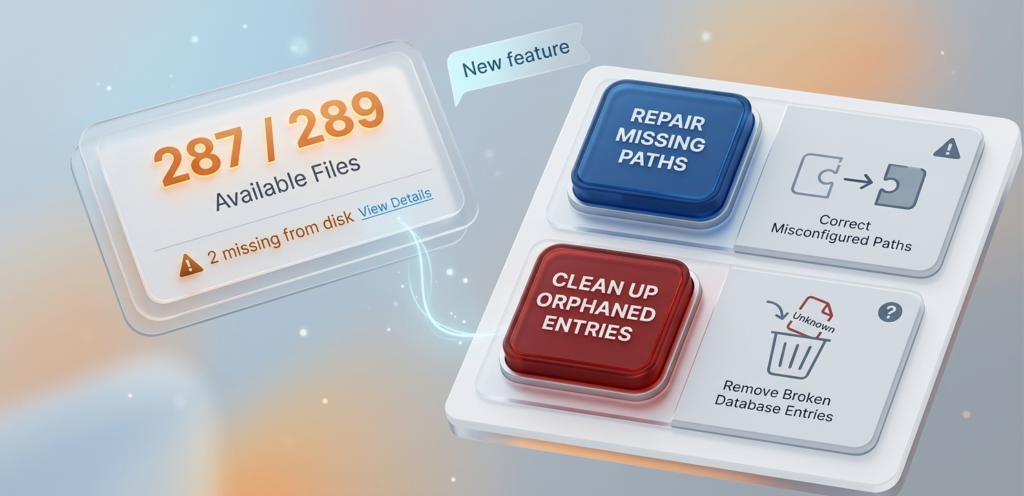
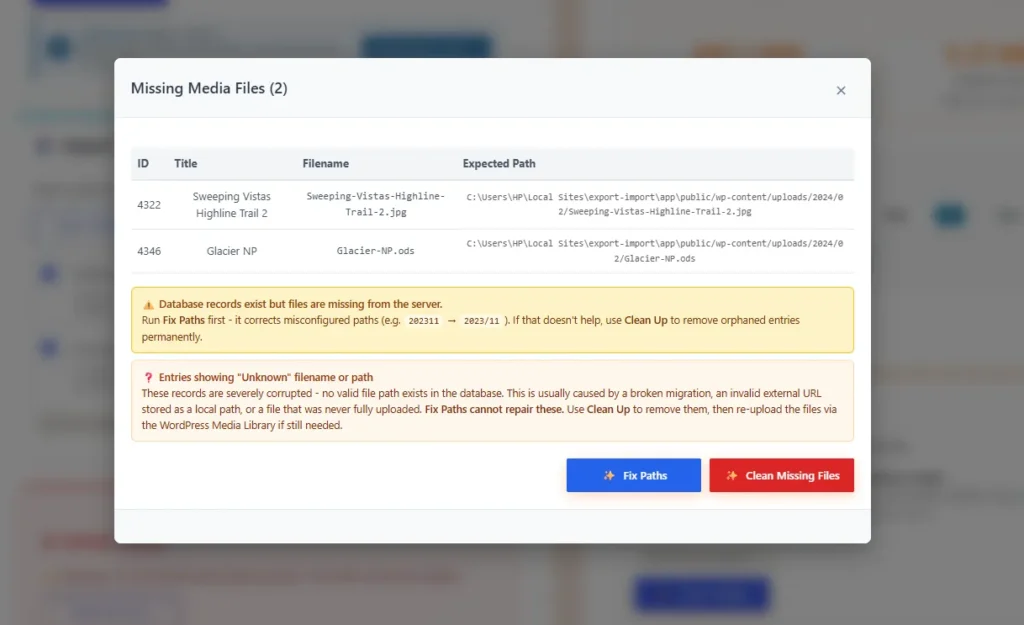
Clicking “View Details” opens a modal that lists every missing file with its database ID, post title, filename, and the full expected file path on disk. For example:
- ID 4322 – Sweeping-Vistas-Highline-Trail-2.jpg – expected at wp-content/uploads/2024/02/
- ID 4346 – Glacier-NP.ods – expected at wp-content/uploads/2024/02/
Below the list, the modal gives you actionable guidance. If paths are misconfigured (for example, a date folder stored as 202311 instead of 2023/11), the Fix Paths tool corrects them automatically. If the database records are simply orphaned – no physical file exists – Clean Up removes those entries permanently so they don’t pollute your export.
The modal also handles a special case: entries showing “Unknown” filename or path. These are severely corrupted records – usually caused by a broken migration, an external URL incorrectly stored as a local path, or a file that was never fully uploaded. Fix Paths cannot repair these; the recommended action is to Clean Up those records and re-upload the files via the WordPress Media Library if they’re still needed.
3. Refresh Stats Button – Always Current, Never Stale
The Media Statistics dashboard includes a Refresh Stats button that recalculates all counts on demand. This matters if you’ve just cleaned up orphaned records using the Fix Paths or Clean Up tools – the stats update immediately to reflect the current state of your library. You’re never looking at cached numbers from a previous session.
4. Export All Media with Metadata as ZIP
The dedicated Export Media section gives you a checkbox-driven interface for building your export package. The primary option – Export all media files with their metadata as a ZIP file – packages every attachment record along with the physical files into a single downloadable archive.
By default, only original files are exported. This keeps archive sizes lean and leverages a smart WordPress behavior: when you import on the destination site, WordPress automatically regenerates thumbnail variations (small, medium, large, and custom registered sizes). There’s no wasted bandwidth exporting files WordPress can rebuild itself.
However, if you need an exact copy – particularly for staging-to-production migrations where you want to avoid regeneration time on a large library – you can check the Export all image sizes option. This includes every generated size variation, giving you a complete pixel-perfect replica of the source library. The choice is yours based on your use case and available bandwidth.
5. Advanced Export Filters – Date Range and Post-Specific Media
Inside the Advanced options panel, two powerful filters give you surgical control over your WordPress media export import process rather than forcing an all-or-nothing approach.
Export by Date Range lets you filter media by upload date before exporting. You set a From and To date, and only files uploaded within that window are included in the ZIP. This is invaluable for incremental migrations – for example, exporting only media uploaded in the last quarter rather than re-exporting an entire library that already exists on the destination site.
Export Media by Post is where it gets genuinely clever. You select specific posts or pages from a searchable list – complete with Select All, Deselect All, and Load Next Batch controls – and the plugin exports only the media files attached to those selected posts. Nothing extra. Nothing redundant.
The post list is paginated using a configurable batch size so even sites with thousands of posts load quickly. You can adjust how many posts load per batch in the batch settings. The “Export List Post/Page Size” setting controls how many posts appear per page in the export list – defaulting to 300, and always using 300 in regular (non-batch) mode. When batch mode is active, you control the page size yourself for optimal performance on large sites.
Select five blog posts. Export. Get a ZIP containing only those posts’ featured images, inline images, and attached files. That’s the real magic of post-specific media export.
6. Multi-ZIP Import Support
Once your export is done, you’re not locked into a one-at-a-time import workflow. The plugin supports importing multiple ZIP files simultaneously. If you’ve exported media in chunks – by date range, by post group, or across multiple export sessions – you can select all the ZIPs together and run a single import pass. This dramatically simplifies multi-phase migrations where content was exported in batches over time.
7. Batch Mode for Large File Imports – The Performance Difference
This is the feature that separates smooth large-site migrations from painful, timeout-prone ones. Both export and import in Post Export Import with Media support two processing modes: regular mode and batch mode.
In regular mode, the plugin processes the entire operation in a single request. This works perfectly for small to medium libraries. But on large sites – thousands of posts, hundreds of megabytes of media – a single PHP request hits server execution time limits. The process stalls. Files get left behind. You end up with an incomplete migration.
Batch mode breaks the operation into smaller, server-friendly chunks. Each chunk completes, the next starts, and the full operation finishes reliably regardless of file count or archive size. Large file imports that would time out in regular mode complete cleanly in batch mode – often in significantly less total time because each chunk runs at full server speed without bottlenecks.
The recommendation is simple: enable batch mode before starting any media export or import, especially on sites with more than a few hundred media files. It’s a one-toggle change that prevents the most common cause of failed migrations. According to WordPress’s official server environment documentation, PHP time limits are one of the primary causes of failed bulk operations – batch mode works around this entirely.
How WordPress Media Export Import Actually Works – Step by Step
Here’s the practical workflow for a complete media migration using the plugin:
- Enable Batch Mode – Before anything else, turn on batch mode in the plugin settings. This single step prevents nearly all timeout and incomplete-transfer issues on large sites.
- Check Media Statistics – Open the Media Statistics panel on your source site. Review unique files, total files, and file types. Check for any missing-from-disk warnings. Use Fix Paths or Clean Up as needed before proceeding.
- Choose Your Export Scope – Decide: export all media, export by date range, or export media attached to specific posts. Configure your Advanced options accordingly.
- Run the Export – Click Export. The plugin builds your ZIP archive(s). For post-specific exports, only the media tied to your selected posts is included.
- Import on Destination – On your destination WordPress site, go to the import panel. Select one or multiple ZIPs. Run the import. With batch mode active, large archives process in chunks without timeouts.
- Verify – Return to Media Statistics on the destination site and confirm file counts match your source. All files present, all metadata intact.
Who Needs Dedicated WordPress Media Export Import?
The honest answer: anyone who moves WordPress sites more than once. But the plugin’s media-specific features are especially valuable for these scenarios:
Freelancers and agencies handling client migrations repeatedly benefit from the post-specific export – export only the content relevant to a new client project without dragging along an entire media library. The date range filter is equally useful for agencies managing long-running sites where content is being migrated in phases.
Site builders moving from local to staging to production need batch mode. Local development environments rarely impose the same PHP time limits as production servers, so a migration that worked fine locally can silently fail in production. Batch mode eliminates that gap entirely.
WordPress developers managing large content libraries – photography portfolios, video archives, news sites – will use the Media Statistics dashboard as a routine sanity check. Knowing the difference between 161 unique files and 958 total files (including all generated sizes) is precisely the kind of visibility that prevents surprises during migration.
If you’re also managing WooCommerce product data or running complex shop operations alongside your content migrations, pairing this plugin with Shop Explorer gives you AI-powered bulk product management and order analytics that complement your migration workflow across the entire site.
WordPress Media Export Import vs. Native WordPress Export – What’s the Difference?
The native WordPress exporter (Tools → Export) generates an XML file containing posts, pages, comments, and attachment metadata. What it does not include is the actual media files. Images, videos, PDFs – these all live on your server, and the XML export doesn’t touch them.
When you import that XML on a new site, WordPress tries to fetch the media files from their original URLs. If the source site is still live and accessible, this sometimes works. If the source site is offline, on a local dev environment, or behind authentication, you get a media library full of broken attachment records – database entries pointing to files that don’t exist on the new server.
Post Export Import with Media solves this by including the physical files in the export archive. No URL fetching. No dependency on the source site being accessible. The files travel with the content, arrive on the destination server, and get registered correctly in the media library. According to Kinsta’s WordPress migration guide, broken media is consistently the most reported issue in manual WordPress migrations – and a proper media-inclusive export tool is the direct solution.
Frequently Asked Questions About WordPress Media Export Import
Does batch mode work for both export and import?
Yes. Batch mode applies to both export and import operations. The recommendation is to enable it before running either process – especially if your media library is large or your server has conservative PHP execution time limits. Enabling batch mode before export ensures consistent chunk-based processing throughout the entire migration cycle.
What happens if a media file is missing from disk before export?
The Media Statistics dashboard flags missing files with a warning and a “View Details” button. The modal that opens lists every missing file by ID, title, filename, and expected path. You can use Fix Paths to correct misconfigured paths automatically, or Clean Up to remove orphaned database entries. This gives you a clean library before export so missing files don’t create broken records on the destination site.
Can I export media for only certain posts without including everything?
Yes – this is the Export Media by Post feature. You search and select specific posts or pages, and the plugin exports only the media files attached to those posts. The resulting ZIP contains exactly what those posts need, with nothing extra. This is the most efficient approach for partial migrations, content staging, or moving a subset of your site to a separate domain.
Do I need the premium version for media export and import?
The free version on WordPress.org includes core media export and import functionality. Premium features expand the batch controls, advanced filtering options, and processing limits. Check the pricing page for a full feature comparison, or visit the WPAzleen documentation for setup guides.
Can I import multiple ZIP files at once?
Yes. The import interface supports multi-ZIP selection. If you exported media in multiple batches – by date range, by post group, or across separate export sessions – you can select all ZIPs simultaneously and run one import pass to bring everything in together.
Conclusion
WordPress media export import done right means zero broken images, zero missing videos, and zero post-migration cleanup headaches. Post Export Import with Media delivers this through a combination of features that work together as a complete system: the Media Statistics dashboard surfaces library health before you export, the missing files detector lets you fix problems proactively, advanced filters give you surgical control over what gets exported, and batch mode ensures the process completes reliably regardless of library size.
Whether you’re migrating a small blog or a large media-heavy site, the workflow is the same: enable batch mode, check your stats, export with the right scope, and import cleanly. The plugin handles the complexity so you can focus on what comes after the migration. Download it free from WordPress.org or learn more at the Post Export Import with Media landing page. For questions or setup help, the WPAzleen support team is available.










Leave a Comment
Your email address will not be published. Required fields are marked *