
Table of Contents
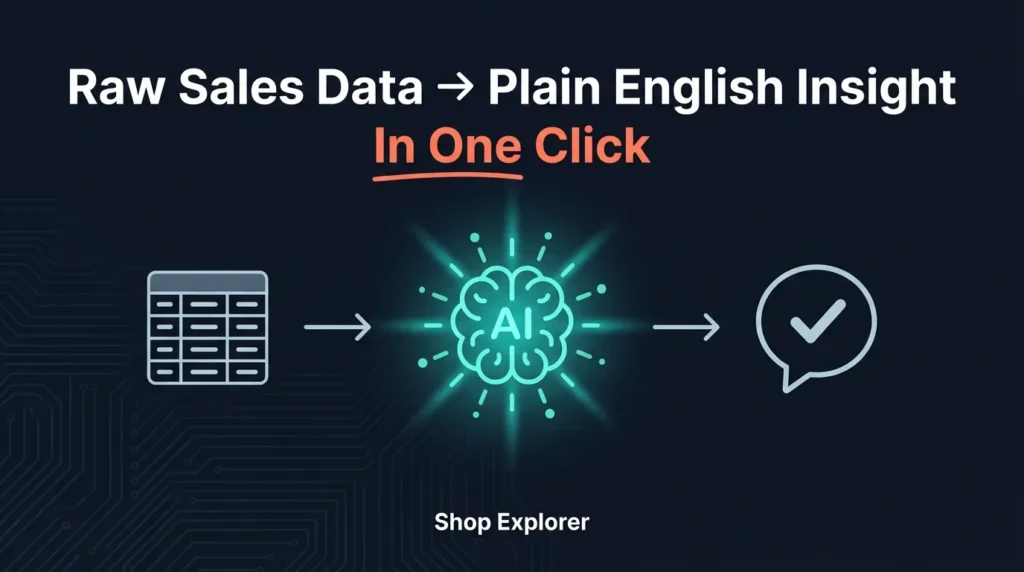
An e-commerce client of ours was spending $5,000/month on ads. Revenue looked great month over month — but net profit was flat. Their WooCommerce reports showed totals and percentages, not the “why.” That’s the gap a woocommerce ai analytics plugin is built to close: turning raw sales tables into plain-English answers about what’s actually driving — or draining — your margins.
Why Standard WooCommerce Reports Fall Short
Built-in WooCommerce analytics tells you what happened. It rarely tells you why, and it never tells you what to do next.
- Data without context — you see sales dropped 20%, but not why.
- No predictive advice — reports show the past, not what to cross-sell next.
- Siloed data — sales, order frequency, and expenses live in separate tables, so calculating real net profit means manual work.
- CSV pivot-table grind — finding trends usually means exporting to Excel and building pivot tables by hand.
A woocommerce ai analytics plugin solves this by reading your store’s database directly and translating patterns into conversational business advice — no spreadsheet required.
How Shop Explorer’s AI Integration Works
Instead of locking you into one proprietary AI subscription, Shop Explorer lets you connect your own provider using your own API key:
- Multi-provider support — Google Gemini, OpenAI (GPT-4o), Anthropic Claude, DeepSeek, X.AI Grok, or OpenRouter (100+ models).
- Data privacy by design — financial data is anonymized before analysis, and everything is stored locally in your WordPress database.
- Zero markup — you pay your AI provider directly. A full month of sales analysis typically costs less than a nickel.
3 Core Features of This WooCommerce AI Analytics Plugin
1. AI Revenue Analysis Panel
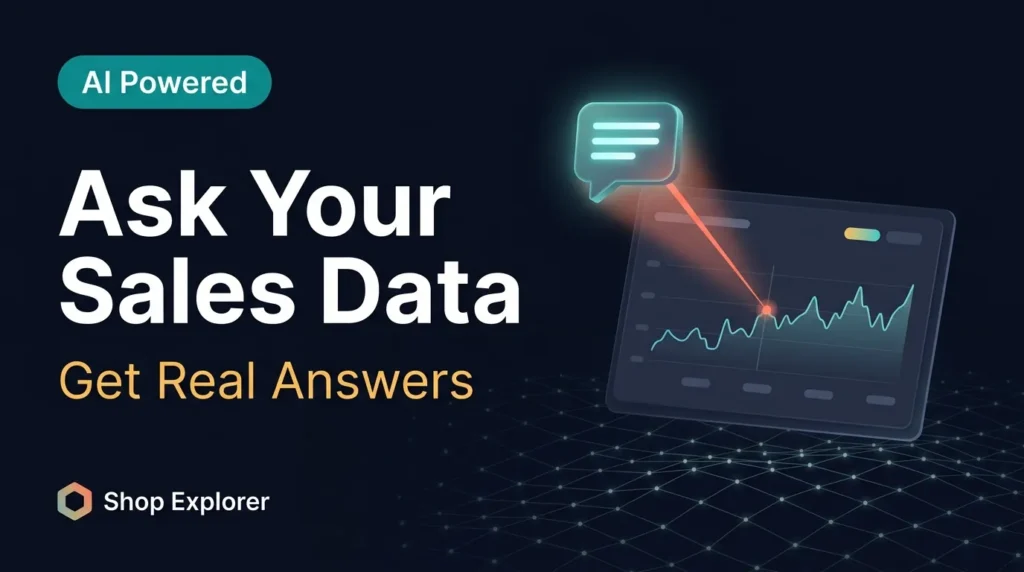
One click reads your selected date range — sales, order counts, customer segments, top products — and generates a plain-English breakdown: growth trends, what’s driving spikes or drops, and specific recommendations to lift conversion rate and AOV.
2. Ask Anything AI Chat Assistant
Type natural-language questions straight into wp-admin — “Which 5 products had the highest refund rate last month?” or “What’s the average order frequency for VIP-tagged customers?” — and get immediate, data-driven answers with conversation memory for follow-ups.
3. AI Content Generator for Catalog Products
Inside the product editor, a short prompt generates titles, short and long descriptions, target pricing, SKUs, and stock estimates in seconds — useful when analytics surfaces a gap in your catalog worth filling fast.
| Capability | Shop Explorer AI | Metorik | Glew.io |
|---|---|---|---|
| Monthly fee | Free (pay only API usage) | $50+/mo | $199+/mo |
| Plain-English AI analysis | Included | Basic | Limited |
| Interactive AI chat | Included | None | None |
| Multi-provider AI support | Gemini, OpenAI, Claude, more | None | None |
| Data storage | 100% local | External cloud | External cloud |
Setting Up Your First AI Revenue Analysis
- Open Settings — Shop Explorer → Settings → AI Integration.
- Connect your provider — pick Gemini or OpenAI, paste your API key, select a model, and click Test Connection.
- Save settings.
- Return to Dashboard and select your date range.
- Click AI Revenue Analysis and read your plain-English report on sales drivers and profit opportunities.
The whole setup takes under three minutes. Google’s own Gemini API pricing page confirms free-tier usage is generous enough for most small-to-mid stores to run monthly analysis at effectively no cost.
If your store also relies on a chatbot for customer-facing questions, AskAny AI Chatbot handles the front-of-store conversations while Shop Explorer’s Ask Anything assistant handles the back-office data questions — two different AI surfaces solving two different problems.
Frequently Asked Questions
Do I need a paid AI subscription?
No. A free Google Gemini API key or a pay-as-you-go OpenAI key is enough — most analysis runs cost less than one cent.
Is my customer data sent to the AI provider?
No. Financial data is anonymized before analysis — names, home addresses, and payment details are never sent to the AI provider.
Can I switch AI providers later?
Yes, anytime in Settings, without losing store history or dashboard configuration. Full details are in the WPAzleen documentation.
Will this slow down my database?
No. Analytics queries use cached transients and batch pagination, so performance stays smooth even on stores processing thousands of orders daily.
Conclusion
A woocommerce ai analytics plugin shouldn’t cost hundreds a month or lock your data in someone else’s cloud. Shop Explorer connects to the AI provider you already trust, keeps your data local, and turns raw sales tables into decisions you can act on today. Install Shop Explorer free from WordPress.org and run your first AI revenue analysis in under three minutes.







Leave a Comment
Your email address will not be published. Required fields are marked *