
Table of Contents
Migrating WordPress content shouldn’t mean fixing broken or mismatched images afterward. Yet many export/import tools struggle when the destination site already contains media with the same filenames, resulting in incorrect image assignments, duplicate uploads, or outdated image URLs.
Post Export Import with Media solves these challenges with the new Image Matching Strategy. Built to handle real-world migration scenarios, it gives you complete control over how images are matched and imported, making migrations more accurate, reliable, and predictable than ever before. Whether you’re moving a small blog or thousands of posts, your media stays exactly where it belongs.
What Is the WordPress Image Matching Strategy Setting?
Every time Post Export Import with Media imports a post, it has to make a decision about every single image inside that post: reuse something already in the media library, or pull a fresh copy from the source site. The WordPress Image Matching Strategy is the setting that controls exactly how that decision gets made.
It sits alongside a separate checkbox, “Download missing images from original URLs,” and the two are easy to confuse. One decides whether the plugin trusts what’s already on your site. The other decides what happens after that trust check fails. We’ll untangle both, but first, here’s the story of how this feature came to exist – because it explains exactly why each option behaves the way it does.
The Bug Reports Behind the WordPress Image Matching Strategy
A plugin user – we’ll call him Thomas – ran an import from a source site into a fresh target site and noticed something odd. A post about a building called “Haus der Ministerien” was importing with the wrong photo entirely. Digging into it, he found the plugin’s matching logic and reported exactly what was going wrong.
Bug 1: Filename Collisions
His target site already had a file called propaganda-ministerium.jpg sitting in an old date folder. The post he was importing referenced a completely different image, ministerium.jpg. Because the old matching query searched for anything ending in “ministerium.jpg,” it matched the wrong file – propaganda-ministerium.jpg ends in ministerium.jpg too. The real image was never downloaded, and the wrong photo landed in the published post.
Bug 2: Same Filename, Different Photo
Thomas flagged a second scenario: what if the target site already has a file with the exact same name, but it’s a completely different image? A cat photo named photo.jpg on the target site and a dog photo named photo.jpg on the source site would match perfectly by filename – and the import would silently keep the cat.
Bug 3: Wrong Date Folders
Even when the right image did get downloaded, it landed in today’s upload folder instead of the folder the source site originally used. An image from 2020 would show up in a 2026 folder, breaking the tidy year/month structure most WordPress sites rely on.
Once these fixes shipped in a beta build, Thomas tested again – and found two more edge cases that only showed up under real-world conditions.
Bug 4: Duplicate Uploads on Re-Import
Running the same import twice with “Always download fresh” selected created two copies of every image – the original and a “-1” duplicate – because the plugin didn’t check whether the file already existed on disk before downloading it again.
Bug 5: Skipped Posts, Stale Image URLs
When a post already existed on the target site, the plugin correctly skipped re-creating it – but it also skipped checking the post’s images entirely. If someone had deleted the media file but kept the post, the broken image reference just stayed broken.
Every one of these five reports fed directly into the design of the current WordPress Image Matching Strategy setting. Instead of one rigid matching rule, there are now three distinct strategies, plus a separate fallback switch, so the behavior can match how much you trust your media library.
The Three WordPress Image Matching Strategy Options
Here’s what each mode actually does under the hood, and who it’s built for.
1. Verify Only Fallback Matches (Recommended)
This is the default, and the direct fix for Bug 1. The plugin first looks for an exact file-path match – say, 2020/04/ministerium.jpg. If that path exists, it trusts it instantly with no extra network request. Only when no exact path is found does it fall back to a boundary-safe filename search – one that requires a “/” right before the filename, so propaganda-ministerium.jpg can never again be mistaken for ministerium.jpg. Because that fallback match is less precise, the plugin runs one HTTP HEAD request to compare file size before trusting it. It’s fast, and it directly closes the exact bug that started this whole thread.
2. Verify All Matches (PRO)
This is the fix for Bug 2 – the cat-photo-versus-dog-photo problem. It uses the same matching order as the default mode, but it runs the size verification for every match, including exact path matches. If your media library has ever been reorganized, or if two sites could plausibly have saved different files at the same path, this extra check catches what the default mode would miss. The tradeoff is one HTTP HEAD request per matched image, so imports run a little slower.
3. Always Download Fresh (PRO)
This mode skips the media library lookup entirely. It doesn’t ask “does this already exist” – it just goes straight to the source URL for every single image. The only local check it still performs is confirming the file isn’t already physically sitting on disk in the correct date folder, which is exactly the fix for Bug 4’s duplicate-upload problem. It’s the slowest mode, since it downloads everything, but it’s also the one that never gets fooled by a mismatched filename because it isn’t looking at filenames at all.
How the Matching Actually Runs, Step by Step
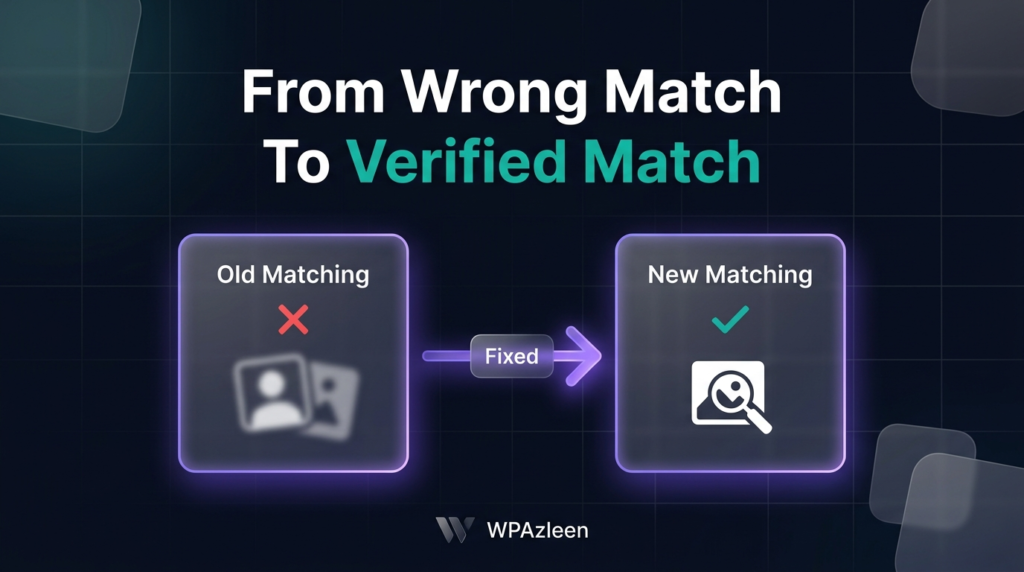
Regardless of which mode you pick, here’s the sequence the plugin follows for every image in an imported post:
- Read the
file_pathfrom the export JSON (for example,2020/04/ministerium.jpg). - If “Always download fresh” is selected, skip straight to step 5.
- Otherwise, search for an exact path match in the media library first.
- If no exact match exists, run a boundary-safe filename search, then verify size if the mode requires it.
- If nothing usable was found, and “Download missing images from original URLs” is checked, fetch the image from the source URL and save it into the source’s original year/month folder.
- Before saving, check whether the file already exists on disk in that folder – if it does, reuse the existing attachment instead of creating a duplicate.
That last check is also what quietly fixes Bug 5. Even when a post is marked “skipped” because it already exists, the plugin still walks through this same image sequence for it – so a post with a missing media file gets its image re-downloaded and its content URLs updated, without duplicating the post itself.
Use Case Scenarios: Which WordPress Image Matching Strategy Fits You
Rather than memorizing what each mode does, it’s easier to match your own migration situation to one of these stories.
“I’m moving content between two active sites.”
This is the normal migration case – a target site that already has its own media library, importing posts from a separate source. Use Verify only fallback matches with Download missing images checked. It’s fast, and it’s the exact configuration that fixes the original filename-collision bug.
“I’ve already been burned by a wrong image once.”
If your media library has been reorganized, restored from a backup, or you simply don’t trust that a given path still holds the original file, step up to Verify all matches. The extra HTTP HEAD request per image is a small price for certainty.
“I’m migrating into a brand-new, empty site.”
With nothing in the media library yet, matching logic has nothing to check against anyway. Always download fresh is the simplest and safest choice here – every image comes straight from the source, and the “Download missing images” checkbox becomes redundant since there’s no fallback path left to trigger.
“My target site can’t reach the source server.”
If the source site is offline, on a closed network, or you’d rather not hit it at all, use Verify only fallback matches with “Download missing images” left unchecked. Pre-upload the media manually first, using the same filenames, and let the matching logic do the rest without ever needing an outbound request.
Always Download Fresh vs. Download Missing Images: The Real Difference
This is the pairing that trips up the most people, because both settings involve fetching an image from a URL. The difference is when each one gets a say.
“Download missing images” is a fallback. It only ever activates after the matching logic has already tried and failed to find something usable in the media library. Think of it as a safety net: “if you truly can’t find it locally, go fetch it.” If a match is found – even a wrong one – this checkbox never gets the chance to run.
“Always download fresh” isn’t a fallback at all – it’s a strategy that replaces matching entirely. It never asks whether something already exists in the media library. It goes straight to the source URL every time, for every image, and only checks the disk afterward to avoid creating a true duplicate.
| Download Missing Images | Always Download Fresh | |
|---|---|---|
| Type | Checkbox (on/off) | Radio option (strategy) |
| When it runs | After matching fails | Before matching even starts |
| Checks media library first? | Yes | No |
| Downloads if a file already exists? | No | Yes, unless found on disk |
| Creates duplicates? | No | No (disk check prevents it) |
| Relative speed | Slightly slower | Slowest – downloads everything |
In plain terms: with only “Download missing images” active, a plugin that finds ministerium.jpg in the library will use it – right or wrong. With “Always download fresh” active, the plugin ignores whatever is already sitting there and pulls a clean copy from the source every time. And if both are checked together, “Always download fresh” simply runs first and makes the checkbox redundant – no conflict, no double download.
“Download missing images” answers “what if it’s not there.” “Always download fresh” answers “what if I don’t trust what’s there at all.”
Applies Equally to Posts and Pages
The WordPress Image Matching Strategy setting and its matching logic behave identically for both Posts and Pages. The only difference is where you find the setting in the admin UI – it sits in the advanced panel for Posts and in the free options section for Pages. Under the hood, both use the exact same code path, so a fix that works for one works for the other. For teams managing product documentation, this pairs well with a Product walkthrough doc if pages and product listings are being migrated side by side.
Frequently Asked Questions
Which WordPress Image Matching Strategy should I use by default?
For most normal migrations between two active sites, “Verify only fallback matches” paired with “Download missing images” checked is the recommended combination – it’s the fastest option and it directly resolves the original wrong-image bug.
Will “Always download fresh” create duplicate images if I import twice?
No. The current build checks whether the file already exists on disk in the correct folder before downloading, so re-running the same import won’t create a second copy.
What happens to images on posts that get “skipped” during import?
Skipped posts (ones that already exist on the target site) still have their images checked. If an image is missing, the plugin downloads it and updates the post content URLs, even though the post record itself isn’t recreated.
Do Pages use a different matching strategy than Posts?
No – the matching logic is identical for both content types. Only the setting’s location in the admin UI differs.
Can I run an import with no internet access to the source site?
Yes. Choose “Verify only fallback matches” and leave “Download missing images” unchecked, then pre-upload matching filenames to the target media library before importing.
Conclusion
The WordPress Image Matching Strategy setting exists because of real bug reports, tested against real edge cases – filename collisions, identical filenames with different content, wrong date folders, duplicate uploads, and stale URLs on skipped posts. Pick “Verify only fallback matches” for everyday migrations, step up to “Verify all matches” when you don’t fully trust your media library, or go with “Always download fresh” for a clean, empty target site. Whichever you choose, understanding the difference between that strategy and the separate “Download missing images” checkbox means your next import won’t end up with someone else’s building in your post.
Ready to run a cleaner import? Update to the latest build of Post Export Import with Media and pick the WordPress Image Matching Strategy that fits your migration.





Leave a Comment
Your email address will not be published. Required fields are marked *