

Your WordPress website is working normally. Orders are coming in, visitors can browse your pages, and your latest update went smoothly. Then something changes. A plugin file has been modified, an unfamiliar script appears in your website directory, or a theme file no longer matches the version you installed.
Was it a legitimate update? Did a developer make a change? Or could someone have modified your website without permission?
Without a reliable way to review file changes, answering those questions can take time. WordPress file integrity monitoring helps website owners identify changes to important files and investigate whether those changes are expected.
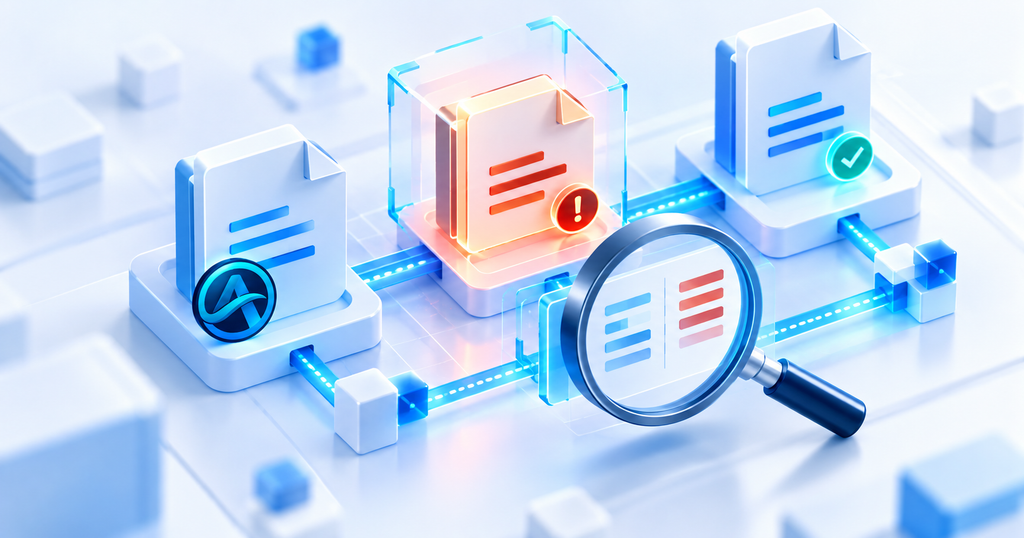
Activity Guard by WPAzleen combines file integrity monitoring with security scanning, activity logging, IP based security controls and real time notifications. In this guide, we will explain how file monitoring works, what it can reveal, how to use it responsibly, and how Activity Guard compares with other WordPress tools.
Table of Contents
- What Is WordPress File Integrity Monitoring?
- Why WordPress File Changes Matter
- What Can File Monitoring Detect?
- How Activity Guard Helps Monitor File Changes
- How to Get Started
- How to Handle Legitimate File Changes
- Activity Guard vs Other File Monitoring Tools
- Pricing and Value
- File Integrity Monitoring Best Practices
- Frequently Asked Questions
- Final Thoughts
What Is WordPress File Integrity Monitoring?
WordPress file integrity monitoring is the process of checking important website files for unexpected changes. Depending on the tool, it can identify files that have been added, modified, deleted or changed in their permissions.
A monitoring system may compare current files against a known baseline, trusted reference files or previously recorded file information. Some tools use cryptographic hashes to detect content changes, while others examine file metadata or compare files with official WordPress, plugin or theme packages.
For example, imagine that a PHP file inside a plugin directory changes shortly after an unfamiliar login event. A file integrity alert gives you a reason to investigate the change, check who had access and determine whether it was part of a legitimate update.
One important distinction: a changed file is not automatically malicious. Plugin updates, theme customizations, deployments and routine maintenance can all modify files. Monitoring helps identify what changed, but additional investigation is needed to understand why.
Why WordPress File Changes Matter
A WordPress installation contains core files, plugins, themes, configuration files and other resources that help your website operate. Some of these files can execute code, which means an unauthorized modification may have serious consequences.
Unauthorized Code Changes
An attacker who gains sufficient access may modify an existing PHP file or introduce a new executable file. Depending on the location and permissions, the change could be used to run unwanted code, create persistent access or interfere with website operations.
Malware and Backdoor Detection
Some compromises involve changes to existing files, while others introduce new files that do not belong in the installation. Monitoring can help surface these changes for review, especially when an unfamiliar file appears in a sensitive directory.
Unexpected Changes After Updates
File monitoring is not only useful during security incidents. It can also help developers investigate unexpected changes after an update or deployment. If a customized plugin file changes, the monitoring report can provide a starting point for understanding what happened.
Better Visibility for Website Teams
Agencies and teams often manage websites with several administrators, developers and content editors. File monitoring adds another layer of visibility when someone needs to investigate changes that are not obvious from the WordPress dashboard activity log alone.
What Can WordPress File Monitoring Detect?
The exact capabilities depend on the monitoring tool and the files it covers. Common examples include:
- Modified files: Existing files whose contents or tracked metadata have changed.
- New files: Files that were not present during an earlier scan or reference comparison.
- Deleted files: Previously monitored files that are no longer present.
- Core file differences: Changes to WordPress core files that may require comparison with a trusted version.
- Plugin and theme changes: Modifications that occur inside installed extension directories.
- Potentially suspicious executable files: Unexpected PHP or similar files found in locations where they are not normally required.
Coverage matters. A tool that checks only WordPress core files may not detect a suspicious change in a custom plugin. Another tool may monitor plugins and themes but exclude uploads, caches or other directories. Always review the documented scope before assuming your entire website is covered.
How Activity Guard Helps Monitor File Changes
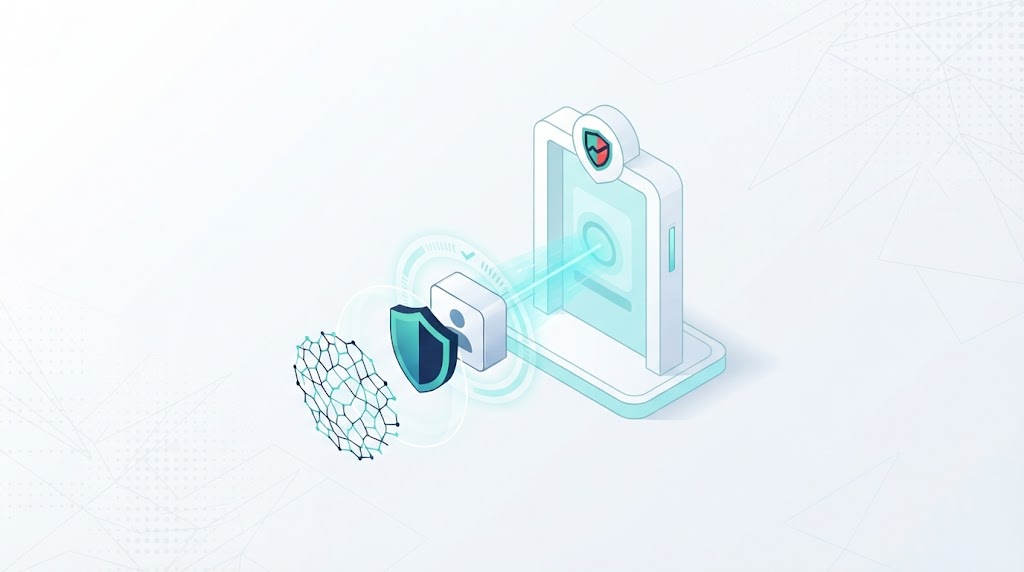
Activity Guard brings file monitoring into a broader WordPress security workflow. Instead of treating file changes as an isolated concern, administrators can use monitoring alongside activity logs, vulnerability scanning and security alerts.
Core File Integrity Scanning
Activity Guard includes a core file integrity scanner designed to help identify unexpected changes to WordPress core files. This can help administrators investigate differences that deserve further review.
Plugin and Theme File Monitoring
Plugin and theme directories deserve attention because they contain code that affects website behavior. Activity Guard provides file integrity monitoring across plugins and themes, helping administrators investigate unexpected modifications within those areas.
Activity Context
A file change is more useful when you can investigate what else happened around the same time. Activity Guard’s activity logging records important website events, including plugin and theme changes and relevant administrative actions.
Reviewing file findings alongside available activity history may help you determine whether a change followed a known update, an administrator action or an event that requires additional investigation.
Notifications Through Supported Channels
Activity Guard supports real time notifications through Slack, Telegram and email. These channels can help your team receive important security and website activity alerts without relying entirely on manual dashboard checks.
Review the current settings and documentation to confirm which file monitoring events generate notifications in your installed version. Do not assume every type of file change automatically triggers every notification channel.
File Monitoring Alongside Security Scanning
File integrity monitoring and vulnerability scanning answer different questions. File monitoring helps identify changes to files, while vulnerability scanning helps identify known security issues in supported software. Activity Guard combines these capabilities with IP based security controls and login protection to provide a broader security workflow.
Neither capability guarantees that a website is secure. A suspicious file may require manual investigation, and a clean scan cannot rule out every possible compromise.
How to Get Started With File Integrity Monitoring
If you are adding file monitoring to an existing WordPress site, begin with a clear understanding of its current state. This makes it easier to distinguish expected changes from activity that needs attention.
- Install Activity Guard. Visit the WordPress plugin directory listing and install the plugin.
- Review the security features. Open the Activity Guard dashboard and locate the available file integrity and security scanning options.
- Understand the monitoring scope. Check which files and directories are covered by the available monitoring features.
- Review existing activity. Look at recent plugin updates, theme changes and administrative actions that could explain file modifications.
- Run the available checks. Use the scanning controls documented for your installed version and review the reported findings.
- Investigate unexpected results. Check suspicious file paths and compare them with trusted source files or a known good backup where appropriate.
- Configure notifications. Review available alert settings and connect the supported channels your team uses.
- Document your response. Record the reason for accepting a change or the actions taken to investigate it.
For important business websites, perform initial configuration and testing during a maintenance window where practical. Keep a separate backup and ensure that the backup can be restored before making security related changes.
How to Handle Legitimate File Changes
Imagine that your monitoring tool reports changes to several plugin files. Before treating the result as a security incident, ask a few questions.
- Was a plugin or theme updated recently?
- Did a developer deploy a planned change?
- Does the changed file match the official package or your documented customization?
- Did other unusual events occur around the same time?
- Can the change be reproduced or explained using deployment records?
If the change is expected, document it and follow the monitoring tool’s process for acknowledging or updating the reference state, where supported. If the change is unexplained, preserve the relevant information and investigate before accepting it as normal.
Avoid automatically replacing every changed file without understanding its purpose. A custom modification may be legitimate, while a malicious change may require a broader cleanup. Restore files from trusted sources only after considering the cause of the change and the possibility that other parts of the website were affected.
Activity Guard vs Other WordPress File Monitoring Tools
File integrity tools can have very different goals. Some focus on detecting changes to a few directories, while others compare files with trusted reference versions or combine file monitoring with a wider security suite.
Wordfence
Wordfence Security includes a scanner that checks WordPress core, plugins and themes against repository versions where supported. It also checks for known malware signatures and other suspicious code patterns. Wordfence is worth evaluating if you need file checking as part of a broader firewall and malware scanning solution.
Melapress File Monitor
Melapress File Monitor focuses specifically on file integrity monitoring. Its documented capabilities include detecting file and permission changes, identifying leftover files and helping administrators investigate potential malware injections. It is a relevant option when file change visibility is the main requirement.
File Change Monitor
File Change Monitor provides a lightweight approach to tracking added, modified and deleted files in key WordPress directories. Its WordPress.org listing describes scheduled monitoring and email alerts. Its documented scope is more focused than an all in one security and activity monitoring suite.
Activity Guard
Activity Guard combines core file integrity scanning and file monitoring across plugins and themes with activity logging, IP based security controls, vulnerability scanning and real time notifications. It is worth considering when file monitoring is one part of a wider need for security visibility and website administration.
| Capability | Activity Guard | Wordfence | Melapress File Monitor | File Change Monitor |
|---|---|---|---|---|
| File change monitoring | Core, plugin and theme monitoring | File scanning and integrity checks | Core file monitoring focus | Core, plugin and theme directories |
| Comparison with trusted files | Review current scanner documentation | Repository comparisons where supported | Review current product documentation | Review current plugin documentation |
| Malware scanning | Security scanning available | Dedicated malware and code scanning | File change detection focus | File change detection focus |
| Activity logging | Yes | Security event monitoring | Not its primary focus | Not its primary focus |
| IP based security controls | Yes | Yes | Not its primary focus | Not its primary focus |
| Slack and Telegram alerts | Supported | Check available integrations | Email alerts documented | Email alerts documented |
| WooCommerce monitoring | Yes | Not its primary focus | Not its primary focus | Not its primary focus |
This comparison is based on each product’s documented focus and available feature descriptions. It does not imply identical scanning coverage, alert behavior or protection. Check the latest documentation and test the tools against your own website before choosing.
Pricing and Value
A dedicated file monitoring plugin can be a good fit if you only need to track changes. A broader security tool may provide more value when you also need activity history, IP controls, vulnerability scanning and alerts.
Activity Guard provides file integrity monitoring alongside other security and operational features in its free WordPress plugin. This may reduce the need to install separate plugins for every related task. Review the WPAzleen pricing page for the current plan details and any additional paid features.
Wordfence offers a free plugin and paid security plans, while Melapress File Monitor and other dedicated monitoring tools have their own feature sets and commercial options. Compare current pricing, supported directories, reference checking, notifications and support before making a decision.
The most useful solution is not necessarily the one with the longest feature list. It is the one that gives you appropriate coverage, useful findings and a process your team can follow when something changes unexpectedly.
WordPress File Integrity Monitoring Best Practices
- Start from a trusted state. Establish your monitoring reference only after you have reasonable confidence in the files being monitored.
- Review coverage. Understand which directories and file types are included or excluded.
- Investigate before accepting changes. Do not treat every modification as harmless or every alert as proof of malware.
- Keep backups. Maintain backups separately from the website and test restoration periodically.
- Update carefully. Review monitoring results after planned WordPress, plugin and theme updates.
- Use activity context. Compare file findings with available administrative logs and deployment records.
- Protect administrator accounts. Limit account permissions and use strong authentication to reduce unauthorized changes.
- Respond promptly to unexplained changes. Preserve evidence, investigate the cause and involve your hosting provider or a qualified security professional when needed.
- Monitor performance. Choose scan schedules appropriate to your site’s size and server resources.
- Do not rely on one security layer. Combine file monitoring with updates, access controls, malware scanning and a recovery plan.
Frequently Asked Questions
Does file integrity monitoring detect every type of malware?
No. It can reveal suspicious file changes, but malware may use existing files, database content, compromised accounts or other techniques. Combine monitoring with malware scanning and other security controls.
Are all file changes suspicious?
No. Software updates, planned deployments, customizations and routine maintenance can all change files. Review the context and compare the results with trusted references before deciding how to respond.
Can file integrity monitoring replace backups?
No. Monitoring helps identify changes, while backups provide a recovery option. Keep both, and test your backup restoration process.
Is file integrity monitoring useful for WooCommerce stores?
Yes. Unexpected code changes can affect checkout, payment integrations and other store functionality. File monitoring works alongside order monitoring, access controls and regular backups to help administrators investigate potential issues.
Does Activity Guard include file integrity monitoring?
Yes. Activity Guard includes core file integrity scanning and monitoring across plugins and themes, alongside activity logging, security scanning, IP based security controls and notifications. Review the current plugin documentation for the exact scope and settings available in your installed version.
Final Thoughts
Unexpected file changes can be difficult to investigate when you have no record of what changed or when it happened. WordPress file integrity monitoring gives administrators a practical starting point for identifying changes and deciding which ones deserve attention.
Remember that monitoring is a detection aid, not a guarantee of security. Combine it with trusted updates, strong access controls, malware scanning, activity logs and tested backups to build a more resilient website.
Activity Guard by WPAzleen brings file integrity monitoring together with IP security controls, vulnerability scanning, activity logging and real time notifications. If you want a broader view of your WordPress site’s security and activity, explore Activity Guard.








Leave a Comment
Your email address will not be published. Required fields are marked *