🧠 How to Change Submit Button Text in Simple Form #
When creating contact forms or feedback forms, one of the most important customization features is the ability to change the submit button text. With Simple Form by wpazleen, you can easily change the form’s submit button text directly from the form editor, without writing any code.
Follow this detailed step-by-step guide to change the submit button text in Simple Form and make your form more personalized for your users.
💡 Step 1: Open Your Form in the Simple Form Editor #
- Go to your WordPress Dashboard → Simple Form → All Forms.
- Select the form you want to edit and click on Edit Form.
- You’ll now be inside the Simple Form Editor, where you can add, remove, and customize fields easily.
⚙️ Step 2: Access the Form Settings Panel #
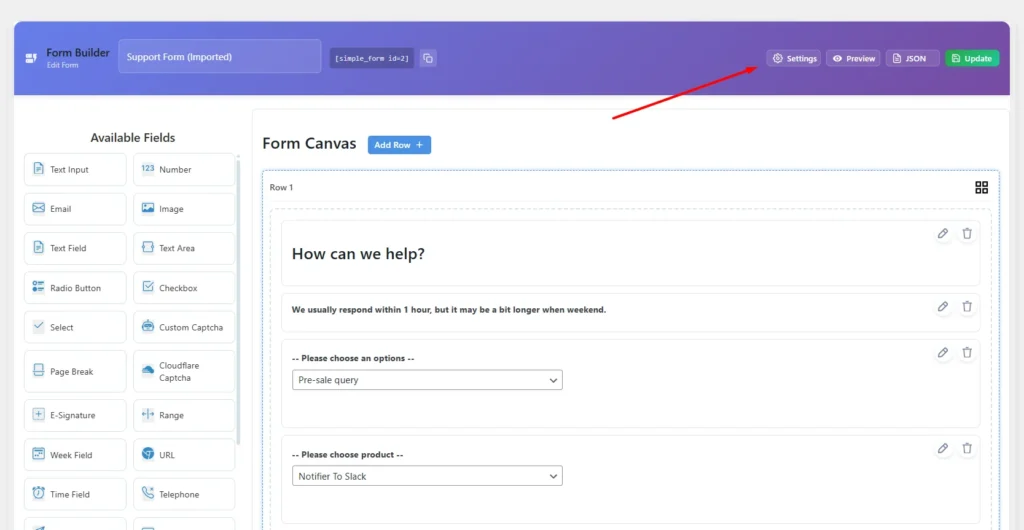
In the Simple Form Editor, you’ll notice a settings icon on the right side of the editor. This is where most of your form configuration options are located.
- Click on the Settings button.
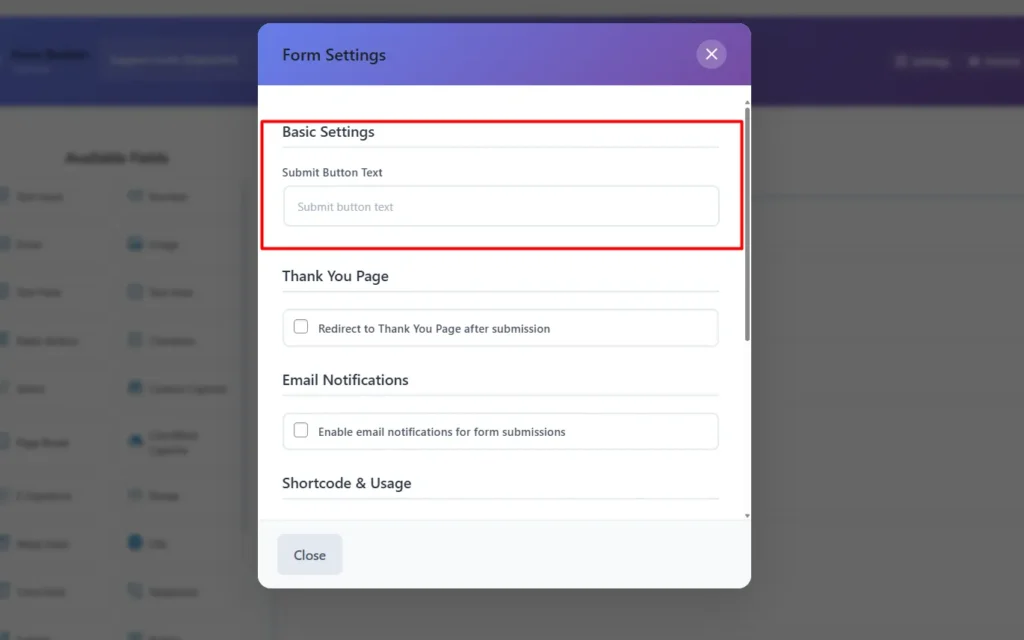
- A modal window will open containing various form configuration options.
✏️ Step 3: Change the Submit Button Text #
Inside the settings modal:
- Scroll down to find the Submit Button Settings section.
- Locate the field labeled “Submit Button Text.”
- Enter your custom text, such as:
- “Send Message”
- “Submit Now”
- “Register”
- “Get Quote”
- Click Update Form to save the changes.
That’s it! The Simple Form plugin will automatically update the text of your submit button across your form.
This flexibility allows you to match your form’s tone and design with your brand’s style a small but impactful UX improvement.
🧩 Pro Tip: Make Your Button Stand Out #
To enhance user engagement, you can also use the Form Theme Customization feature inside Simple Form. It allows you to apply different color palettes, spacing, and button styles using the built-in Theme Builder.
👉 You can explore modern UI form design tips from Smashing Magazine (DoFollow) to better understand effective form design principles.








Leave a Comment
Your email address will not be published. Required fields are marked *