- What Is the Image Matching Strategy Setting?
- How to Activate the Image Matching Strategy Setting
- How to Use Post Import Image Matching Settings: Step-by-Step Guide
- Step 1: Expand More Options Before Every Import
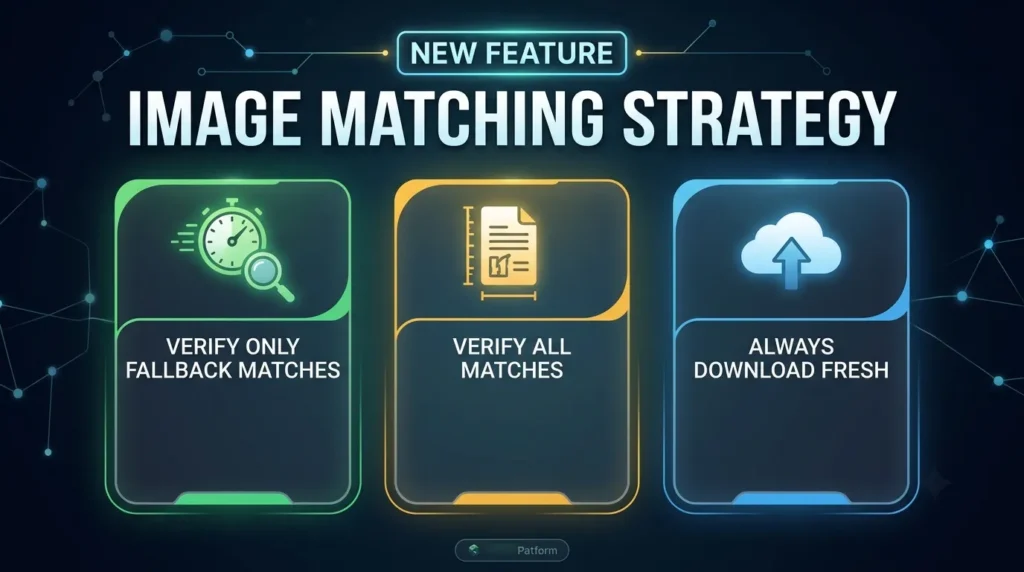
- Step 2: Choose "Verify Only Fallback Matches" for Normal Migrations
- Step 3: Switch to "Verify All Matches" If You've Seen Wrong Images Before
- Step 4: Use "Always Download Fresh" for Empty or Untrusted Target Sites
- Step 5: Decide on "Download Missing Images from Original URLs"
- Configuration Options
- Best Practices for Image Matching Strategy
- Developer Notes
- Comparison with Alternatives
- Frequently Asked Questions
- Where exactly do I find the Post Import Image Matching Settings?
- What's the difference between "Always download fresh" and "Download missing images"?
- Will changing the Image Matching Strategy affect already-imported posts?
- Is the Image Matching Strategy setting the same for Pages as it is for Posts?
- Does "Verify all matches" or "Always download fresh" require PRO?
- Conclusion
If an import ever brought in the wrong photo, created a duplicate upload, or left a broken image URL on a post that already existed, the fix lives in your Post Import Image Matching Settings. This one setting controls how Post Export Import with Media decides whether to reuse an image already in your media library or fetch a fresh copy from the source site. This guide walks through what it does, exactly where to find it, and how to configure it correctly for your migration.
What Is the Image Matching Strategy Setting? #
Every image referenced in an exported post is stored in the JSON as a content_images entry, carrying the original filename, source URL, and the year/month file_path it lived in on the source site. When you import that post, the plugin has to decide, image by image, whether something already on your target site can be safely reused, or whether it needs to go fetch the file itself. The Post Import Image Matching Settings – technically the “Image Matching Strategy” option – is what governs that decision. It exists because a purely automatic match can get it wrong: two different files can share a filename, or one filename can be a substring of another. You can read more about how WordPress itself organizes uploaded media in the WordPress Developer Reference for wp_upload_dir(), which is the core function this feature works alongside when preserving source date folders.
How to Activate the Image Matching Strategy Setting #
- Go to your WordPress Dashboard → Export/Import Posts (for posts) or the equivalent Pages import screen. You’ll land on the standard import panel where you select your exported JSON file.
- Select your JSON file and scroll down to the “More Options” section. It’s collapsed by default — click it to expand and reveal the advanced import settings.
- Locate “Image Matching Strategy” inside the expanded panel. You’ll see three radio button options and, just below them, the separate “Download missing images from original URLs” checkbox.
- Pick your strategy — “Verify only fallback matches” is pre-selected by default and is the right choice for most imports. Change it only if your situation matches one of the scenarios in the “How to Use” section below.
- Confirm “Download missing images” is checked if you want the plugin to fetch anything it can’t find locally — leave it unchecked only if your target site has no network access to the source site.
Activation complete. No save button is needed for this setting on its own — it applies the moment you click “Start Import” with your chosen options selected, since it’s part of the same import run rather than a separate saved preference.
How to Use Post Import Image Matching Settings: Step-by-Step Guide #
Step 1: Expand More Options Before Every Import #
Because “More Options” is collapsed by default, it’s easy to run an import without ever seeing the Image Matching Strategy setting. Get in the habit of clicking to expand it before every import — especially the first import into a site where the media library already has content.
Step 2: Choose “Verify Only Fallback Matches” for Normal Migrations #
This is the default and recommended option. The plugin first checks for an exact file_path match — if the exact source path already exists on your target, it trusts it instantly with no extra network call. Only when there’s no exact path match does it fall back to a boundary-safe filename search, and that fallback match gets a quick file-size verification via an HTTP HEAD request before it’s trusted. This is the fastest option and covers the vast majority of normal site-to-site migrations.
Step 3: Switch to “Verify All Matches” If You’ve Seen Wrong Images Before #
If your media library has ever been reorganized, restored from a backup, or you simply suspect that a given path might not hold the file you think it does, select “Verify All Matches” (PRO). It runs the same exact-path-then-filename matching order, but adds a file-size check even for exact path matches — so an identical file path that quietly points to different content no longer slips through.
Step 4: Use “Always Download Fresh” for Empty or Untrusted Target Sites #
Select “Always Download Fresh” (PRO) when you’re migrating into a brand-new site with an empty media library, or when you don’t trust the existing library at all. This mode skips media library matching completely and downloads every image straight from the source URL. It still checks whether the file already exists on disk before saving, so re-running the same import won’t leave you with duplicate uploads.
Step 5: Decide on “Download Missing Images from Original URLs” #
This checkbox is separate from the strategy radio buttons and only matters for “Verify Only Fallback Matches” and “Verify All Matches” — it’s the fallback that fires after matching has already failed to find anything usable. Leave it checked for normal imports with source-site access. Uncheck it only if your target site can’t reach the source server, and pre-upload matching filenames to your media library manually beforehand.
Configuration Options #
| Setting | What It Does | Default | Recommended |
|---|---|---|---|
| Verify only fallback matches | Trusts exact path matches instantly; verifies size only on filename fallback matches | Selected by default | Normal migrations between active sites |
| Verify all matches (PRO) | Verifies file size for every match, including exact path matches | Not selected | Reorganized or untrusted media libraries |
| Always download fresh (PRO) | Skips media library lookup entirely; downloads every image from source, with a disk check to prevent duplicates | Not selected | Fresh migration to an empty target site |
| Download missing images from original URLs | Fallback checkbox — fetches an image from the source URL only after matching has failed to find one | Checked | Keep checked unless the source site is unreachable |
Best Practices for Image Matching Strategy #
- Always expand “More Options” first: the Image Matching Strategy setting is collapsed by default, so make checking it part of your standard import routine, not an afterthought.
- Match the strategy to your migration type: use “Verify only fallback matches” for routine migrations, step up to “Verify all matches” only when you have a specific reason to distrust the media library.
- Run a small test import first: import a handful of posts before running a full migration, and check the imported images against the source to confirm your chosen strategy behaved as expected.
- Don’t mix “Always download fresh” with a populated library you trust: it ignores existing files entirely, so on a site with a curated media library it will still re-download everything, just without creating duplicates.
- Keep source-site access available during import: “Download missing images” and both PRO download strategies all depend on being able to reach the source URLs at import time.
- Re-import safely after fixing missing media: if you’ve deleted an image but kept the post, re-running the import will detect the post as existing, still check its images, and re-download what’s missing.
- Apply the same logic to Pages: the setting works identically for Page Import, just located in a different panel — set your strategy once you understand your migration scenario, and use it consistently across both.
Developer Notes #
The Image Matching Strategy logic lives in class-post-handler.php, with PRO-only strategy modes mirrored in class-post-handler-pro.php. The setting itself is registered and rendered through class-main.php and class-admin-menu.php on the backend, with the “More Options” panel toggle and radio/checkbox behavior handled in admin.js on the frontend. The matching sequence follows this order: exact file_path match against _wp_attached_file postmeta, then a boundary-safe filename fallback (a %/filename pattern rather than a plain %filename pattern, which is what prevents substring collisions like “propaganda-ministerium.jpg” matching a search for “ministerium.jpg”), then an optional HTTP HEAD size verification depending on the selected strategy.
If you’re extending or auditing this feature, the two methods worth tracing in class-post-handler.php are the attachment lookup method (exact path + filename fallback) and the size verification method that performs the HTTP HEAD request. Both are also present in class-post-handler-pro.php for the PRO-only strategies. If you need the exact method names, parameter signatures, or filter/hook names for a custom integration, share the current PHP source for those two files and this section can be updated with verified, line-referenced specifics rather than descriptions based on the plugin’s documented behavior.
Comparison with Alternatives #
| Plugin | Image Handling on Import | Difference |
|---|---|---|
| WP All Import | Downloads or matches images based on general import mapping rules | PEIWM’s Image Matching Strategy gives explicit, named control over exact-path vs filename-fallback vs always-fresh behavior, specifically to prevent the filename-collision and duplicate-upload issues described above |
| WP All Export | Focused on exporting; import-side matching is handled by its companion import tool with similar general-purpose rules | PEIWM is built around the export/import pair for this exact media-matching use case, including source date-folder preservation on download |
Choose PEIWM’s Image Matching Strategy when: you’re migrating between two WordPress sites that may have overlapping filenames, you need explicit control over how aggressively the plugin re-downloads images, or you’ve been burned by a wrong-image match before and want a verified, boundary-safe matching path instead of a generic filename lookup.
Frequently Asked Questions #
Where exactly do I find the Post Import Image Matching Settings? #
Go to Export/Import Posts (or the Pages import screen), select your JSON file, then click “More Options” to expand the advanced panel. Image Matching Strategy sits inside that panel along with the “Download missing images” checkbox.
What’s the difference between “Always download fresh” and “Download missing images”? #
“Download missing images” only activates after matching has already failed to find a usable file — it’s a fallback. “Always download fresh” skips matching entirely and downloads every image from the source regardless of what’s already in the media library.
Will changing the Image Matching Strategy affect already-imported posts? #
No, the strategy only applies at the moment you run an import. Existing posts and their attached images are untouched until you re-import them with a new strategy selected.
Is the Image Matching Strategy setting the same for Pages as it is for Posts? #
Yes. The matching logic and options are identical — the only difference is where the setting appears in the admin UI: the advanced panel for Post Import, and the free options section for Page Import.
Does “Verify all matches” or “Always download fresh” require PRO? #
Yes, both are PRO-only strategies. “Verify only fallback matches” is available in the Free version and is also the default for everyone.
Conclusion #
The Post Import Image Matching Settings give you direct control over one of the trickiest parts of any WordPress migration — making sure the right image ends up on the right post. Expand “More Options” before your next import, pick the strategy that matches your situation, and decide deliberately on the “Download missing images” checkbox rather than leaving it to chance. Read more







Leave a Comment
Your email address will not be published. Required fields are marked *