- What Happens When You Import a Post?
- How to Activate the Import Feature in Post Export Import with Media
- How to Edit an Imported WordPress Post: Step-by-Step Guide
- Configuration Options That Affect Editing After Import
- Best Practices When You Need to Edit Imported WordPress Post Content
- Developer Notes
- Comparison With Alternatives
- Frequently Asked Questions
- Conclusion
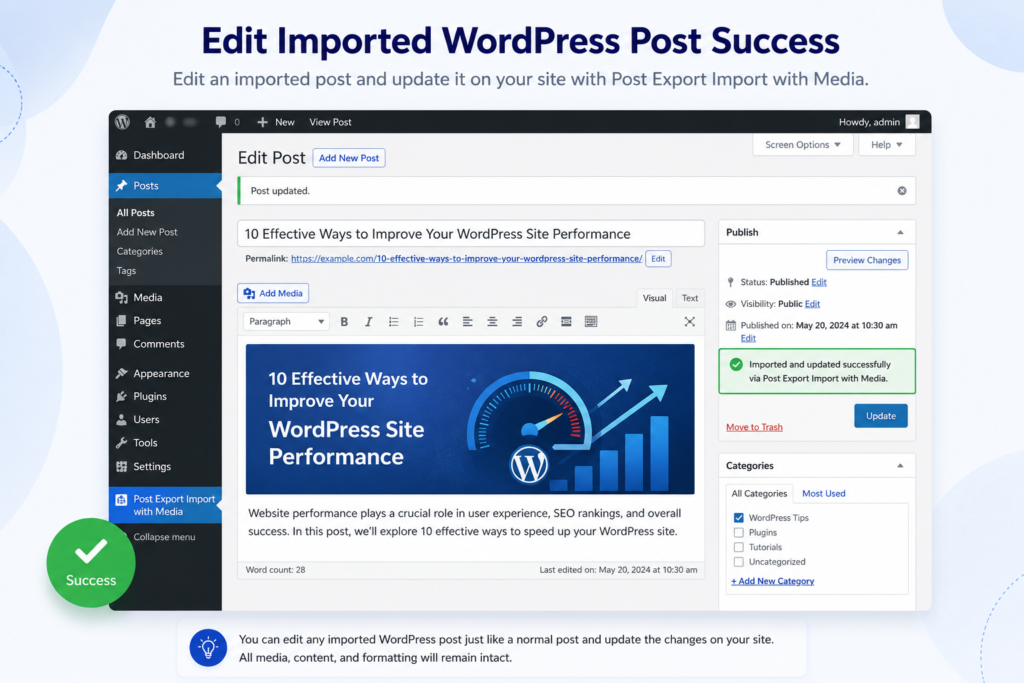
If you just imported a post or page with Post Export Import with Media, you might be wondering how to edit imported WordPress post content – the date, the text, or a category – without breaking anything. This is one of the most common questions we get, and the answer is simpler than it looks: your imported content is already a real, normal WordPress post the moment the import finishes. This guide walks you through exactly where to find it and how to edit it safely, step by step.
What Happens When You Import a Post? #
When you upload a .json file and click Start Import, the plugin doesn’t just keep that file sitting around waiting for you to open it. It reads the file, validates every field, and inserts a genuine post into your WordPress database using the same core function every WordPress post uses: wp_insert_post(). The title, content, publish date, categories, tags, custom fields, and featured image are all written directly into your site. Once you see “Post imported successfully,” that post already lives in Posts (or Pages) exactly like something you typed yourself.
This matters because it means the raw JSON file was only ever a transport format – a way to move the post from one site to another. It was never meant to be opened, edited, or interpreted directly by you. Trying to edit imported WordPress post data by hand-editing that JSON in Notepad is risky: one missing comma or bracket corrupts the structure, and you could end up with a failed re-import or scrambled content.
How to Activate the Import Feature in Post Export Import with Media #
- Go to your WordPress Dashboard → Post Export Import with Media in the sidebar menu. Import is active by default – there’s no separate activation step.
- Scroll to the Import section – click the file selection field and choose your previously exported
.jsonfile from your computer. - Click Start Import – the plugin processes every post inside the file and inserts it into your site as a live WordPress post.
How to Edit an Imported WordPress Post: Step-by-Step Guide #
Step 1: Locate the Imported Post #
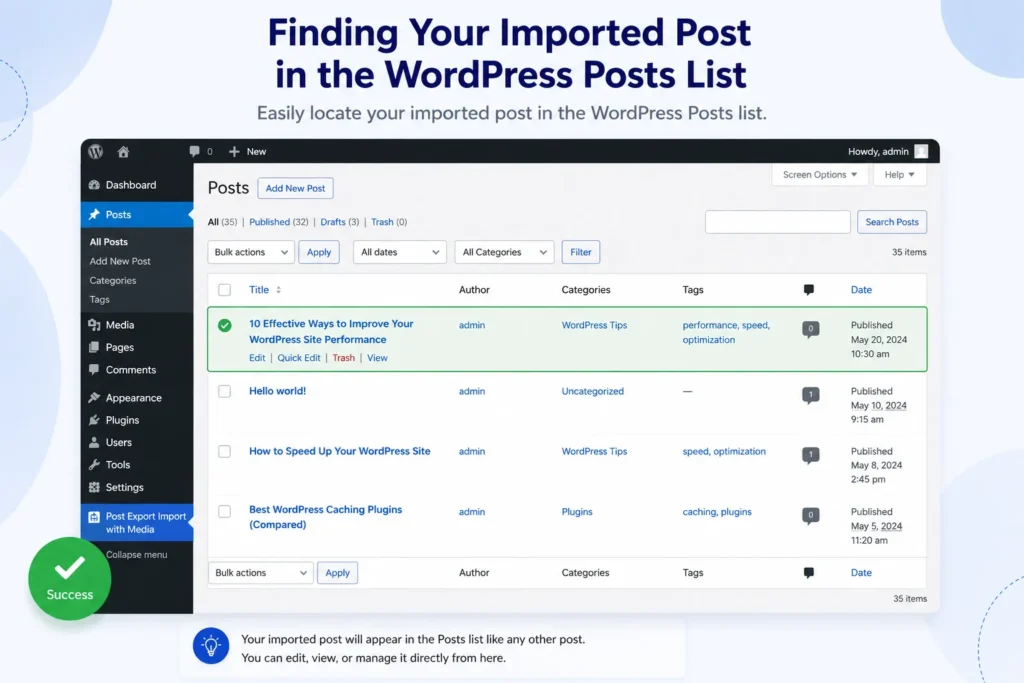
Go to WP Admin → Posts (or Pages, if you imported a page). Your imported item keeps the exact title it had in the export file, so sort the list by Date or use the search box with the title to find it in seconds.
Step 2: Open It in the Gutenberg Editor #
Click the post title. It opens in the exact same block editor you use for any other post – there’s no special “import editor” and no JSON view to navigate.
Step 3: Change the Publish Date #
Open Document settings (gear icon, top right) → Publish → click the date shown → pick the new date → Update. This is the single most common request from users who want to edit imported WordPress post dates after a migration.
Step 4: Edit Content, Categories, Tags, or Featured Image #
Update any block content the same way you would on a normal post. Categories and tags appear in the Document settings panel; the featured image has its own panel just below Publish settings. Click Update when you’re done.
Configuration Options That Affect Editing After Import #
| Setting | What It Does | Default | Recommended |
|---|---|---|---|
| Import Individually | Lets you cherry-pick which posts from a JSON file get imported, instead of importing everything at once | Off | On for large or mixed export files |
| Force Status | Overrides the imported post’s status (publish, draft, private, pending) regardless of what the JSON says | Original | Draft, if you want to review before it goes live |
| Download Missing Images | Attempts to fetch images referenced in content that aren’t already in your media library | Off | On when the source site is still publicly reachable |
Best Practices When You Need to Edit Imported WordPress Post Content #
- Never hand-edit the exported JSON file: use the WordPress editor after import instead – it’s the safe, supported path.
- Set Force Status to Draft if you want to review and edit content before anything goes live to visitors.
- Check for “skipped” posts: if the plugin reports a post was skipped, it usually already exists on the site by slug or title+content match – edit that existing post instead of expecting a new one.
- Fix dates in bulk carefully: if you’re changing dates across many imported posts, do it a few at a time and spot-check the front end.
- Re-check featured images after editing: if you edited content that referenced an image, confirm the featured image and inline images still resolve correctly.
- Test on staging first: before bulk-editing imported production content, verify your edit workflow on a staging clone.
Developer Notes #
Post Export Import with Media inserts posts via wp_insert_post() inside the ajax_import_post() handler (and the page equivalent for pages). Developers extending the plugin can hook into standard WordPress post hooks after import completes:
// Run custom logic right after PEIWM inserts an imported post
add_action( 'save_post', function( $post_id, $post, $update ) {
    if ( $update ) {
        return; // only run on the initial insert from import
    }
    // Your custom logic here - e.g. auto-set a custom date, notify a Slack channel, etc.
}, 10, 3 );
See the save_post hook reference for the full list of available parameters.
Comparison With Alternatives #
Several tools let you move content between WordPress sites, but they handle post-import editing differently:
| Tool | Post-Import Editing |
|---|---|
| Post Export Import with Media | Imports as a real post immediately – edit normally in Gutenberg, no extra steps |
| WordPress Native Export/Import (WXR) | Same principle – content becomes real posts, but media and ACF handling is far more limited |
| WP All Import | Real posts on import, but revisiting field mappings for edits typically requires re-running the import template |
Choose Post Export Import with Media when you want imported content to be immediately and normally editable in the standard WordPress editor, with no separate import-specific editing interface to learn.
Frequently Asked Questions #
How do I edit imported WordPress post content after import? #
Go to Posts or Pages, find the imported item by title, click it to open the Gutenberg editor, make your changes, and click Update – exactly like editing any other post.
Do I need to open the exported JSON file to make changes? #
No. The JSON file is only used to move content between sites during import. Once the import finishes, the post already exists in your database and should be edited through the normal WordPress editor, not the JSON file.
Why does the import say a post was “skipped”? #
A post is skipped when one with the same slug, or the same title and content, already exists on your site. In that case, edit the existing post directly rather than expecting the import to create a duplicate.
Can I change the publish date of an imported post? #
Yes. Open the post, go to Document settings → Publish, click the date, choose a new one, and click Update. This works identically for imported and manually-created posts.
Is it safe to edit an imported post right away? #
Yes. Editing happens through the standard WordPress editor and database, completely separate from the import file. Nothing about editing the post afterward can corrupt the original export file or any other imported content.
Want to learn the full import workflow, including Import Individually mode? See our complete export and import guide and our media export and import guide.
Conclusion #
Learning to edit imported WordPress post content doesn’t require touching a single JSON file. Post Export Import with Media inserts your content as a genuine WordPress post the moment import finishes, so every edit – date, text, categories, images – happens in the familiar Gutenberg editor you already know. Bookmark this guide, and check out our complete import guide for the full workflow.








Leave a Comment
Your email address will not be published. Required fields are marked *