

Imagine receiving an alert that an unfamiliar administrator account has appeared on your WordPress website. You notice unexpected changes, suspicious login activity, or a security warning from your hosting provider. You need to act quickly, but you also need to avoid making the situation worse.
This is where an emergency response plan matters. When a website may be compromised, you need a way to restrict risky access, preserve useful evidence, investigate the incident, and restore normal operations safely.
WordPress emergency lockdown describes the urgent steps used to limit access or reduce the impact of a suspected security incident. Activity Guard by WPAzleen includes an Emergency Shutdown feature that forcefully logs out active WordPress user sessions, helping administrators cut off existing sessions when suspicious activity requires immediate action.
In this guide, you will learn when to consider an emergency lockdown, what the Activity Guard feature does, how to respond to a suspected compromise, and why a lockdown is only one part of a complete recovery plan.
Table of Contents
- What Is WordPress Emergency Lockdown?
- Warning Signs That Require Attention
- How Activity Guard Emergency Shutdown Works
- When Should You Consider a Lockdown?
- What to Do During a WordPress Security Incident
- What Emergency Shutdown Does Not Do
- Activity Guard vs Other Security Tools
- Pricing and Value
- Emergency Response Best Practices
- Frequently Asked Questions
- Final Thoughts
What Is WordPress Emergency Lockdown?
Emergency lockdown is a temporary security response intended to reduce the risk of further unauthorized activity. The exact meaning depends on the tool and the actions an administrator takes.
For one website, lockdown might mean invalidating active login sessions. For another, it could involve blocking suspicious IP addresses, disabling an affected integration, restricting administrative access, or asking the hosting provider to isolate the site.
These actions are not interchangeable. Logging users out can interrupt existing sessions, but it does not automatically remove malicious code, fix a vulnerable plugin, or prevent someone from trying to log in again. Blocking an IP address can restrict a known source, but an attacker may switch addresses.
A good emergency response starts with a clear goal: reduce immediate risk while preserving the information needed to understand and resolve the incident.
Warning Signs That Require Attention
Not every unusual event indicates a successful attack. However, certain signs deserve prompt investigation, particularly when several occur together.
- Unknown administrator accounts: An account appears that nobody on your team recognizes.
- Unexpected login activity: You see unfamiliar sessions, suspicious authentication patterns, or successful logins that cannot be explained.
- Unexplained file changes: Core, plugin or theme files have changed without a known update or deployment.
- Unexpected website behavior: Visitors encounter suspicious redirects, unfamiliar content or browser security warnings.
- Hosting provider alerts: Your provider reports malware, abusive traffic or a possible compromise.
- Unexpected administrative changes: Security settings, user permissions or important website configuration has changed without authorization.
Record what you observed, when it happened and what changed recently. This information can help you distinguish a real incident from a routine update or configuration mistake.
How Activity Guard Emergency Shutdown Works
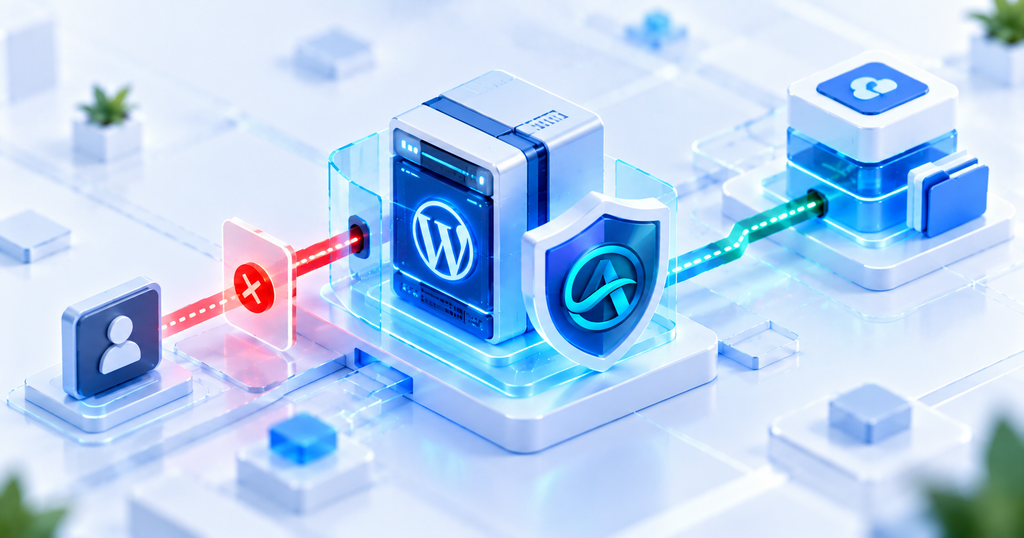
Activity Guard includes an Emergency Shutdown feature designed to force logout every active user session on your WordPress website at once. This can be useful when you suspect that an unauthorized person may have an active authenticated session.
Cut Off Existing Sessions
When an active session is suspected of being compromised, forcing users to log in again can help interrupt access through those sessions. This is particularly relevant when you are responding to suspicious session activity or want to require users to reauthenticate.
Support a Wider Security Response
Emergency Shutdown works alongside Activity Guard’s activity logging, IP based security controls and security scanning. These features support different tasks: session termination interrupts active sessions, IP controls restrict selected sources, and scanning helps investigate potential security weaknesses.
Review Activity and Investigate
After taking an immediate containment step, review the available activity history and other security findings. Look for unfamiliar users, unexpected administrative actions, file changes and other events that may help explain what happened.
Stay Informed Through Notifications
Activity Guard supports real time notifications through Slack, Telegram and email for supported events. These integrations can help administrators and teams stay aware of important activity while investigating an incident.
Review the current documentation and notification settings to confirm which events generate alerts. Do not assume that triggering Emergency Shutdown automatically performs every other containment or recovery action.
When Should You Consider a Lockdown?
A lockdown can be appropriate when you have credible evidence that an account or session may be compromised. Examples include an unknown administrator session, a suspicious successful login followed by unexpected changes, or a security incident that requires immediate restriction of authenticated access.
It may also be useful as part of a coordinated response when your team needs to invalidate active sessions before resetting credentials and reviewing account permissions.
However, a large number of failed login attempts does not necessarily mean an attacker has gained access. In that situation, rate limiting, IP blocking and other targeted protections may be more appropriate than forcing every legitimate user to sign in again.
Consider the business impact before acting. Logging everyone out can interrupt checkout management, content publishing and other active work. For a critical website, make sure the person initiating the action understands the consequences and has a recovery path.
What to Do During a WordPress Security Incident
A useful incident response plan separates immediate containment from investigation and recovery. The exact sequence depends on the evidence and the type of compromise.
Step 1: Record What You Observed
Document the warning signs, timestamps, affected accounts, suspicious URLs and any actions already taken. Preserve relevant logs and alerts where possible. Avoid deleting evidence before you understand what happened.
Step 2: Restrict Risky Access
If a session or account appears compromised, use appropriate containment measures. Activity Guard’s Emergency Shutdown can force logout active WordPress sessions. You may also need to disable a compromised account, block a verified abusive address, or ask your hosting provider to restrict access.
Choose controls based on the incident. Avoid broad restrictions that could unnecessarily affect legitimate users or prevent your response team from accessing the site.
Step 3: Secure Accounts and Credentials
Reset affected passwords from a trusted device, review administrator accounts and remove unauthorized users. If you suspect that authentication tokens or session credentials have been exposed, invalidate the relevant sessions and rotate applicable secrets according to your incident response plan.
Secure the email accounts and hosting accounts associated with WordPress as well. A compromised email account can undermine password recovery, and a compromised hosting account may allow changes outside WordPress.
Step 4: Investigate the Cause
Review activity logs, file integrity findings, vulnerability reports and hosting logs. Look for unknown accounts, unexpected file modifications, outdated components or other indicators that help explain the incident.
If you cannot confidently determine the scope of the compromise, involve your hosting provider or a qualified security professional. A visible symptom may be only one part of a larger incident.
Step 5: Remove the Cause and Recover
Apply trusted security updates, remove unauthorized code, fix the weakness that enabled the incident and restore clean files or backups where necessary. Before restoring a backup, consider whether it predates the compromise and whether the original entry point will remain open.
Test the recovered site and its important functions. For WooCommerce stores, verify checkout, payment integrations, order processing and administrator access before declaring the incident resolved.
Step 6: Monitor After Recovery
Continue reviewing activity logs, file changes, vulnerability findings and unusual access attempts. Update your incident notes with what was fixed and which follow up actions remain.
What Emergency Shutdown Does Not Do
It is important to understand the limits of any emergency control. Activity Guard’s Emergency Shutdown force logs out active WordPress user sessions, but that action alone does not:
- Remove malware or unauthorized code from the website.
- Repair vulnerable WordPress core, plugin or theme software.
- Guarantee that an attacker cannot attempt another login.
- Block all traffic to the website or replace a hosting level firewall.
- Recover lost data or restore a clean backup.
- Secure compromised hosting, email, database or third party accounts automatically.
Think of emergency session termination as one containment measure rather than a complete incident response solution. Use it when it addresses the immediate risk, then continue investigating and fixing the underlying problem.
Activity Guard vs Other WordPress Security Tools
Security products offer different emergency controls. Some focus on session management and activity visibility, while others emphasize firewalls, malware detection or hosting level isolation.
Activity Guard
Activity Guard provides a one click Emergency Shutdown feature that force logs out active WordPress sessions. It also combines activity logging, IP based security controls, vulnerability scanning, file integrity monitoring and notifications. This is useful when administrators want session containment alongside tools for investigating website activity.
Wordfence
Wordfence Security focuses on website protection through an endpoint firewall, malware scanning, login security and security event monitoring. Its capabilities are relevant when your incident response requires investigation of suspicious files, known vulnerabilities or malicious requests. Check the current documentation for the specific session management and containment actions available.
Hosting Provider Security Controls
Your hosting provider may offer controls to restrict public access, isolate a compromised site, inspect server logs or restore a backup. These measures can operate outside WordPress and may be necessary when the incident affects server files, database access or other services beyond the plugin environment.
| Capability | Activity Guard | Wordfence | Hosting provider controls |
|---|---|---|---|
| Force logout of active WordPress sessions | Emergency Shutdown feature | Check current documentation | Depends on the hosting environment |
| Activity logging | Yes | Security event monitoring | Server and access logs may be available |
| IP based restrictions | Supported | Firewall and blocking features | May be available at server or network level |
| File and malware scanning | Security scanning and file integrity features | Dedicated scanner | Depends on the provider |
| Hosting level isolation | Not its primary function | Not a substitute for host isolation | May be available |
| Backup restoration | Not the purpose of Emergency Shutdown | Not the purpose of its firewall or scanner | Depends on the backup service |
These tools are complementary rather than direct replacements for one another. A WordPress plugin can help manage application level security, while hosting controls can address problems at the server or network level. Your incident response plan should account for both where necessary.
Pricing and Value
Emergency response features are most useful when they are available before an incident occurs. Consider how quickly your team can restrict access, inspect activity, investigate suspicious changes and restore service.
Activity Guard includes its Emergency Shutdown feature alongside activity logging, IP based security controls, vulnerability scanning, file integrity monitoring and notification capabilities in its free WordPress plugin. This gives site owners access to several related security and monitoring tools without needing a separate plugin for every task.
Review the WPAzleen pricing page for current plan information. If you are comparing other security tools, check their latest pricing and feature lists, especially for incident response, malware scanning, support and backup services.
The best value comes from a tool that fits your response workflow. A session logout control is useful, but it should be part of a broader plan that covers investigation, remediation and recovery.
Emergency Response Best Practices
- Prepare before an incident. Know who is authorized to initiate emergency actions and how to reach your hosting provider.
- Keep clean backups. Store backups separately and test restoration before you need it.
- Preserve evidence. Record timestamps, alerts, affected accounts and relevant logs before making unnecessary changes.
- Secure every relevant account. WordPress, hosting, email, database and external integration credentials may all need review.
- Use targeted restrictions. Choose controls that address the confirmed risk without unnecessarily blocking legitimate users.
- Investigate the entry point. Removing the visible symptom without fixing the underlying weakness may leave the website exposed.
- Verify recovery. Test important website functions and review monitoring results after remediation.
- Document lessons learned. Update your procedures based on what happened and what would make the next response faster.
Frequently Asked Questions
What does WordPress emergency lockdown mean?
It refers to urgent actions intended to reduce risk during a suspected security incident. Depending on the situation, this may include ending active sessions, restricting access, isolating the site or securing compromised accounts.
Does Activity Guard Emergency Shutdown take the entire website offline?
No. The documented Emergency Shutdown feature force logs out active WordPress user sessions. It should not be confused with taking the public website offline or isolating the server.
Will logging everyone out remove an attacker?
It can invalidate active WordPress sessions, but it does not remove malware, fix vulnerable software or prevent every new login attempt. Secure affected accounts and investigate the underlying cause.
Should I lock down my website after failed login attempts?
Not necessarily. Failed attempts alone do not prove that an account has been compromised. Review the activity and consider targeted controls such as rate limiting and IP blocking. Reserve broader emergency actions for situations where the evidence and potential impact justify them.
What should I do if my WordPress site has been hacked?
Document the symptoms, restrict risky access, secure affected credentials, investigate files and logs, remove the cause, restore clean data where needed, and verify the recovery. Contact your hosting provider or a qualified security professional if you cannot confidently determine the scope of the compromise.
Final Thoughts
A suspected WordPress compromise is stressful, especially when your website supports customers, business operations or revenue. A clear response plan helps you make deliberate decisions instead of reacting blindly.
Activity Guard’s Emergency Shutdown feature gives administrators a way to force logout active WordPress sessions when immediate containment is needed. Combined with activity logs, IP controls, security scanning and file integrity monitoring, it can support a more organized response.
Remember that session termination is only one step. Investigate the cause, secure affected accounts, fix vulnerabilities and verify recovery before considering the incident resolved.
Explore Activity Guard by WPAzleen if you want emergency session controls and broader WordPress activity and security monitoring in one plugin.








Leave a Comment
Your email address will not be published. Required fields are marked *