

Your WordPress website is up to date, your customers can browse normally, and nothing looks suspicious in the dashboard. Then you discover that a plugin you installed months ago has a publicly disclosed security vulnerability.
You did not see a warning. Your website did not suddenly stop working. Yet an outdated component may have created an opportunity for an attacker.
This is why WordPress vulnerability scanning matters. A website can appear perfectly healthy while running software with known security weaknesses. A vulnerability scanner helps identify affected components so administrators can investigate and take appropriate action.
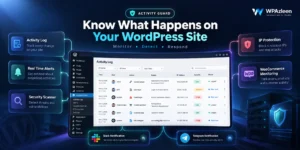
Activity Guard by WPAzleen combines vulnerability scanning with file integrity monitoring, activity logging, IP based security controls and notifications. In this guide, we will explain what a WordPress vulnerability scanner does, how to review findings, and how Activity Guard compares with other security tools.
Table of Contents
- What Is WordPress Vulnerability Scanning?
- Common WordPress Security Risks
- Why Vulnerability Scanning Matters
- How Activity Guard Helps Identify Vulnerabilities
- How to Scan Your WordPress Website
- How to Understand Scan Results
- Activity Guard vs Other Vulnerability Scanners
- Pricing and Value
- Vulnerability Scanning Best Practices
- Frequently Asked Questions
- Final Thoughts
What Is WordPress Vulnerability Scanning?
A WordPress vulnerability scanner checks supported website components for known security weaknesses or other suspicious conditions. Depending on the tool, it may examine WordPress core, installed plugins, themes, software versions, files or configuration settings.
For example, a plugin may contain a publicly documented flaw that allows unauthorized users to perform an action they should not be able to perform. If your website uses an affected version, a scanner that recognizes that vulnerability can alert you to the risk.
Different scanners use different methods. Some compare installed software versions with vulnerability databases. Others inspect files for known malicious patterns, compare files with trusted repository versions or look for insecure configurations.
These approaches are related, but they are not interchangeable. Finding an outdated vulnerable plugin is different from detecting malware that has already been installed. Understanding the type of scan you are running helps you interpret the results correctly.
Common WordPress Security Risks
Vulnerable Plugins
Plugins extend WordPress with forms, ecommerce features, page builders, integrations and other functionality. However, a plugin can introduce a security weakness if its code contains a flaw that affects a particular version.
A scanner can help you identify known issues in installed components, provided its vulnerability information and software detection cover the affected plugin. You can then check the advisory and determine whether an update or another mitigation is required.
Outdated Themes and WordPress Core
WordPress core and themes can also contain vulnerabilities. Running an older version does not automatically mean a site has been compromised, but it may leave known weaknesses unresolved.
Version checks and vulnerability advisories help administrators decide which updates need attention. Updates should be tested appropriately, especially on business critical websites.
Abandoned Software
A plugin or theme that no longer receives maintenance may become increasingly difficult to secure. Even if no known vulnerability is reported today, the absence of ongoing maintenance can create future risk.
Review whether the software is still supported, whether a suitable alternative exists and whether you actually need it. Remove unused components rather than leaving them installed indefinitely.
Misconfigured Security Settings
Some security problems arise from configuration rather than a vulnerable plugin version. Depending on the scanner, findings may include risky settings or other conditions that deserve review. Not every vulnerability scanner checks every configuration, so confirm its scope before relying on it as a complete security audit.
Why Vulnerability Scanning Matters
Website owners often manage updates only when a feature breaks or a new release appears in the dashboard. That approach can leave security issues unnoticed, particularly when a website uses many plugins and themes.
A vulnerability scanner helps make security maintenance more proactive. Instead of relying entirely on memory, you can review findings and prioritize the components that need attention.
- Identify known risks: Find supported software versions associated with reported vulnerabilities.
- Prioritize maintenance: Review the severity, affected versions and available fixes before deciding what to update first.
- Reduce blind spots: Review installed plugins and themes that may not receive frequent attention.
- Support incident investigation: Combine vulnerability findings with file monitoring and activity logs when investigating a possible compromise.
- Improve maintenance routines: Establish a repeatable process for reviewing, fixing and verifying security issues.
Scanning is not a guarantee that a website is safe. A scanner may miss unknown vulnerabilities, unsupported software or issues outside its detection scope. It is one part of a wider security strategy, not a substitute for updates, access controls, backups and incident response.
How Activity Guard Helps Identify Vulnerabilities
Activity Guard combines security scanning with other monitoring and protection capabilities. This gives WordPress administrators a way to consider vulnerability findings alongside file changes, administrative activity and access related security events.
Security and Vulnerability Scanning
Activity Guard includes security scanning and vulnerability checking as part of its broader security feature set. These checks help administrators review potential weaknesses and identify areas that may need attention.
The exact detection coverage depends on the current scanner implementation and version. Review the findings and available documentation to understand which software, vulnerability types and checks are supported. Do not assume that a scanner checks every plugin, theme, configuration or custom code path.
File Integrity Monitoring
A vulnerability scan and a file integrity check answer different questions. Vulnerability scanning helps identify known security weaknesses, while file integrity monitoring helps reveal unexpected changes to monitored files.
Activity Guard includes file integrity monitoring for WordPress core, plugins and themes. If a vulnerability finding appears alongside an unexplained file change, that combination may provide a useful starting point for investigation.
Activity Logs and Notifications
Security findings become more actionable when your team can review relevant website activity. Activity Guard’s logging and notification capabilities help administrators keep track of important events and receive supported alerts through Slack, Telegram and email.
Check the current settings to confirm which scan results generate alerts and which notification channels are available for your installed version. Avoid assuming every finding automatically triggers an alert.
IP Blocking and Login Protection
Finding a vulnerability is only part of the response. Activity Guard also includes IP based security controls and login protection to help restrict unwanted access and reduce certain types of abuse.
These controls do not automatically fix a vulnerable plugin. Update affected software or apply a trusted mitigation as appropriate, and investigate whether the vulnerability has already been exploited.
How to Scan Your WordPress Website
A useful scanning routine starts with understanding your installation and ends with verifying that the identified issues have been addressed.
- Install Activity Guard. Visit the WordPress plugin directory listing and install the plugin.
- Review the security dashboard. Locate the available security scanning and vulnerability checking features in your installed version.
- Run the supported checks. Follow the available scan controls and allow the process to complete.
- Review the findings. Note the affected component, version, issue description and any available remediation guidance.
- Verify the advisory. Check trusted sources for the vulnerability details and the versions known to be affected or fixed.
- Prioritize the work. Consider severity, whether the vulnerability is known to be exploited, the exposure of the affected feature and whether a fix is available.
- Apply the appropriate fix. Update the software, remove an unnecessary component or follow trusted mitigation guidance when an update is not available.
- Scan again. Verify that the original finding is resolved and check for related issues.
- Document the result. Record what was changed and any remaining risk that needs follow up.
For a business website or WooCommerce store, test updates in a staging environment when practical. Confirm that checkout, payment integrations, account access and important workflows still operate correctly before deploying changes to production.
How to Understand Vulnerability Scan Results
A scanner finding is a signal to investigate, not a reason to panic or blindly change your website. Review the information associated with each issue before deciding what to do.
Check the Affected Version
Compare the installed component version with the versions identified in the security advisory. Confirm that the scanner correctly identified the component and that the advisory applies to your installation.
Review Severity and Exploitation Evidence
Severity scores can help communicate potential impact, but they do not tell the whole story. Whether a vulnerability is being actively exploited, whether the affected feature is exposed and whether an update is available can all influence remediation priority.
Apply a Verified Fix
When a patched version is available, update the affected software through a trusted source after taking appropriate precautions. If no fix exists, follow the vendor’s mitigation guidance or consider disabling or removing the affected component when feasible.
Investigate Signs of Compromise
A vulnerable component does not prove that an attacker has exploited it. However, if there are suspicious login events, unexpected file changes or other indicators, investigate whether the website may already be compromised rather than simply updating and assuming the incident is over.
Activity Guard vs Other WordPress Vulnerability Scanners
WordPress security tools differ in how they identify vulnerabilities and what they do after a finding. Some combine vulnerability detection with malware scanning, while others specialize in vulnerability intelligence and protection against known exploits.
Wordfence
Wordfence Security combines a vulnerability scanner with malware scanning, file integrity checks, login security and an endpoint firewall. Its scanner checks for known vulnerabilities in WordPress core, plugins and themes, alongside other suspicious conditions.
Patchstack
Patchstack focuses on WordPress vulnerability detection and protection. Its free plan identifies known vulnerabilities in core, plugins and themes and sends notifications. Paid protection plans add features such as virtual patching that can help mitigate exploitation while users arrange updates.
WPScan
WPScan provides WordPress security scanning and vulnerability intelligence. Its tools and database can help identify known vulnerabilities associated with WordPress core, plugins and themes. The appropriate option depends on whether you need a command line workflow, an API integration or a managed solution.
Activity Guard
Activity Guard combines security scanning and vulnerability checking with file integrity monitoring, activity logs, IP based security controls, login protection and notifications. It may suit administrators who want vulnerability awareness as part of a wider website monitoring workflow.
| Capability | Activity Guard | Wordfence | Patchstack | WPScan |
|---|---|---|---|---|
| Known vulnerability detection | Security and vulnerability checking available | Yes | Yes | Yes |
| Core, plugin and theme vulnerability coverage | Review current scanner scope | Yes | Yes | Yes |
| Malware and suspicious file scanning | Security scanning and file integrity features | Yes | Not its primary malware scanning focus | Vulnerability intelligence is its main focus |
| File integrity monitoring | Yes | Yes | Not its primary focus | Not its primary focus |
| Firewall or exploit mitigation | IP controls and other security features | Endpoint firewall | Virtual patching on supported paid plans | Primarily vulnerability scanning and intelligence |
| Activity logs and notifications | Activity logs, Slack, Telegram and email alerts | Security monitoring and alerts | Email vulnerability alerts and central dashboard | Depends on the selected tool or integration |
| WooCommerce monitoring | Yes | Not its primary focus | Not its primary focus | Not its primary focus |
This is a comparison of product focus and documented capabilities, not a claim that all scanners detect the same issues. Exact coverage, integrations and paid features vary by plan and version. Review each product’s current documentation before making a decision.
Pricing and Value
The right scanner depends on how much security visibility you need and how you plan to respond to findings. A vulnerability database can identify known weaknesses, while a broader security plugin may combine scanning with activity history, file monitoring and access controls.
Activity Guard provides a free WordPress plugin that combines security and vulnerability checking with other monitoring capabilities. This may be useful for site owners who want vulnerability awareness alongside file integrity monitoring, IP controls and WooCommerce activity visibility. Visit the WPAzleen pricing page for current plan details.
Patchstack offers a free vulnerability detection plan, with paid protection available for additional exploit mitigation features. Wordfence also has a free security plugin and paid plans. WPScan offers different options for its scanner and vulnerability intelligence, including a free API allowance for eligible use cases.
Do not compare products by price alone. Consider vulnerability database coverage, detection frequency, remediation guidance, false positive handling, notification options and whether the tool can help you act on the findings. Always verify current prices and plan limits on official product pages.
WordPress Vulnerability Scanning Best Practices
- Scan regularly. Use a schedule that fits your site’s size, exposure and maintenance process.
- Keep components updated. Apply security fixes from trusted sources and remove software you no longer need.
- Prioritize meaningful risk. Consider active exploitation, severity, exposure and fix availability rather than relying on a score alone.
- Verify findings. Confirm the affected software version and review the associated security advisory.
- Test important updates. Use staging where practical, particularly for stores and business critical sites.
- Monitor file changes. Use file integrity monitoring as a complementary way to identify unexpected modifications.
- Secure administrator access. Use unique passwords, multifactor authentication and appropriate account permissions.
- Maintain backups. Keep protected backups and test restoration so you have a recovery path.
- Document remediation. Track which issues were fixed, which remain open and why.
- Investigate possible compromise. If other suspicious indicators appear, follow an incident response process rather than assuming a software update alone resolves the issue.
Frequently Asked Questions
What does a WordPress vulnerability scanner check?
Depending on the tool, it may check software versions against known vulnerability data, inspect files for malicious patterns, compare files with trusted versions or review selected security settings. Check the documented scope of your scanner.
Can a vulnerability scanner remove vulnerabilities automatically?
Not every scanner can. Some only report findings, while other tools support updates, virtual patching or additional mitigations. Follow the recommended fix for the specific issue and verify that the solution applies to your site.
Does a clean scan mean my website is secure?
No. A clean scan means that the tool did not report issues within its detection scope at that time. It cannot guarantee that unknown vulnerabilities, hidden malware or other security problems are absent.
Is vulnerability scanning the same as malware scanning?
No. Vulnerability scanning identifies known weaknesses in software or configurations, while malware scanning looks for malicious files, code or other indicators. Some security products include both.
Does Activity Guard include vulnerability scanning?
Yes. Activity Guard includes security and vulnerability checking alongside file integrity monitoring, activity logging, IP based security controls and notifications. Check the current product documentation for the exact detection coverage and available settings.
Final Thoughts
A WordPress website does not need to show obvious signs of trouble to contain a security weakness. Vulnerable plugins, outdated themes and unsupported software can create risks that are easy to overlook during routine maintenance.
Regular vulnerability scanning helps you identify known issues, prioritize updates and build a more consistent security process. Combine it with file integrity monitoring, access controls, activity logs and tested backups for a more complete approach.
Activity Guard by WPAzleen brings vulnerability checking together with file integrity monitoring, IP controls, login protection, activity logging and notifications. If you want security visibility and website monitoring within one WordPress plugin, explore Activity Guard.








Leave a Comment
Your email address will not be published. Required fields are marked *