
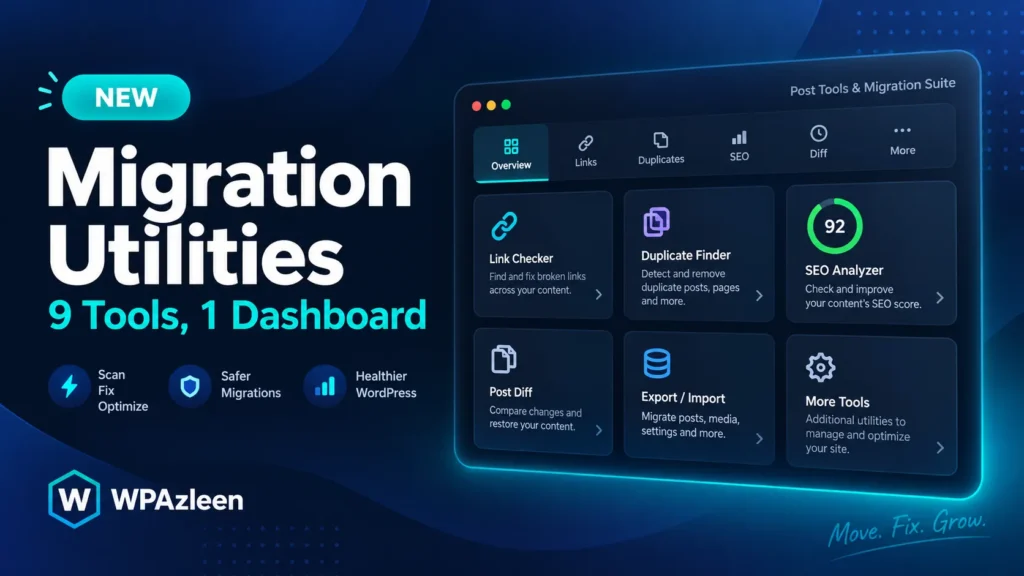
Ever moved a WordPress site and spent the next three weeks finding broken links, missing images, and duplicate posts you didn’t even know existed? That’s exactly the gap the new WordPress Migration Utilities suite inside Post Export Import with Media (PEIWM) was built to close. Instead of stitching together five different plugins and a handful of SQL queries, you now get one connected toolkit that finds, fixes, compares, recovers, and optimizes your content after any import, migration, or domain change.
In this guide, we’ll walk through every tab inside the Migration Utilities menu, explain what each tool does, and show you where the two companion menus, Media Health & Audit and Media Title & ALT Editor, fit into the bigger picture.
What Is the Migration Utilities Suite?
The Migration Utilities suite is a dedicated admin area, Post Export & Import → Migration Utilities, that bundles nine post-migration tools into one tabbed interface. Rather than treating export and import as a one-time event, PEIWM treats the days and weeks after a migration as part of the job. Old domains still hiding in your content, posts that got duplicated during a retry, missing featured images, orphaned content with no internal links, and SEO metadata that didn’t survive the move, all of it gets a dedicated tab.
Two more tools live just outside this suite in their own menus: Media Health & Audit and Media Title & ALT Editor. Together with the nine Migration Utilities tabs, that brings the full toolkit to eleven tools, all aimed at the same goal: a clean, healthy, fully optimized site after import.
The 9 Tabs Inside WordPress Migration Utilities
Here’s a tab-by-tab breakdown of what each part of the WordPress migration utilities suite actually does.
1. Internal Links — Domain & URL Replacer
After any migration, your content is full of links pointing at the old domain or a staging URL. The Internal Links tab scans posts and pages for those old references, shows you highlighted snippet matches, and lets you replace them one by one or all at once, including inside serialized postmeta and ACF fields.
2. Find & Replace — Content, Excerpts & Meta
This is the deep-cleaning tool for anything the Internal Links scanner doesn’t cover. Search across titles, content, excerpts, and custom fields, with regex and case-sensitive matching. A dry-run preview shows a red-and-green before/after diff so nothing gets changed blind.
3. Compare Posts — Side-by-Side Inspector
Pick two posts, by title search or ID, and see every field lined up next to each other: metadata, taxonomies, content, and custom fields. It’s the fastest way to confirm whether an imported post actually matches its source, or to compare two versions surfaced by the Duplicates tab.
4. Health & Cleanup — Site-Wide Diagnostic Scan
Run a full health check across posts and pages to surface uncategorized content, missing tags, duplicate slugs that cause redirect loops, and broken images. One-click repair actions handle default category assignment, slug deduplication, and stripping broken `<img>` tags.
5. Missing Media — Featured Image Finder
Migrations are notorious for dropping featured images. This tab scans your chosen post types, flags every post with no thumbnail, and can automatically promote the first inline image, or download a hotlinked external image straight into your media library, as the new featured image.
6. Duplicates — Cluster Detector & Resolver
Failed imports and repeated retries almost always create duplicate posts. This tool groups them into clusters by exact title, exact slug, or content hash, tags the oldest post as the original, and offers one-click “Keep Oldest & Trash Rest” or “Keep Newest & Trash Rest” cleanup.
7. Orphaned Posts — Broken Relationship Finder
Some content survives a migration technically intact but loses its connections: no category, a parent page that no longer exists, or an author account that was never re-created. The Orphaned Posts tab flags all three conditions and gives you quick actions to reconnect or reset them.
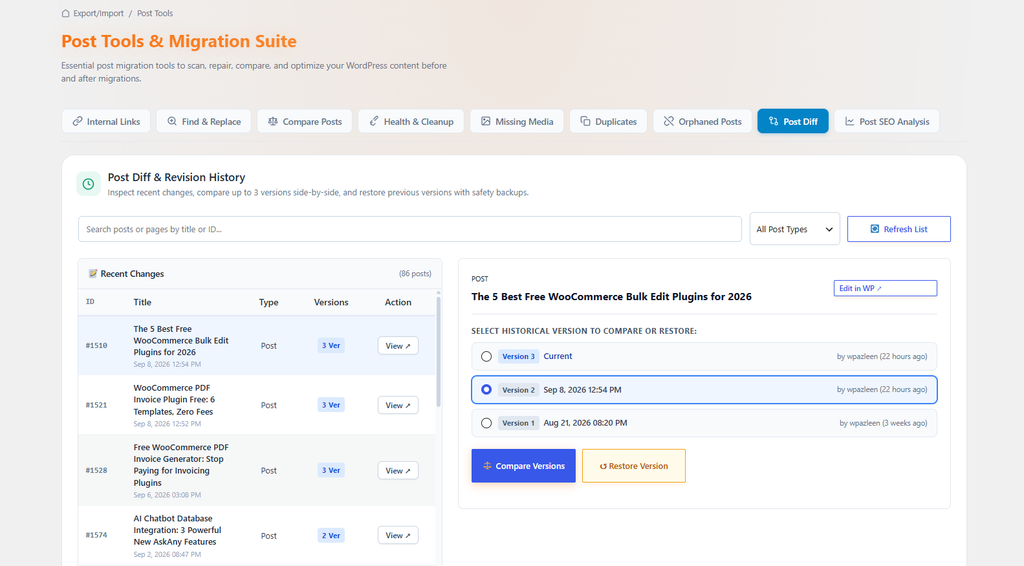
8. Post Diff — Revision History & Restore
Search any post, browse its historical versions, compare up to three side by side, and restore an earlier version if something got overwritten during import or editing. It’s your safety net for the “wait, that content used to say something different” moment.
9. Post SEO Analysis — Migration Intelligence
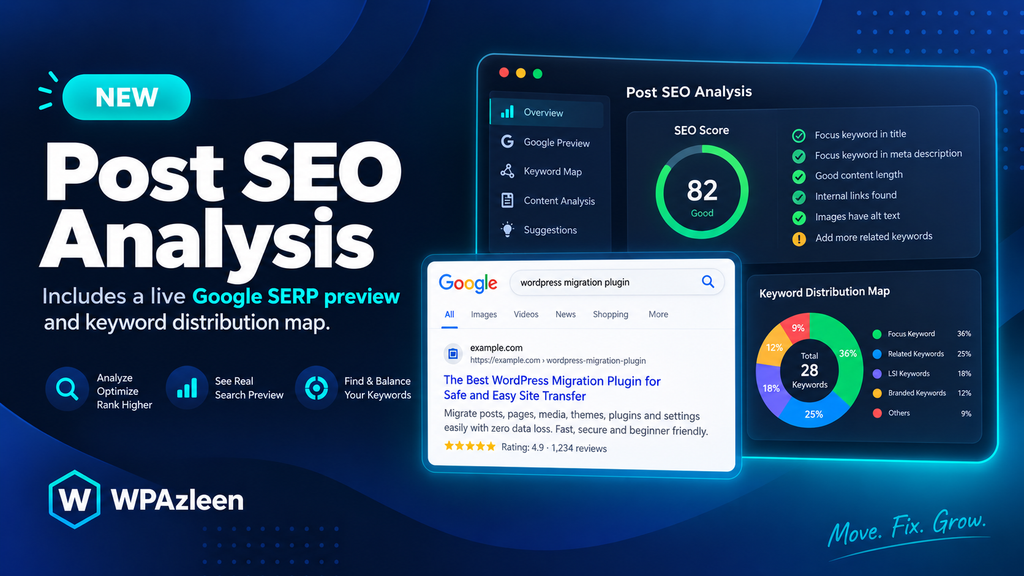
The final tab audits SEO health across your entire imported library. It reads focus keywords, titles, descriptions, and canonicals from Rank Math, Yoast, AIOSEO, SEOPress, The SEO Framework, or core WordPress fields, then reports an SEO score per post, flags keyword cannibalization across posts, and includes a live Google SERP preview with pixel-width title and description meters. A keyword distribution map shows exactly where your focus keyword appears, in the title, meta description, URL, intro, subheadings, body, and image alt text, and a side-by-side SEO diff compares any two posts’ metrics directly.
Two More Tools Outside the Tab Bar
Not every migration tool lives inside the tabbed suite. Two additional tools sit in their own top-level menus because they’re used often enough to deserve direct access:
- Media Health & Audit — a dedicated scan of your entire media library for orphaned attachments, missing files, oversized images, and unused uploads left behind by a migration.
- Media Title & ALT Editor — a bulk editor for image titles, alt text, captions, and descriptions across your whole library, useful for accessibility and image SEO after a large import.
Combined with the nine Migration Utilities tabs, that’s 11 tools covering every stage of a WordPress migration cleanup, from broken links to bulk alt text.
How the Suite Works as a Workflow
Used in order, the nine tabs form a logical post-migration recovery path:
- Fix old domains and staging links with Internal Links.
- Clean up remaining text, URLs, and metadata with Find & Replace.
- Run a structural check with Health & Cleanup.
- Restore lost thumbnails with Missing Media.
- Remove accidental copies with Duplicates.
- Reconnect broken relationships with Orphaned Posts.
- Investigate specific content questions with Compare Posts.
- Recover overwritten content with Post Diff.
- Finish with a full Post SEO Analysis to confirm the migrated site is search-ready.
The best part is that these tools talk to each other. A duplicate cluster links straight into Compare Posts. Compare Posts and Post Diff share the same diff engine. And once your SEO Analysis flags a change worth investigating, you can jump straight into Post Diff to see exactly when and why a metric shifted, all without leaving the plugin. If your team follows a broader content audit process, tools like Google Search Console and the official WordPress Plugin Developer Handbook are useful companions for verifying migration results externally.
Why This Matters for Every Migrated Site
Most migration plugins stop the moment the import finishes. That’s exactly when the real problems start showing up: 404s from old links, duplicate content diluting rankings, orphaned pages search engines can’t find, and SEO metadata that silently didn’t transfer. WordPress migration utilities like this suite exist specifically for that post-import window, when the site looks done but hasn’t actually been verified.
For agencies handling client migrations, this also means fewer support tickets weeks later about “why is this page 404ing” or “why did our rankings drop after the move.” Running the full nine-tab workflow once, right after import, catches almost all of it up front.
Pro Tips for Getting the Most Out of Migration Utilities
- Always run Health & Cleanup before Duplicates, fixing broken images first makes duplicate content hashes more reliable.
- Use the dry-run preview in Find & Replace every time, even for “safe” replacements, serialized ACF data can be unforgiving.
- Run Post SEO Analysis last, after links, duplicates, and media are fixed, so the SEO scores reflect the final state of your content, not the messy in-between.
- Check the docs for a full walkthrough of the keyword distribution map.
Frequently Asked Questions
Where do I find WordPress Migration Utilities?
Go to Post Export & Import → Migration Utilities inside your WordPress admin. All nine tabs live in one tabbed interface with instant tab-state persistence, so switching tabs never loses your place.
Do I need an SEO plugin for the Post SEO Analysis tab to work?
No. It reads metadata from Rank Math, Yoast, AIOSEO, SEOPress, The SEO Framework, or falls back to core WordPress fields, so it works on every site regardless of which SEO plugin you use.
Are Media Health & Audit and Media Title & ALT Editor part of the same menu?
No, they’re separate top-level menus outside the Migration Utilities tab bar, but they’re designed to work as part of the same post-migration cleanup process.
Can I undo changes made by these tools?
Destructive actions like trashing duplicates or orphans send posts to the WordPress Trash rather than deleting permanently, and Post Diff lets you restore earlier content versions if something was changed by mistake.
Conclusion
WordPress migration utilities used to mean a pile of separate plugins, manual SQL, and a lot of guesswork about what actually broke during a move. With this nine-tab suite, plus Media Health & Audit and Media Title & ALT Editor sitting right alongside it, Post Export Import with Media turns that guesswork into a repeatable, one-plugin workflow. Fix your links, clean your duplicates, restore your media, and finish with a full SEO audit, all without leaving your WordPress dashboard. In the next posts in this series, we’ll go tab by tab into deeper walkthroughs, starting with Internal Links and Find & Replace.







Leave a Comment
Your email address will not be published. Required fields are marked *