
Imagine opening your WordPress website one morning and discovering that an administrator account has changed, a plugin looks unfamiliar, or a page is redirecting visitors somewhere unexpected.
You did not make those changes. Your team says the same thing. Now you need to figure out what happened, whether the website is still safe, and what to do next.
This is exactly the kind of situation where WordPress security monitoring becomes valuable. Instead of depending entirely on manual checks, you can monitor important activity, receive alerts about relevant events, and investigate suspicious changes with better context.
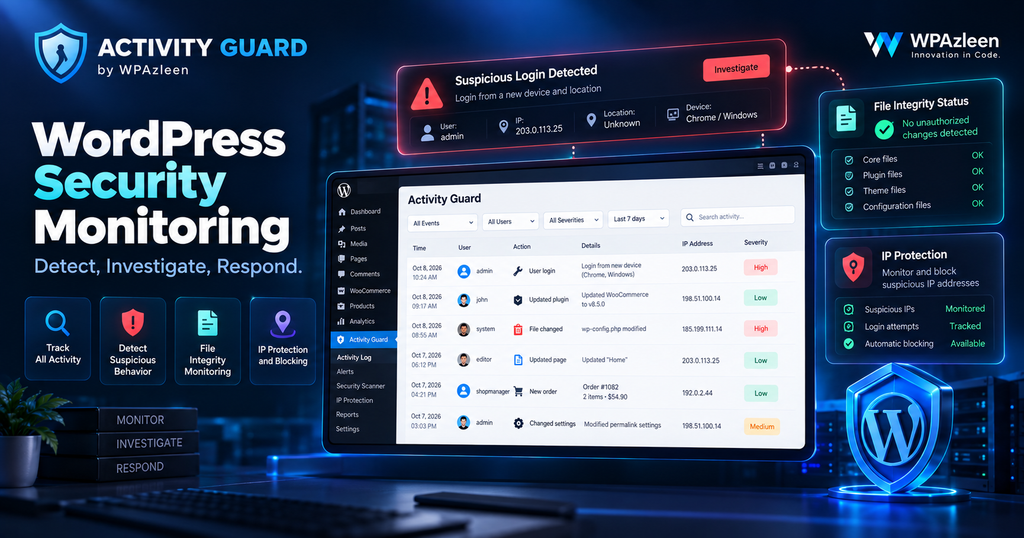
Activity Guard by WPAzleen brings activity logging, security monitoring, notifications and protective controls together in one WordPress plugin. It helps website owners build a more informed response to potential security problems.
Table of Contents
What Is WordPress Security Monitoring?
WordPress security monitoring means keeping watch over important website activity and security conditions so you can identify potential problems and investigate them.
Depending on the tools you use, monitoring may include login attempts, administrator activity, plugin and theme changes, suspicious requests, file modifications, malware scanning and website availability.
These activities serve different purposes. An activity log records events. Security alerts bring selected events to your attention. A scanner checks for known or suspicious issues. Protective controls help restrict unwanted access.
A good monitoring workflow connects these capabilities without treating them as interchangeable. An alert is not proof that a website has been compromised, and a clean scan does not guarantee that every threat has been detected.
Why WordPress security monitoring Matters for WP Websites
WordPress websites often change throughout the day. Administrators install plugins, editors publish content, developers update code, and customers interact with online stores.
Most of these activities are completely normal. The challenge is identifying the activity that deserves attention.
Consider three everyday situations:
- An unexpected login: An administrator account is accessed at a time when nobody on the team expects to be working.
- An unfamiliar file change: A monitored WordPress file changes even though no planned deployment has taken place.
- A sudden website problem: A critical page stops working after a configuration or plugin change.
Each situation requires investigation, but the next step is different. A login event needs context about the account and access attempt. A file change needs verification. A website failure may require reviewing logs and recent changes.
Security monitoring gives you a more organized starting point. It cannot eliminate every threat, but it can reduce dependence on guesswork and help you respond more deliberately.
What Should You Monitor on a WordPress Website?
1. Login Attempts and User Activity
Login activity can provide useful clues when investigating suspicious access. Monitor supported login events, failed attempts and important actions performed by users with elevated permissions.
Repeated failed attempts may indicate automated password guessing, although legitimate users can also mistype passwords. Investigate patterns and apply appropriate login protection rather than assuming every failed attempt is malicious.
2. Plugin and Theme Changes
Plugins and themes are essential to many WordPress websites, but changes to them can affect functionality and security.
Monitoring plugin and theme activity helps you investigate unexpected installations, updates, activations and other relevant changes. Keeping a record of planned deployments also makes it easier to distinguish routine maintenance from unfamiliar activity.
3. File Integrity and Security Scanner Results
Unexpected file modifications deserve attention, particularly when they involve important WordPress core, plugin or theme files.
File integrity monitoring can help identify changes that need investigation. A security scanner can provide another layer of visibility by checking files for known malware patterns or other suspicious indicators supported by its scanning engine.
Not every file change is malicious. Updates, configuration changes and legitimate development work can also modify files. Always investigate the context before removing or restoring anything.
4. Suspicious Requests and IP Addresses
Repeated requests for missing pages, suspicious HTTP requests and unusual access patterns may help identify activity worth reviewing.
IP blocking can help restrict unwanted traffic when you have sufficient reason to block an address. However, IP addresses can be shared, changed or associated with legitimate users, so blocking rules should be applied carefully.
5. Website Availability and System Errors
Security is not only about preventing unauthorized access. Unexpected errors and downtime can also affect your business and may sometimes be associated with a configuration issue or security incident.
Monitoring uptime, relevant PHP errors and important system changes helps you investigate operational problems alongside security events.
How Activity Guard Helps Monitor WordPress Security
Activity Guard combines activity visibility with a collection of security and notification features. Instead of relying on an isolated activity history, you can connect monitoring with controls designed to help protect your website.
Activity Logging and Real Time Alerts
Review logged events and configure supported notifications so important activity can reach you through channels such as Slack, Telegram and email. This helps reduce the need to check your WordPress dashboard constantly.
IP Blocking and Login Protection
Activity Guard includes IP blocking and login protection capabilities. These tools can help restrict unwanted access when configured appropriately for your website and its users.
CAPTCHA and Anti Bot Protection
CAPTCHA protection can add a challenge to supported forms and entry points to make automated abuse more difficult. Activity Guard supports Cloudflare Turnstile and additional CAPTCHA options for supported integrations.
File Integrity Monitoring and Security Scanning
Activity Guard includes file integrity monitoring and a security scanning system. These features help you inspect file changes and look for supported security indicators that warrant further investigation.
Emergency Shutdown Controls
For situations requiring a stronger response, Activity Guard offers emergency lockdown capabilities. Its emergency mode can restrict access according to its configured rules while preserving access for designated super administrators.
This is a powerful control that should be configured and tested carefully. Before enabling emergency restrictions on a production website, understand which users will retain access and how normal operation will be restored.
From Suspicious Activity to Action
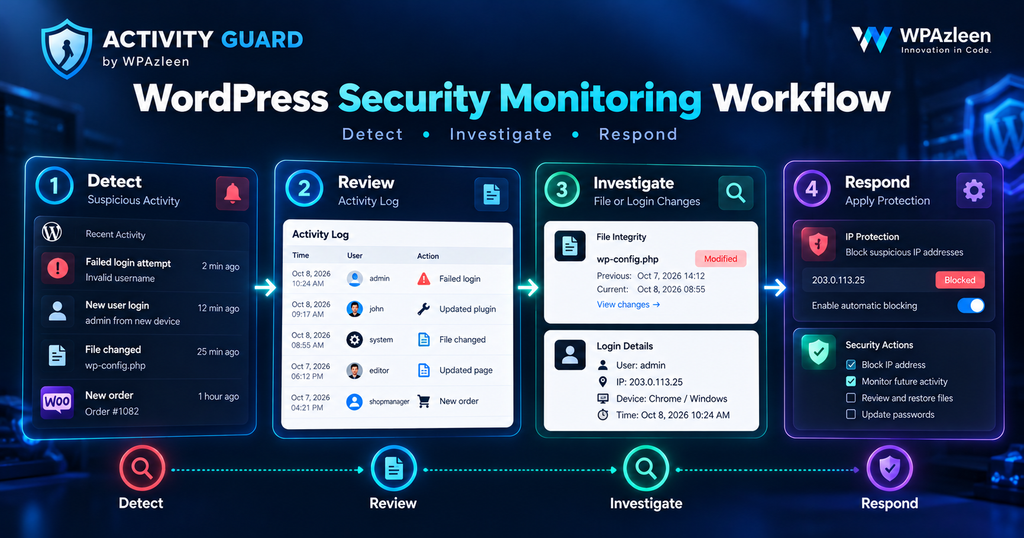
Imagine your team receives a notification about an unexpected administrator login. Here is a sensible workflow for investigating the event.
- Review the event. Check the account, timestamp and available details. Compare them with planned work and known user activity.
- Investigate related changes. Review the activity history for other unusual events around the same time.
- Verify the account. Contact the account owner through a trusted channel if the login is unfamiliar.
- Restrict access when justified. If you have evidence of unauthorized access, use appropriate account, session or IP protection controls.
- Inspect the website. Review relevant files, scan results and configuration changes for additional signs of compromise.
- Recover and document. If a compromise is confirmed, follow an incident response process, restore trusted files or backups when appropriate, and record the actions taken.
The goal is to move from detection to a reasoned response. A notification helps you notice a possible issue, but investigation is what determines the appropriate action.
How to Get Started with Activity Guard
- Install Activity Guard from the WordPress plugin directory.
- Open the plugin dashboard and review the available activity and security settings.
- Configure the monitoring options relevant to your website, including login activity and important system changes.
- Connect Slack, Telegram or email notifications where supported and appropriate.
- Review file integrity and security scanning options and establish a baseline for legitimate changes.
- Configure protective controls such as IP blocking and CAPTCHA according to your security requirements.
- Test the notification workflow and document how your team should respond to important alerts.
Start with a manageable set of important events. Once your team understands the alerts and response process, refine the configuration to improve coverage without creating unnecessary noise.
Activity Guard vs Other WordPress Security Plugins
Security plugins have different strengths. Comparing them by their main purpose is more useful than assuming every product offers identical protection.
Wordfence focuses on layered security, including an endpoint firewall, malware scanning, login protection and traffic monitoring. Its Premium offering adds features such as real time firewall rule and malware signature updates, a real time IP blocklist and a security audit log. You can review the current feature list on the official Wordfence Premium page.
Activity Guard combines activity logging and notification delivery with security controls such as IP blocking, CAPTCHA protection, file integrity monitoring, security scanning and emergency lockdown. It also includes WooCommerce monitoring, which is useful when store activity needs to be considered alongside site security.
| Capability | Activity Guard | Wordfence |
|---|---|---|
| Activity logging | Yes | Security audit log available in Premium |
| Slack notifications | Supported | Available through Wordfence Central notification options |
| Telegram notifications | Supported | Not a core listed notification channel |
| Endpoint web application firewall | Not positioned as its primary feature | Yes |
| Malware scanning | Security scanner available | Dedicated malware scanner |
| IP blocking | Yes | Yes |
| CAPTCHA protection | Yes | Login CAPTCHA available |
| File integrity monitoring | Yes | File integrity checks included |
| WooCommerce monitoring and analytics | Yes | Not its primary focus |
| Emergency shutdown controls | Yes | Not its primary focus |
This is a feature scope comparison, not a claim that the products provide equivalent protection in every category. Wordfence is worth evaluating if you specifically need a dedicated firewall and mature malware scanning. Activity Guard is worth evaluating if you want activity visibility, notifications, security controls and WooCommerce monitoring in one plugin.
Security Monitoring and Pricing
The cheapest plugin is not automatically the best value. What matters is the combination of capabilities your website actually needs.
Activity Guard has a free version, and its broader feature set includes activity logging, Slack notifications and security monitoring capabilities. Its paid plans add further functionality, depending on the selected plan.
Wordfence also has a free version, while Wordfence Premium is listed at $149 per year per site. Premium is designed for customers who need its additional threat intelligence updates, IP blocklist and other paid features.
If your main requirement is an endpoint firewall and a dedicated malware scanner, compare the protection and update policies of the available security products carefully. If you also need activity notifications, WooCommerce monitoring and emergency controls, consider how many separate tools you would otherwise need.
Review the latest Activity Guard pricing before purchasing so you can confirm which features are included in each plan.
Best Practices for WordPress Security
- Keep WordPress core, plugins and themes updated.
- Use strong passwords and two factor authentication where appropriate.
- Give users only the permissions they need.
- Maintain tested backups outside the production website.
- Monitor important changes and investigate unexpected activity.
- Use security scanning and file integrity checks as complementary controls.
- Protect notification credentials and restrict access to security settings.
- Test emergency procedures before relying on them during an incident.
- Review alerts regularly and tune settings to avoid notification fatigue.
Final Thoughts
Effective WordPress security monitoring is about more than installing a plugin and hoping for the best. It means knowing which events matter, receiving useful alerts, investigating suspicious changes and having a response plan ready.
Activity Guard by WPAzleen brings activity logs, notifications, security scanning, file integrity monitoring, IP blocking and WooCommerce monitoring together in one workflow.
No single plugin can guarantee complete protection. The right monitoring setup works alongside software updates, access controls, backups and a clear incident response process.
If you want better visibility into your WordPress website and a practical starting point for monitoring its activity, explore Activity Guard.








Leave a Comment
Your email address will not be published. Required fields are marked *